
Collaborate with other Kibi teams
Updated Reading time: 6 min
On this page
- What you can do with a connection
- Who can do what
- Connecting organizations
- 1. Invite
- 2. Accept
- 3. Confirm
- Managing the connection
- Chatting and calling
- Collaborating in shared groups
- Inviting a person
- Recognizing shared groups
- What is available in the group
- Converting a chat group into a group
- Kai
- Where the data is stored
- What happens if …
- Common messages
- Not yet possible
Are you working with a supplier, partner company, or sister company that also uses Kibi? Then you can connect your organizations in the Kibi Network. Your employees can then chat directly with each other, start voice and video calls, and work together in shared groups, with each person using their own platform.
No one needs a second account, a guest invitation, or to switch to the other organization.
What you can do with a connection#
Chat: One-on-one and group chats with people from other Kibi teams, even with more than two organizations, directly in your chat list.
Calls: Voice and video calls with people from connected teams.
Shared groups: Individual people from another team work in one of your groups, for example on posts, files, appointments, tasks, and notes.
Notifications: Everything arrives on your own platform. Your own notification settings, working hours, devices, and language apply.
Who can do what#
You set the levels in the role editor under External Collaboration.
Chat: Chat and call with people from other Kibi teams. Default for employees.
Chat and share groups: Additionally, invite people from other Kibi teams to groups that the person manages. Default for employees.
Administer: Additionally, invite, accept, and end connections to other Kibi teams. Default for system admins.
Info
Guests cannot collaborate with other Kibi teams. Additionally, your email address must be confirmed.
Connecting organizations#
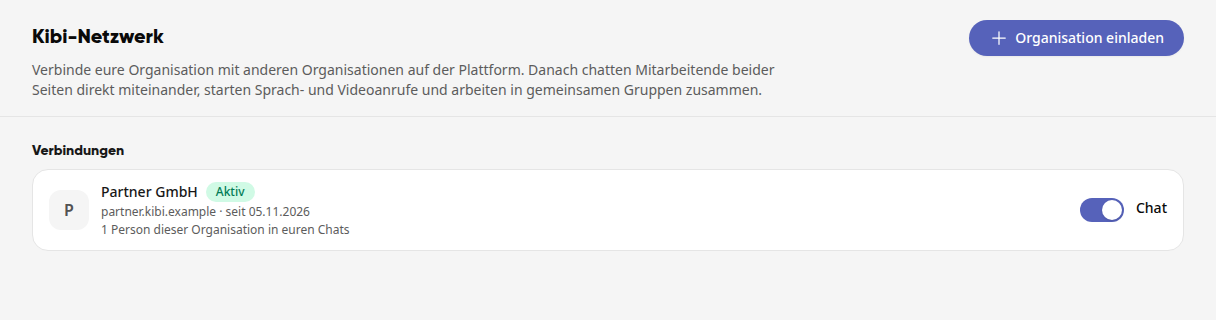
A connection requires three steps: invite, accept, confirm. You can find everything under Administration → Integrations → Kibi Network.
1. Invite#
Click on Invite Organization.
Enter the email address of a person who is a Kibi admin in the other organization.
Click on Send Invitation.
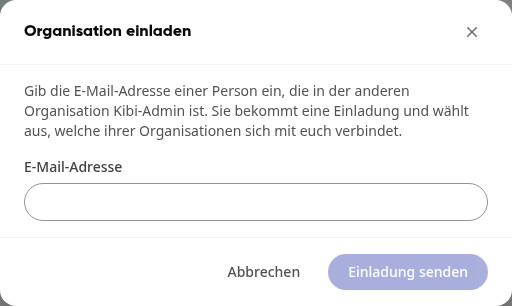
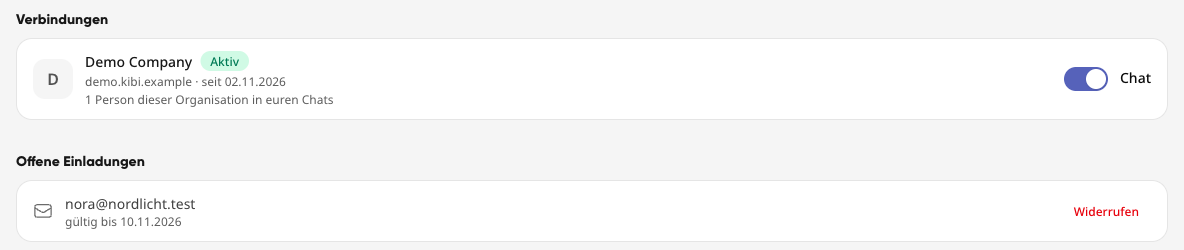
The person receives an email and a notification on the platform. The invitation is valid for 7 days. Until then, you can revoke it under Pending Invitations.
Info
There is no search for organizations and no invitation link. If an address cannot be invited, the message deliberately does not specify a reason. This prevents anyone from finding out who is a Kibi admin somewhere. In such cases, check whether the person is actually a Kibi admin in their Kibi team and whether they have confirmed their email address there, for example by logging in via an email link.
2. Accept#
The invited person opens the Invitations to You section in the organization they want to connect. It also shows who sent the invitation. They select Accept or Decline.

3. Confirm#
After acceptance, the request appears under Pending Confirmation for the inviting organization. Clicking Confirm establishes the connection. Only now can people from both sides collaborate.

Managing the connection#
Click on a connection in the list to see details, contacts, and shared groups. Each side manages its own settings:
Chat: Enable or disable chats and calls with this organization.
Share groups: Allow inviting to groups in both directions.
Disconnect: End collaboration completely. Either side can do this at any time.
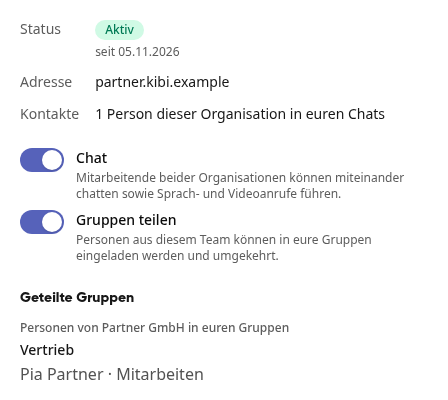
Both toggles are enabled for a new connection. For something to work, it must be enabled on both sides.
Employees can block an organization or individual people for themselves. Under Blocked Organizations, you only see how often this happens. Who blocked whom remains confidential.
Chatting and calling#
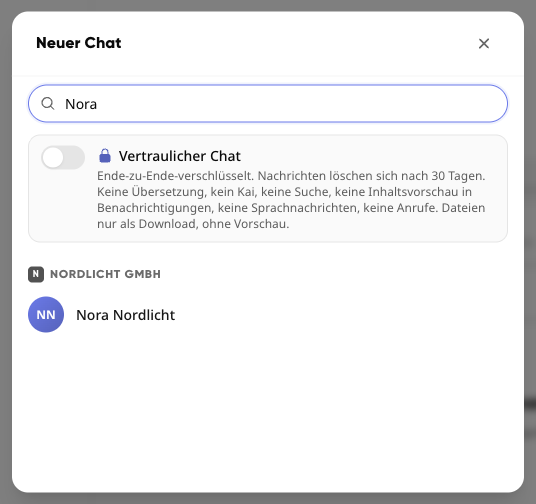
In the chat, click the symbol for new conversations next to the search at the top and select New Chat.
Search for the person. People from other Kibi teams appear from 3 characters, under the name of their organization.
Select the person and write your message. They receive a chat request.
The person selects Accept, Decline, or Block.
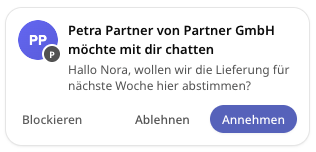
Until acceptance, you can write up to three messages, but cannot make calls yet. You can recognize people from other teams by the badge on their profile picture and the name of their team.
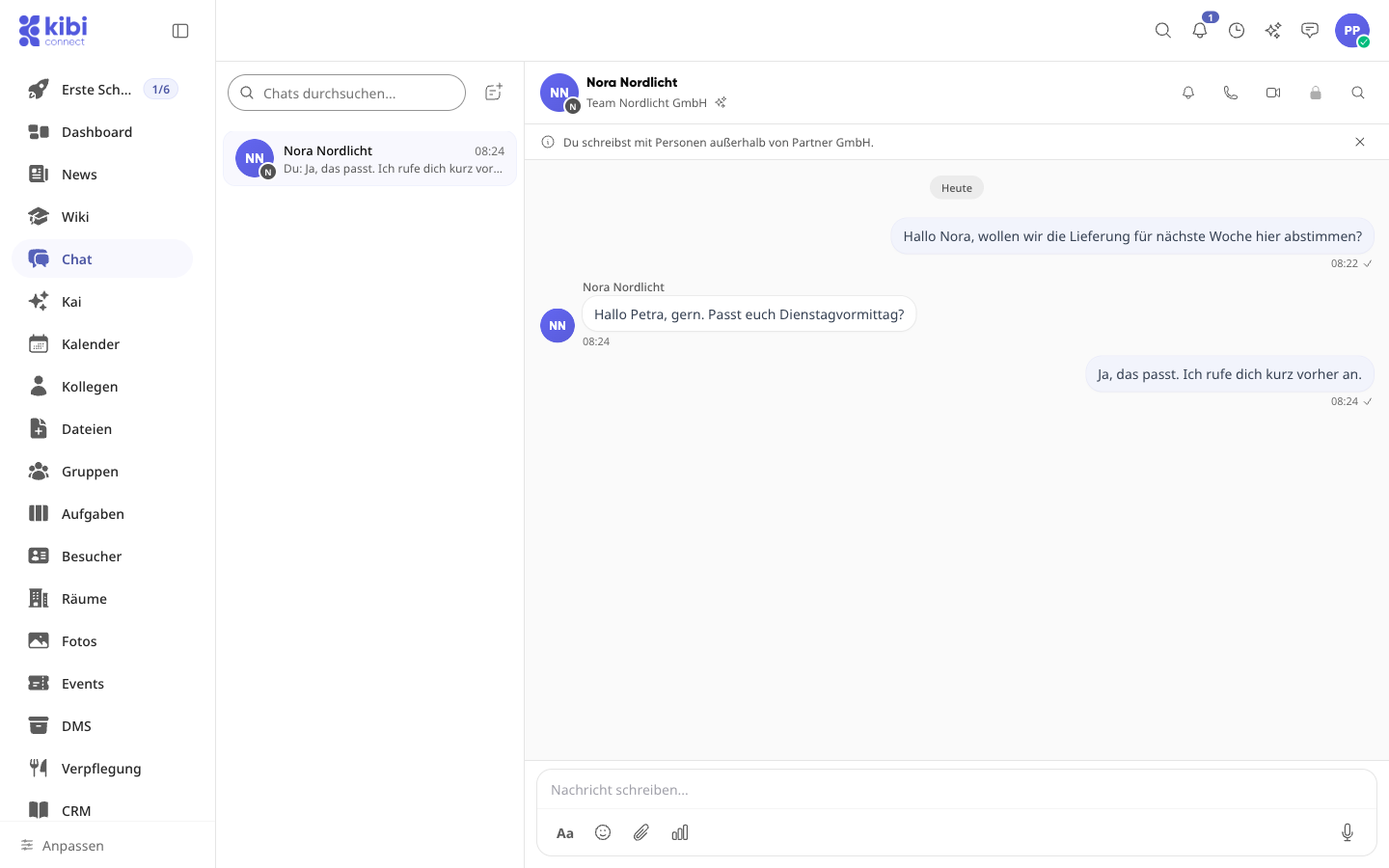
Confidential, encrypted chats are not possible with people from other teams. In chats hosted by another team, translation, reminders, forwarding, sharing, Kai in chat, conversation logs, and group settings are also not available.
Collaborating in shared groups#
Inviting a person#
Open the group you manage and go to the Members tab.
Click on Add Member.
Under Role, select the level Collaborate or Read.
Search for the person under Members. People from other Kibi teams appear from 3 characters, under the name of their team.
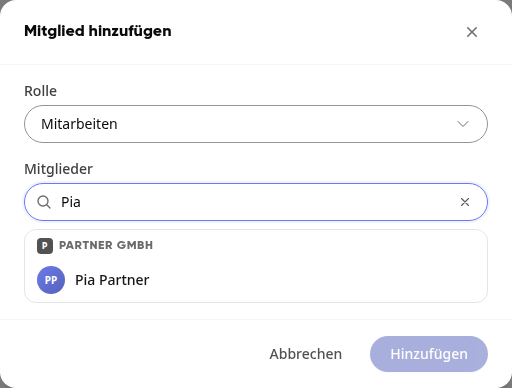
Select the person and click Add.
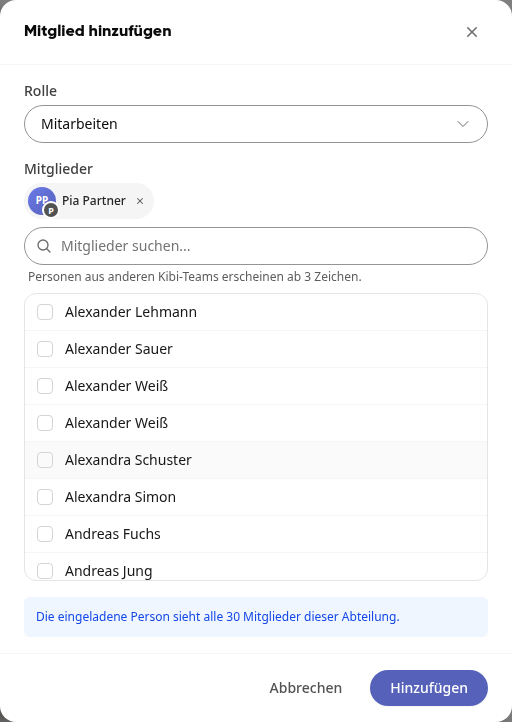
You can also select people from your own team in the same dialog. If you choose the Admin role, people from other teams will be added with Collaborate, as Admin only exists in your own team.
The person sees the invitation in their group overview and can Join or Decline. The invitation is valid for 30 days.
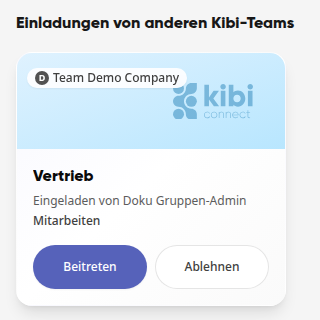
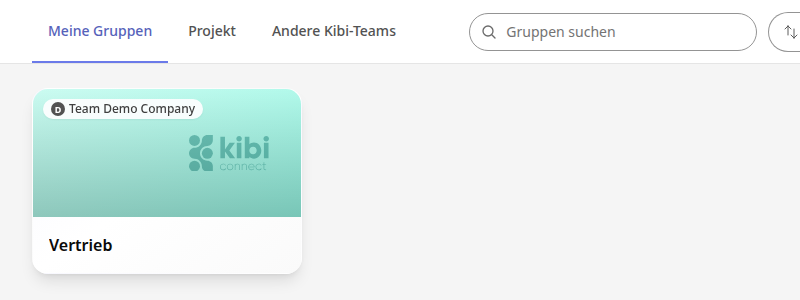
After joining, the group opens. The person then finds it in their group overview, also under the Other Kibi Teams tab, with the name of the team it belongs to.
Recognizing shared groups#
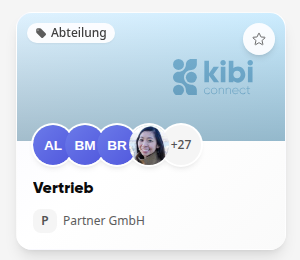
In the group overview and at the top of the group, you see the logo and name of the other teams the group is shared with.

Here’s what a person can do at each level:
Collaborate: View, create, and edit group content, as well as write in the group chat.
Read: View content and read the group chat, participate in calls, but cannot make changes.
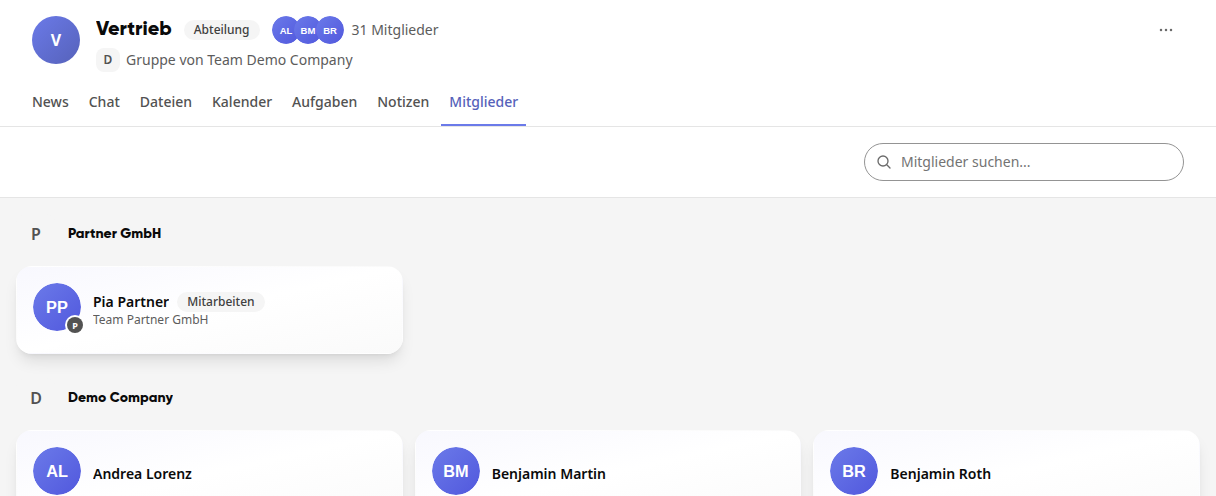
In the Members tab, people are listed by team. You can also recognize people from other teams by the badge and the name of their team. They can never become an admin of a group and can leave a shared group at any time.

People from other teams can also see the Members tab. For them, their own team is listed at the top, and the group header shows which team the group belongs to.
Warning
Invited people can see the members of the group. If the group is linked to a department or location, these are all members of that department or location. The invitation dialog also points this out.
What is available in the group#
Posts, group chat, files, calendar, tasks, and notes. An area is only accessible to people from other teams if it is enabled in the group and at least one of your own members is allowed to use it.
The Office editor and whiteboard are not available to them. Content outside the group, such as your other groups, the employee directory, or general posts, remains invisible to them.
Converting a chat group into a group#
Only someone who is allowed to share groups can convert a chat group with people from other teams. The people are adopted at the Collaborate level. If someone is no longer reachable or a team is currently not sharing groups, the conversion is rejected and the team is named.
Kai#
Your Kai can access chats with other teams on your behalf and write there. In shared groups, it can only read. It sees exactly what you are allowed to see there and does not store any of it on your platform. People from other teams cannot start a Kai with you.
Where the data is stored#
A chat is always stored in the organization of the person who started it. A shared group is stored in the organization it belongs to.
Content is not copied to the other organization. People access it directly.
People from other teams do not occupy a license with you and cannot log in with you.
For display on your own platform, a person's name, image, and position are mirrored. For shared groups, this also applies to the name, header image, and type of group.
What happens if …#
The connection is disconnected: Shared chats and shared memberships end immediately. People lose access to chats hosted by the other organization. The history remains readable there, but new messages are not possible. A new invitation is required for a new connection; old chats will not be restored.
Chat is disabled: One-on-one chats end immediately. Group chats of shared groups continue as long as groups are shared. If chat is re-enabled, the previous one-on-one chat can continue.
Sharing groups is disabled: All shared memberships of this connection end, and open group invitations are withdrawn. One-on-one chats remain.
A shared group is archived or deleted: People from other teams permanently lose membership. Even restoration does not bring them back.
A person leaves their organization or loses rights: Their access to other organizations ends automatically if they are blocked or deleted, are no longer a member, or lose the right to chat.
An organization is blocked: Collaboration pauses in both directions; the connection remains.
An organization is deleted: All its connections are disconnected.
Common messages#
“We cannot send an invitation to this address. Please check whether the person is a Kibi admin in their Kibi team and has confirmed their email address there, for example by logging in via an email link.” Check both and whether the address is correct. There may also already be a connection or a block.
“First confirm your email address.” Confirm your email address. Collaboration with other teams is not possible before that.
“… is currently unavailable.” Check with your admins whether the connection is active, chat is enabled on both sides, and whether you have the right to chat.
“You can only read in this group.” You are at the Read level. A group admin can change this.
“This person is not reachable for you.” A block is preventing contact. The reason is not displayed.
Not yet possible#
Calls from connected teams cannot yet be accepted or declined via the native call display on smartphones.
Automatic translation for people from other teams.
Chats with other teams in global search.
Connections to other Kibi installations. Both organizations must be on the same platform.