
How do I set up the Advent calendar?
Updated Reading time: 7 min
On this page
As an HR Manager, you create the Advent calendar for your company, fill the 24 doors with sayings, images, quiz questions, and raffles, set up a grand prize for the season if desired, and keep track of the winners after the draws.
Info
The Advent calendar is set up by HR Managers and System Admins. You can grant editing access to additional people or groups.
Open Advent Calendar#
Click on your profile picture at the top right and then on Administration.
Click on Advent Calendar in the sidebar under Content.
If there is no calendar yet, click on Create Advent Calendar. The 24 doors will be prepared automatically.
The Advent calendar has three tabs: Settings, Doors, and Winners.
Set settings#
In the General section, enter the title and an introductory text. The text appears above the calendar for employees.
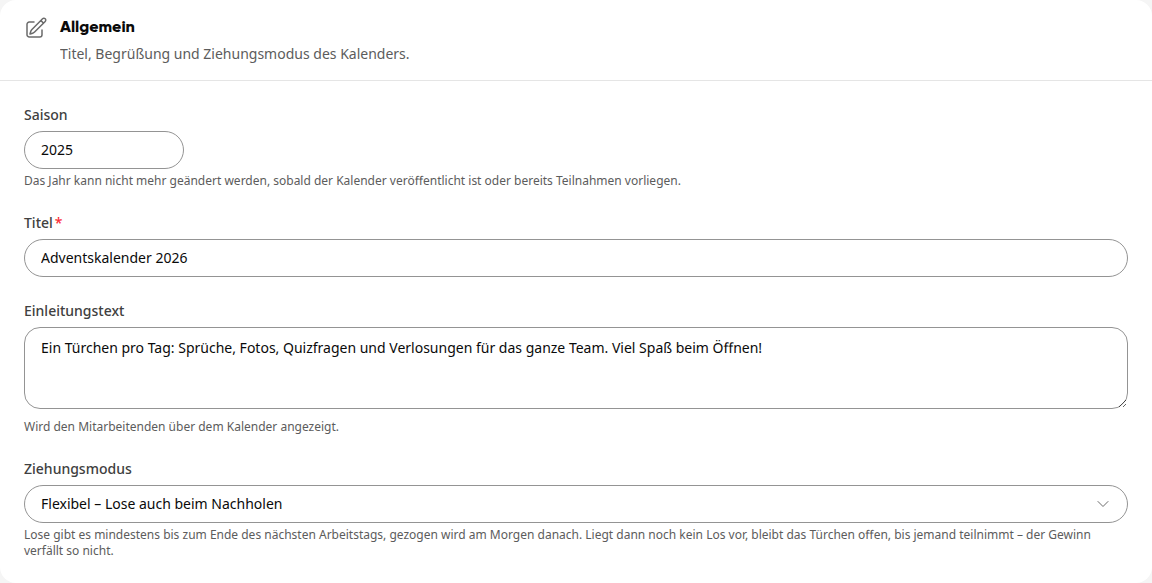
Select the draw mode. With Flexible – tickets also when catching up, tickets are available at least until the end of the next working day; without participation, the door remains open until someone takes part, and the prize does not expire. With Strict – tickets only on the door's day, tickets are only available on the door's day itself, and doors without participation expire without replacement. The draw takes place each following morning.
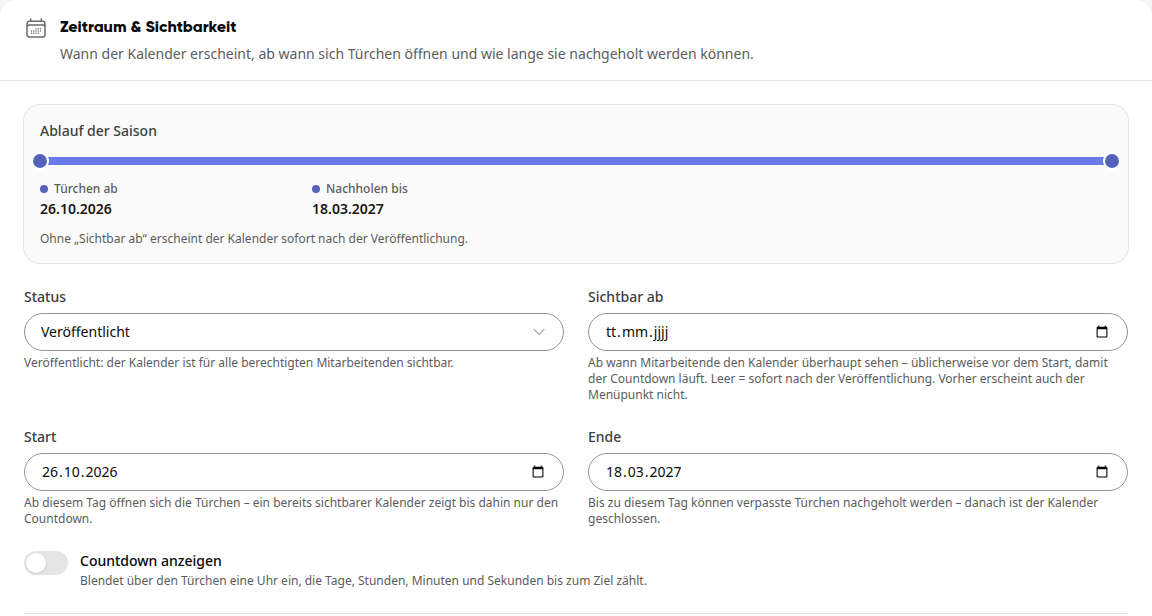
Under Period & visibility, set when the calendar runs. Visible from determines when employees can see the calendar (empty means: immediately after publication). From the start, a door opens every day – door 1 on the start day, door 2 the next day, and so on. Until the end, missed doors can be caught up. The season timeline shows you the dates at a glance. Show countdown displays a clock above the doors that counts down to the target (without a custom target, until Christmas Eve).
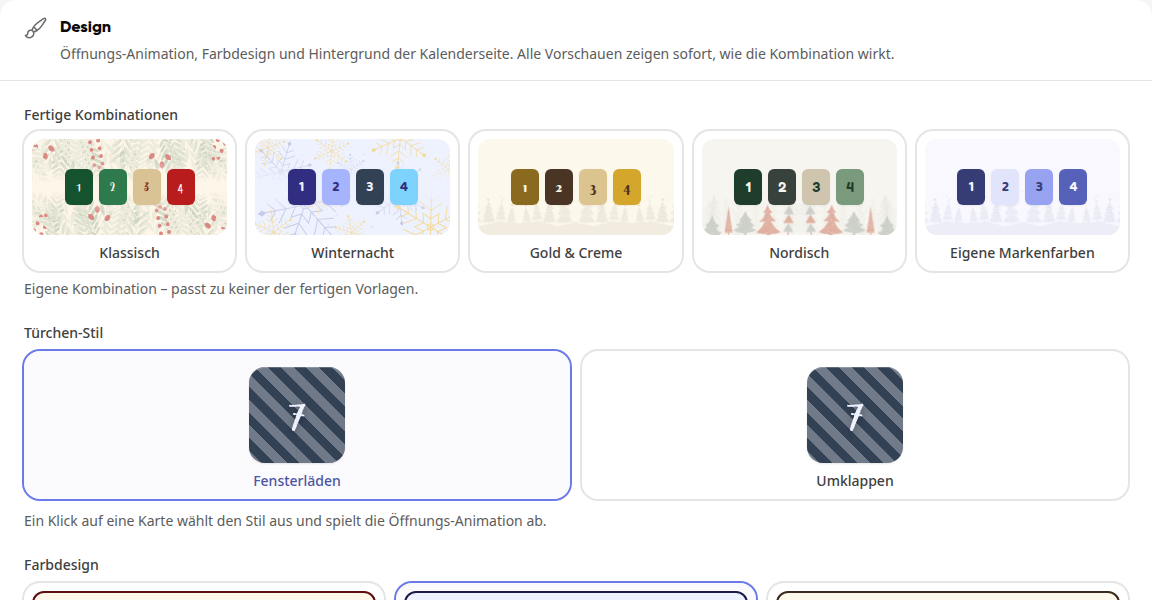
Under Design, customize the appearance: one of the ready-made combinations or individually door style, color design, decorative font, and background. For the background, choose background color, pattern, or a background image. The previews show immediately how it looks.
Under Sound, select the music style. Whether the music plays is decided by each person in the calendar themselves.
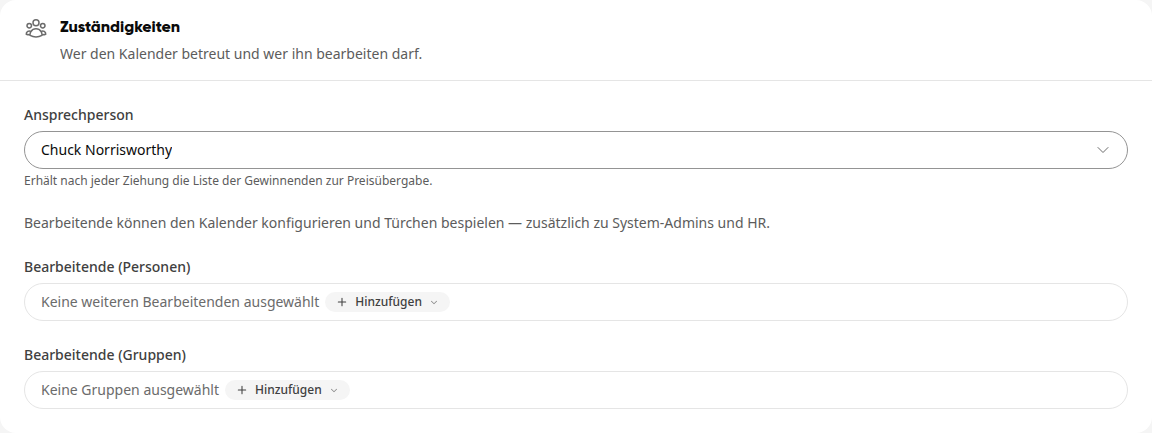
Under Responsibilities, select the contact person. After each draw, they receive the list of winners for prize handover. Under Editors (people) and Editors (groups), you grant editing access to additional colleagues.
Click Save at the top right of the page header. The button becomes active as soon as you have made a change and then shows Saved again.

Info
Background images are the exception: uploading and deleting take effect immediately, without saving.
Tip
With the demo mode under preview for editors, you can open all doors regardless of the date, for example to present the calendar. Nothing is saved, and nothing changes for employees.
Setting up the main prize#
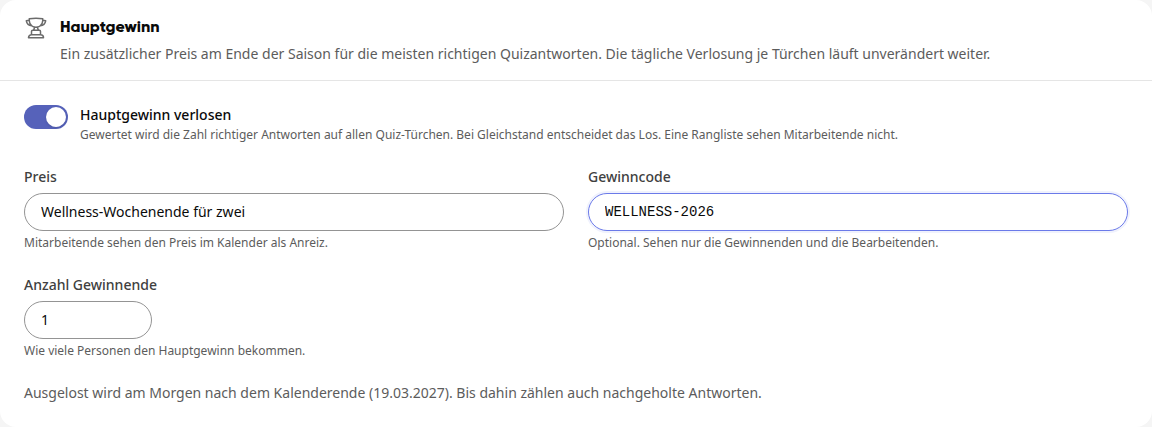
In addition to the prizes for each individual door, you can raffle off a main prize for the whole season. It is won by the person who answers the most quiz questions correctly; in the event of a tie, a draw decides. The daily raffle for each door continues unchanged.
In the Settings tab, in the Main prize section, switch on the Raffle main prize toggle.
Enter the prize. Employees will see it in the calendar under the introduction as an incentive.
If necessary, enter a win code. Only the winners and the administrators can see it.
Under Number of winners, specify how many people will receive the main prize.
Click Save at the top right of the page header.
Below the fields, it states when the draw will take place. In Flexible draw mode, the draw takes place on the morning after the calendar ends; until then, answers submitted late also count. In Strict draw mode, the draw takes place on the morning after the last quiz door, and only answers given on the day of the door count.
Info
The number of correct answers on all quiz doors is counted, including quiz questions without their own prize. Employees do not see a ranking or score. Calendar administrators do not participate because they know the solutions.
Warning
After the draw, the main prize settings are locked. The section will then state when the draw took place.
Fill the doors#
Open the Doors tab. Each tile shows the day, the type of door, and how many times it has been opened. Past doors are marked with Past, already drawn ones with Drawn.
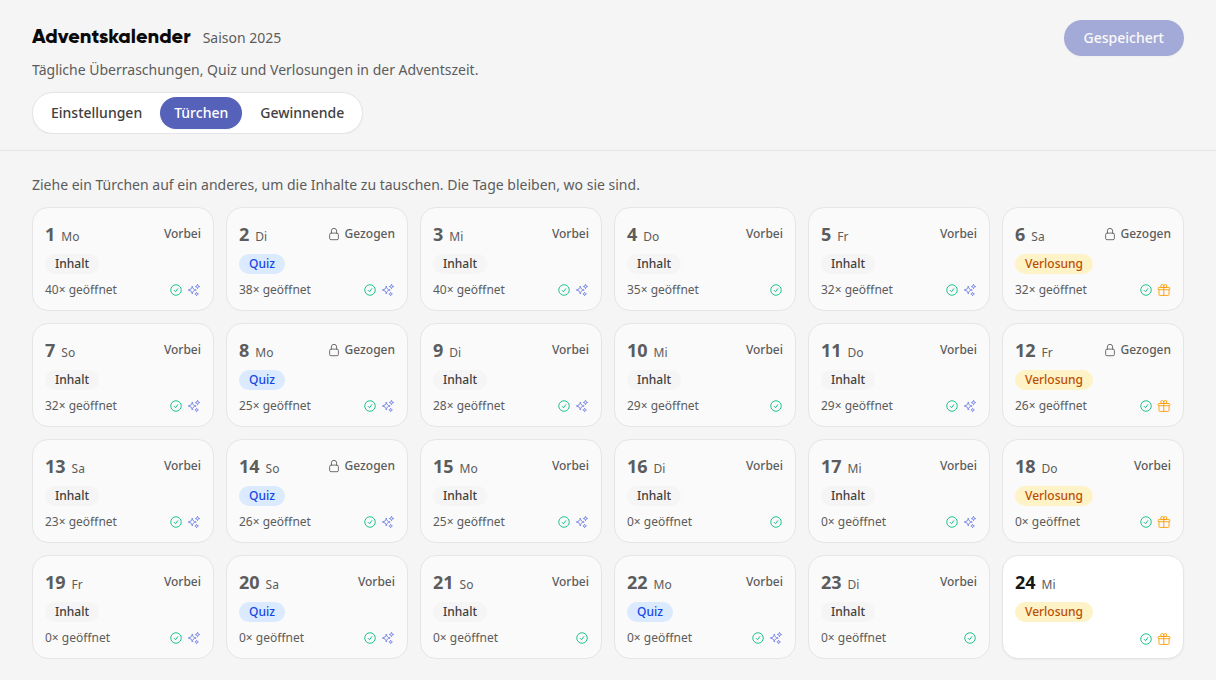
Click on a door to edit it.
Select the Type. A door of type Content displays text with a Title and images or videos under Media. A Quiz poses a Question with two to six Answer options; mark the correct answer with the selection point before it. For a Draw, every person who opens the door gets a ticket.
For a quiz, use the switch Draw a prize to decide whether a prize will be drawn among the correct answers. If turned off, the door is a pure quiz: no ticket, no draw, the solution is given immediately after the answer. The same applies as long as no Prize is entered.
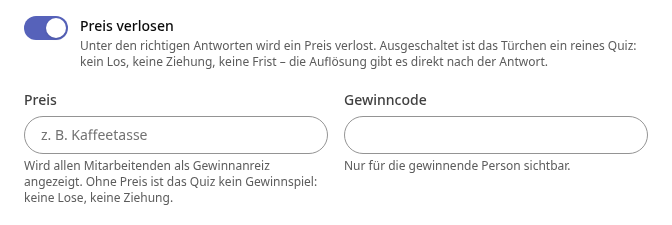
For a quiz with a prize and for a draw, enter the Prize (everyone sees it as an incentive) and, if needed, a Win code that only the winning person sees. Under Number of winners, you specify how many people will be drawn.
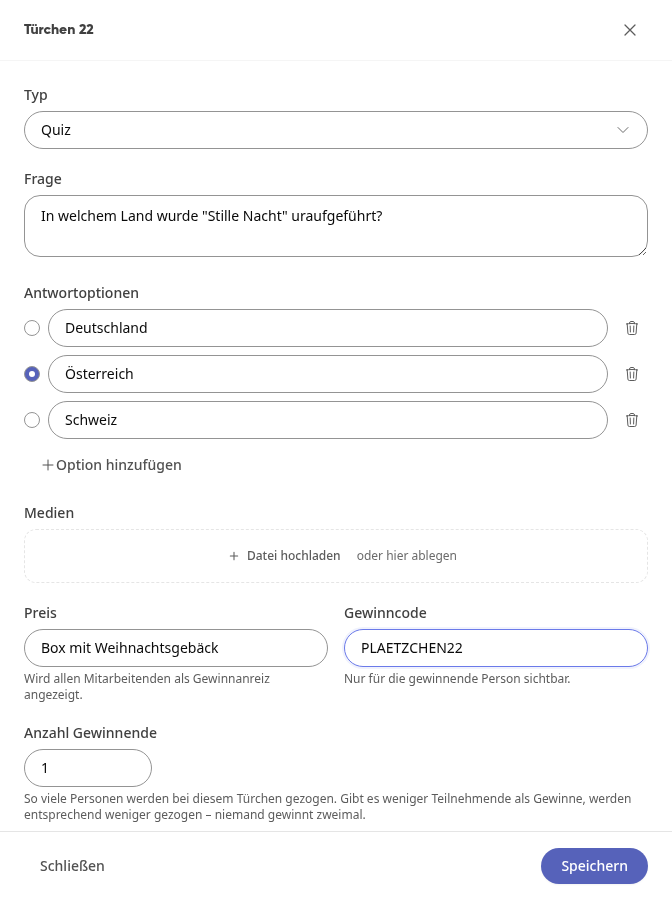
Click Save at the bottom of the door. You will see the message Door saved.
Tip
Instead of writing everything yourself, click Take from template pool in the door. If there are still empty doors, Fill empty doors above the grid will fill all of them at once with sayings and quiz questions from the templates. You create draws yourself.
Info
If a quiz draws among all correct answers, enable Reveal solution only at draw (the switch appears once a prize is entered). Then the correct answer remains hidden until the draw and cannot be shared.
Important
Whether a quiz draws a prize cannot be changed once the door has been opened.
Warning
Once a draw has been made for a door, it is locked and can no longer be edited.
Rearrange doors#
You can swap the contents of two doors, for example to move a draw to a different day. The days stay where they are—only the contents switch places.
In the Doors tab, drag one door onto another. When you release, the two contents will be swapped.
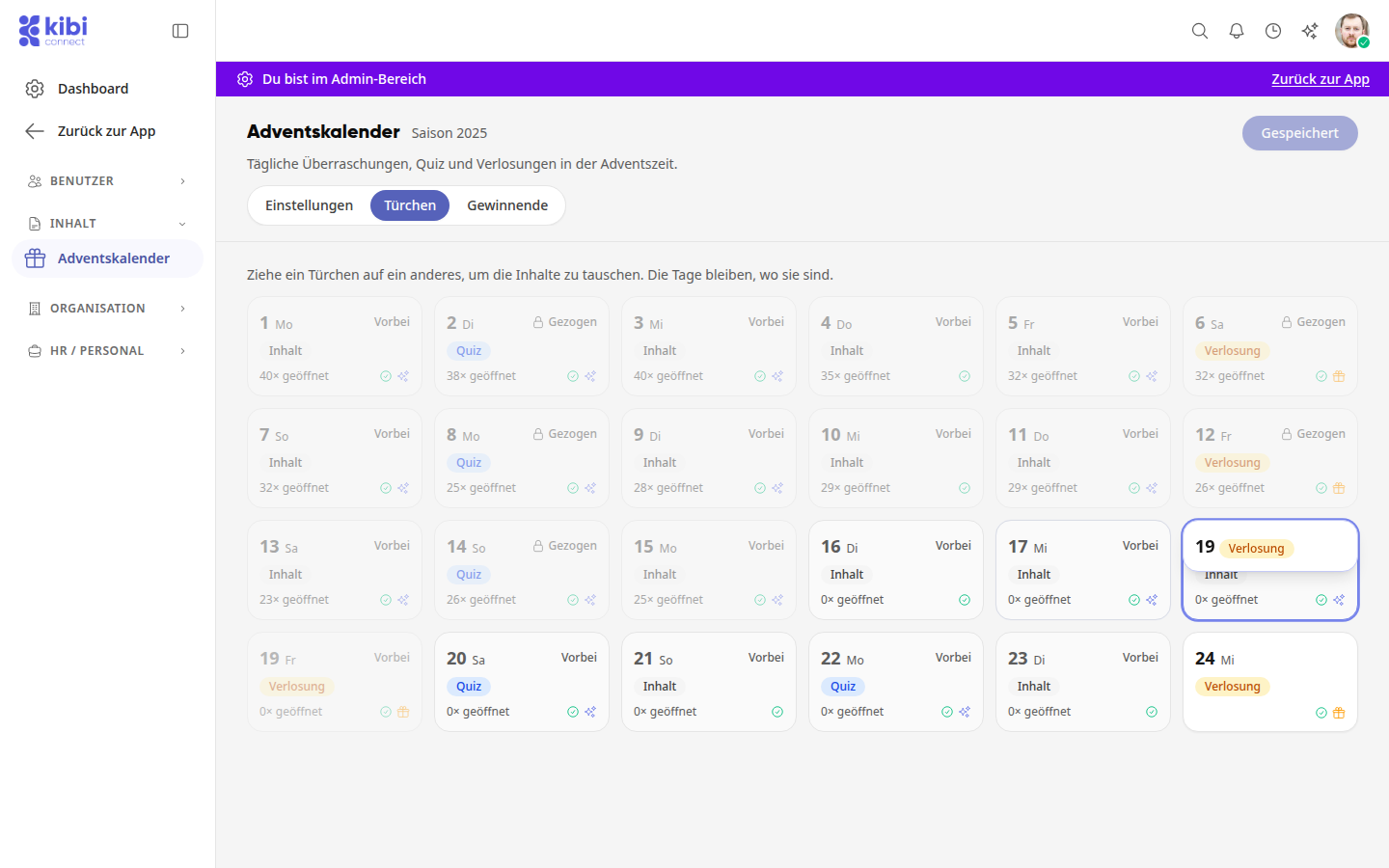
Alternatively, open a door and select the other door under Swap with door at the bottom. Click Swap. Afterward, you will see the content on its new day.

Info
Doors that have already been opened or drawn retain their content on their day. They are not available for selection when swapping.
Describe images and videos#
For every image and video you upload under Media, a field for a description appears below it. Screen readers read it in the opened door—so colleagues who cannot see the image also know what it shows.
Under Media, upload an image or video via Upload file, or drag the file into the field.
Write a sentence in the field next to the preview image describing what is shown in the image or video.
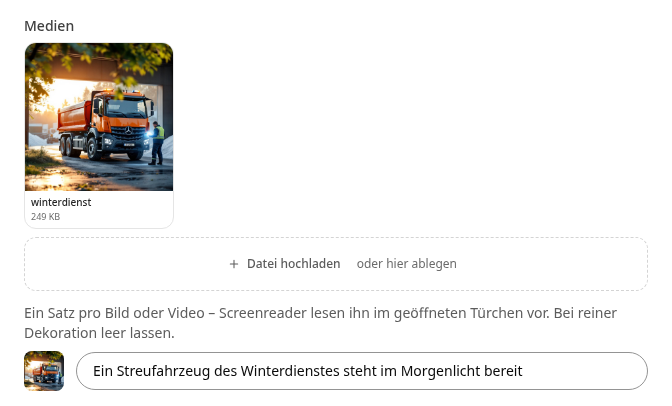
Click out of the field or press Enter. The description is saved immediately, without needing to click Save.
Tip
If an image is purely decorative, leave the description blank. Screen readers will then skip it.
Publish calendar#
Open the Settings tab.
Under Time period & visibility, set the Status to Published.
Click Save in the top right corner of the page header.
Confirm the prompt Publish calendar? with Publish.
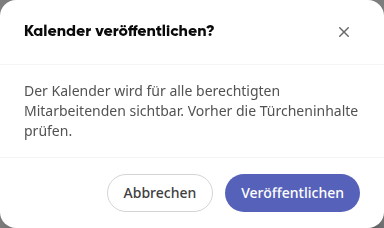
As long as the status is Draft, only editors can see the calendar. With Archived, a calendar is hidden and no longer used. If you reset a published calendar, the platform asks when saving with Withdraw calendar?; after Withdraw, it is immediately hidden again.
Warning
If the calendar is published or participations already exist, you can no longer change the Season. You can no longer move the Start once doors have been opened. For a new round, you restart the season (see below).
Winners and Prize Handover#
The winners are automatically drawn after a door expires and are notified via notification. Quiz doors without a prize are not drawn. The platform draws the main prize once at the end of the season; the contact person then receives a notification with the winners.
Open the Winners tab. For each draw, you will see the Day, the Person, the Prize, the Winning code, and when the draw took place (Drawn on).
The winners of the main prize are at the end of the list. Instead of a day, they carry the label Main prize, and below the name, the number of their correct answers is shown.

Once you have handed over a prize, check the box in the Prize handed over column. Instead of Open, the date and your name will then appear. This applies equally to daily prizes and the main prize; each row has its own check box.
Using Search for person or prize… you can quickly find individual entries.
Restart season#
When a season is over and the calendar should run again next year, you restart the season. Afterwards, the start, year, and all doors can be edited again.
Open the Settings tab.
Under Period & visibility, click Restart season in the Restart season section. The section appears as soon as the calendar has been used.

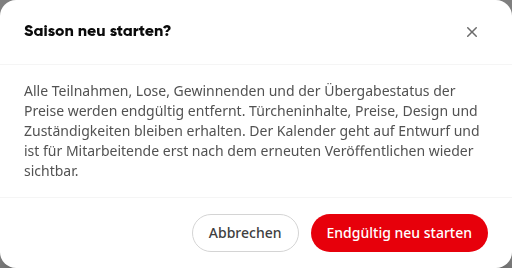
Read the prompt Restart season? and confirm with Restart permanently.
Under General, enter the new season, set start and end, and adjust the doors.
Publish the calendar again as described above.
Warning
The restart permanently removes all participations, tickets, winners (including those of the main prize), and the handover status of the prizes. Door contents, prizes, design, and responsibilities are retained. The calendar is then set to Draft and is only visible to employees again after republishing.