
How do I set the settings for colleagues and the directory?
Updated Reading time: 2 min
On this page
On the User Settings page, you determine which roles new colleagues automatically receive, which details are visible in the directory, and who can invite externals as guests. You save all sections together using the button at the top right.
Info
These settings are available to System Admins. HR Managers do not see this menu item.
Set default roles and visibility#
Open Administration and click on Settings under Users.
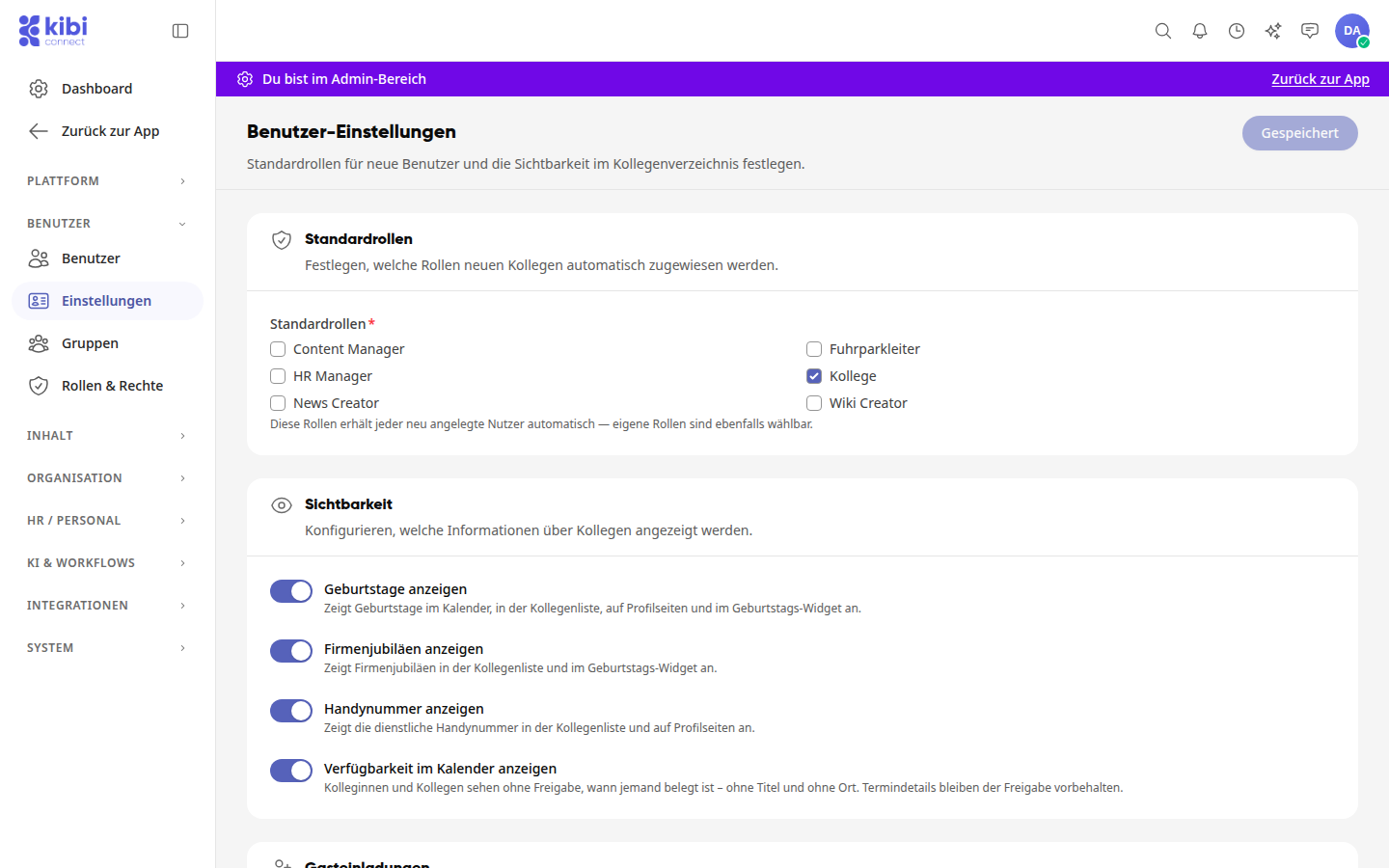
Under Default Roles, select the roles that every newly created person will automatically receive. Custom roles are also available for selection.
Under Visibility, use the toggles to set what will be displayed.
Click Save at the top right. The button is active as soon as you make a change. Afterward, it will display Saved again.
Warnung
At least one default role must remain selected. Without a selection, nothing will be saved: You will see the message Something went wrong. and below the roles the note Default roles must be filled.
What the toggles under "Visibility" do#
Show birthdays: in the calendar, in the colleague list, on profile pages, and in the birthday widget.
Show company anniversaries: in the colleague list and in the birthday widget.
Show mobile number: the business mobile number in the colleague list and on profile pages.
Show availability in calendar: colleagues can see when someone is busy without permission, but neither the title nor the location.
Allow guest invitations#
The Guest Invitations section determines who, besides the Administration, can invite externals as guests to the platform.
Enable Group administrators can invite externals. Anyone who administers a group can then directly invite externals to that group. Guest access is valid for 12 months and only covers this group.
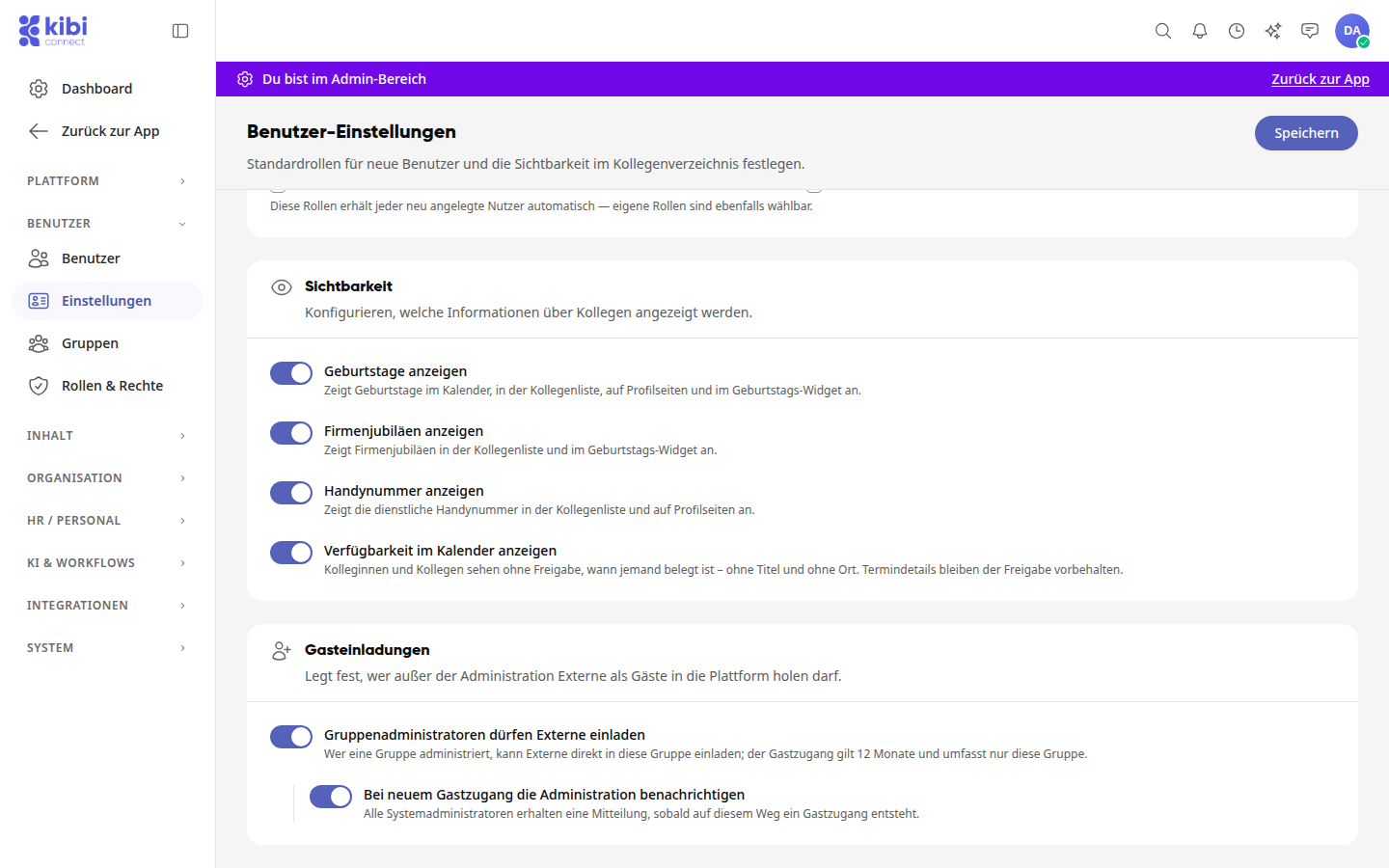
If needed, enable Notify administration of new guest access. All System Admins will then receive a notification whenever guest access is created this way. This toggle can only be used once the first one is enabled.
Click Save at the top right.