
How do I evaluate learning progress in the academy?
Updated Reading time: 2 min
On this page
As a Content Manager, you can see at a glance in the Academy how far your trainings have progressed: how many are completed, in progress, or overdue, who is behind schedule, and who was the last to finish.
View progress#
Open Administration in the left navigation.
Under HR / Personnel, click on Academy. The Progress tab is open.
At the top, you will see the key figures: Total, Completed, In Progress, Overdue, and Completion Rate.
Under By Training Topic, each bar shows how many assignments are completed, and next to it, how many are overdue. Clicking on a topic opens it with its participants.
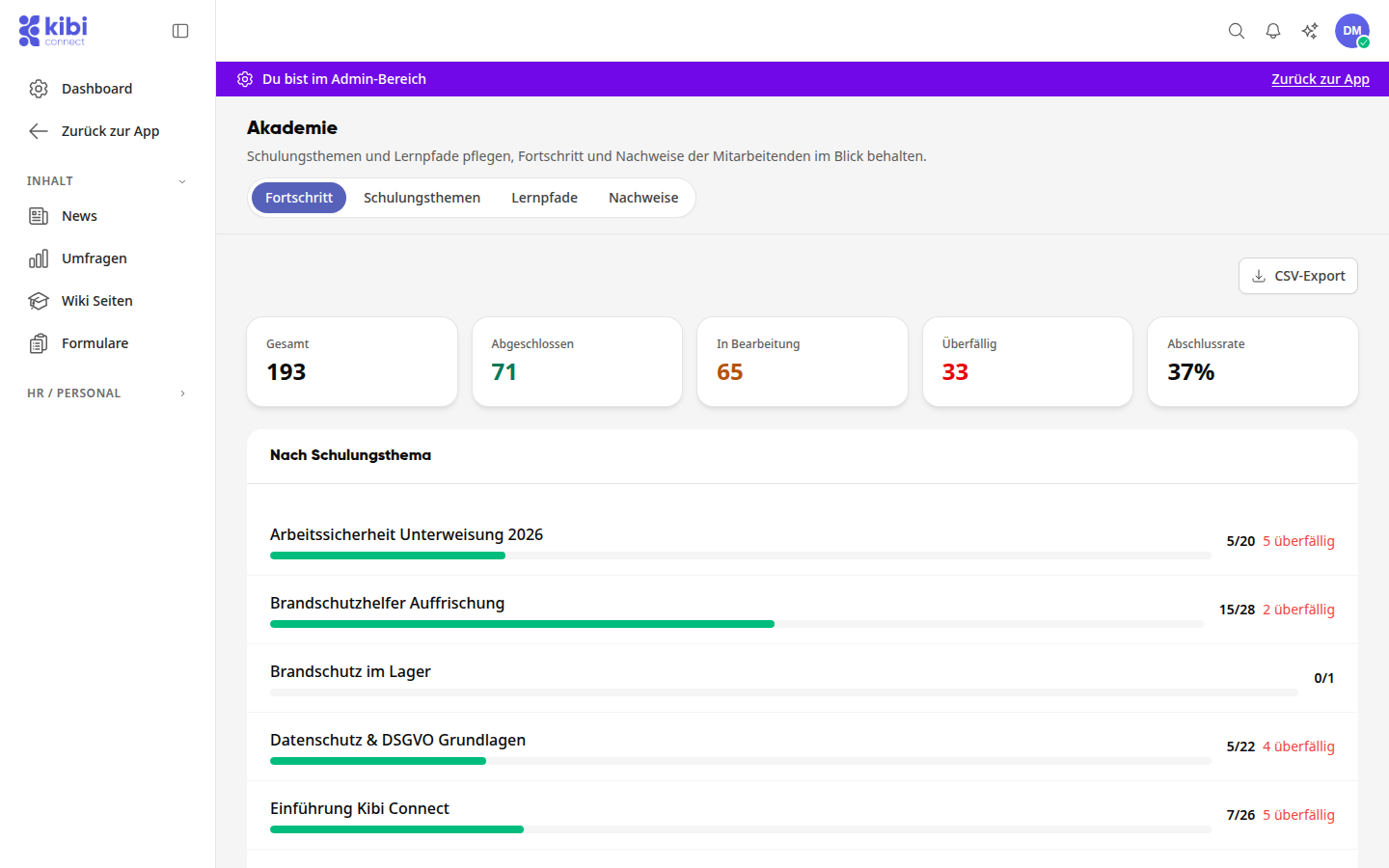
Overdue and completed trainings#
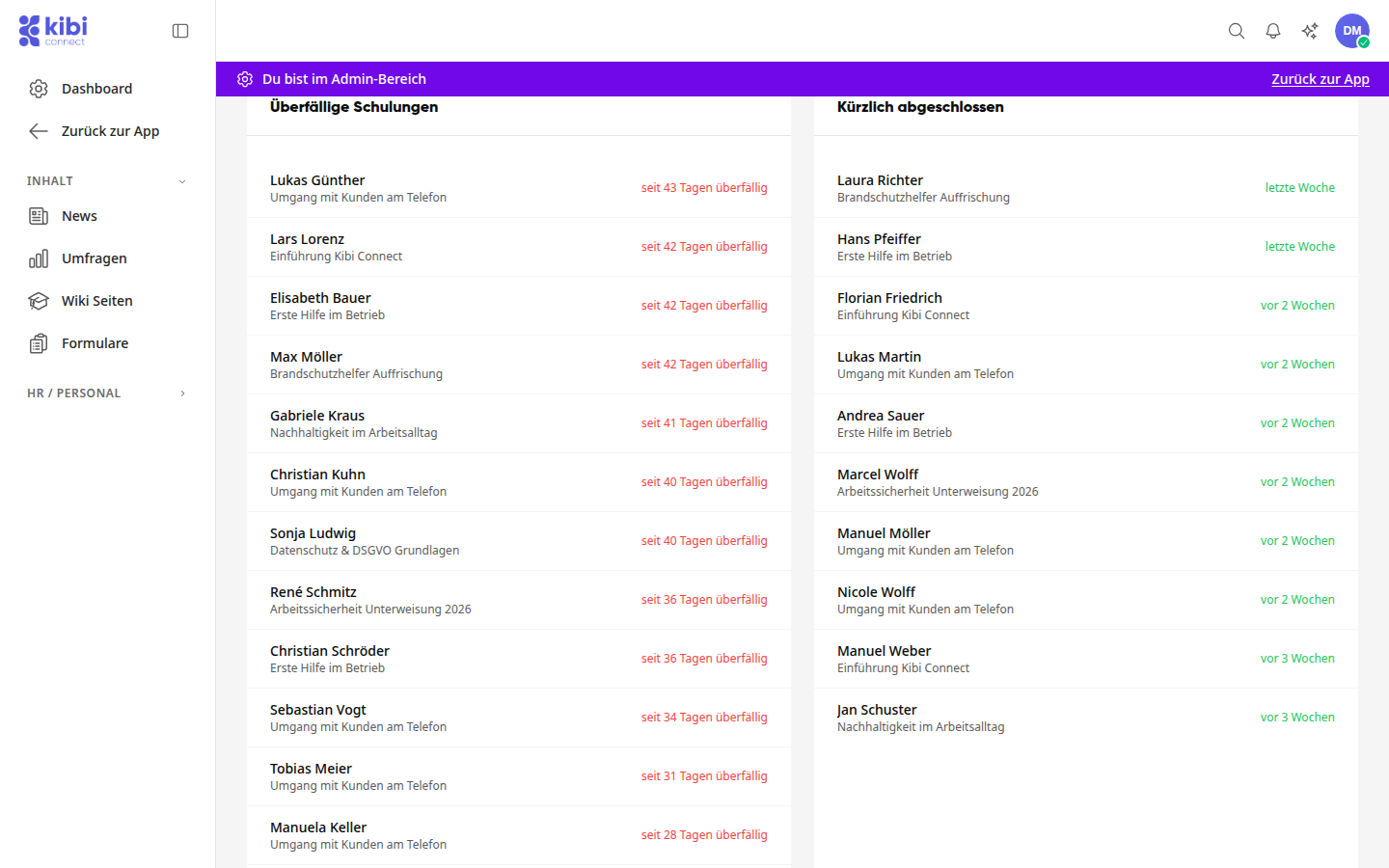
Scroll down. Overdue Trainings lists each person with the topic and how long it has been overdue. Recently Completed shows the most recently completed trainings.
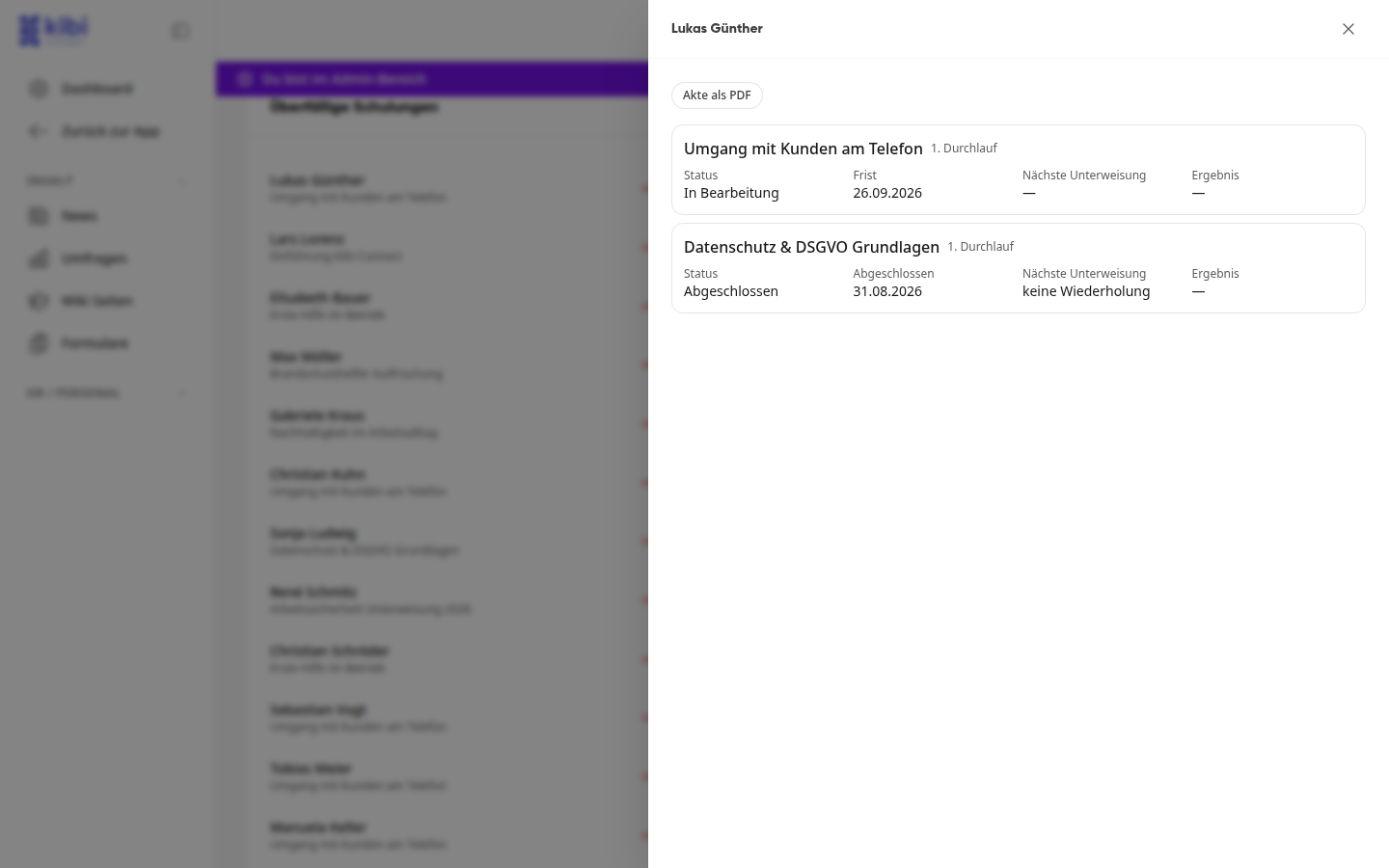
Click on a person. You will see all their trainings with Status, Deadline, Next Instruction, and Result. Use Download Record as PDF to download their training record.
Export evaluation#
In the Progress tab, click CSV Export at the top right to download all assignments as a table.
In the Training Topics list, use the Collective Certificate button in a topic's row to download the collective certificate for that topic.
Check certificates per person#
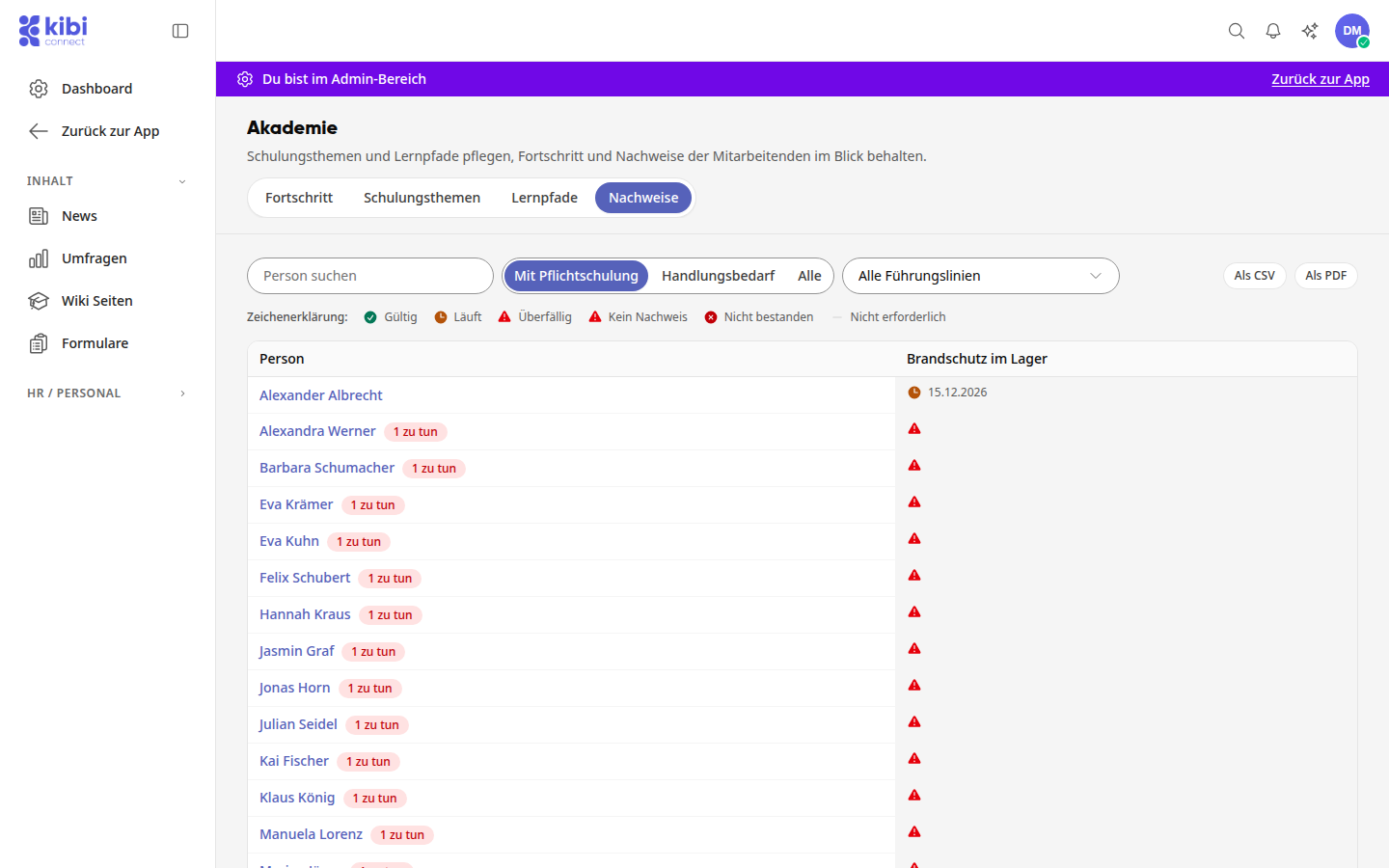
Open the Certificates tab. The table shows for each person and mandatory training whether the certificate is Valid, Expiring, Overdue, or Failed, whether No Certificate is available, or if the training is Not Required for the person.
Filter the view using With Mandatory Training, Action Required, or All, the person search, and the management line selection.
Download the overview with As CSV or As PDF. Under Check Certificate, you can verify a certificate's authenticity using its number and verification code.
Info
This function is available to Content Managers.