
Where can I find Kai's results?
Updated Reading time: 3 min
On this page
In the Results tab, you will see a collection of what Kai has created or edited for you in your conversations. This way, you can, for example, find a task or an offer in the ERP again without having to remember the relevant conversation.
View Results#
Open Kai in the navigation and switch to the Results tab.
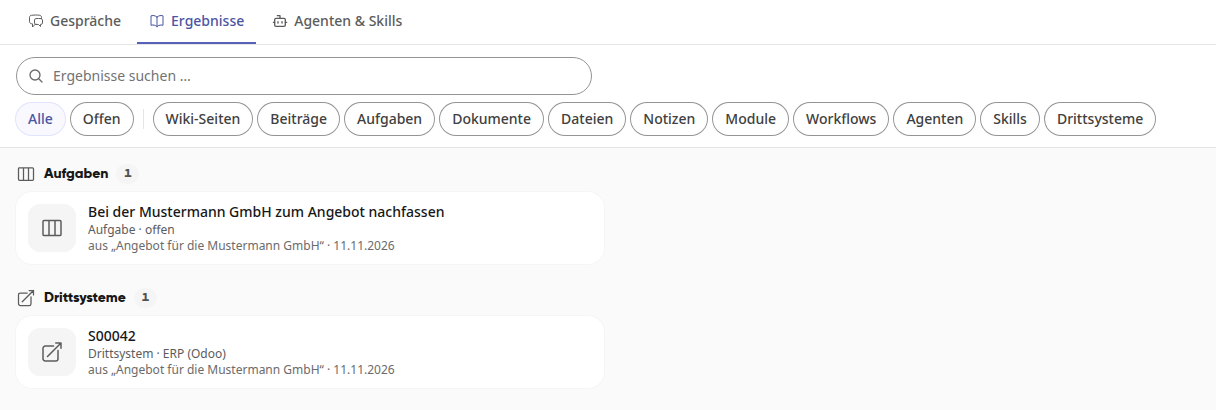
The results are grouped by type, for example under Tasks or Third-party systems, with the count next to the heading. Each card shows the title, type, and status, for example Task · open. Below that are the conversation from which the result originated and the date.
The list shows wiki pages, posts, tasks, documents, notes, modules, workflows, agents, and skills, along with the photos and files you give Kai. If Kai creates something in a connected third-party system, such as an offer in the ERP, it appears under Third-party systems. If Kai has not yet created anything for you, it shows No results yet.
Searching and filtering results#
Enter a search term in the Search results … field.
Click on Open to see only open results. With All, you will see all results again.
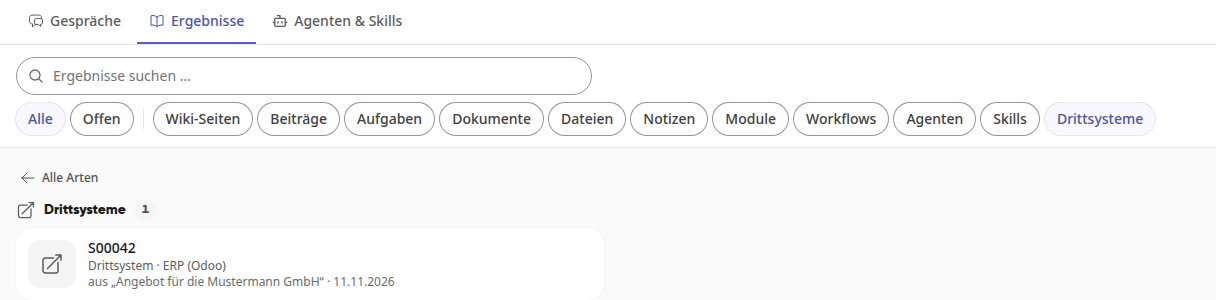
Narrow down the list with Wiki pages, Posts, Tasks, Documents, Files, Notes, Modules, Workflows, Agents, Skills, or Third-party systems to one type.
With All types above the list, you can return to all types.
If nothing matches your selection, No matching results will appear there. With Reset filter, you can return to the entire list.
Open a result#
Click on the card. Kai opens the conversation from which the result originates and displays the result next to it in its own tab.
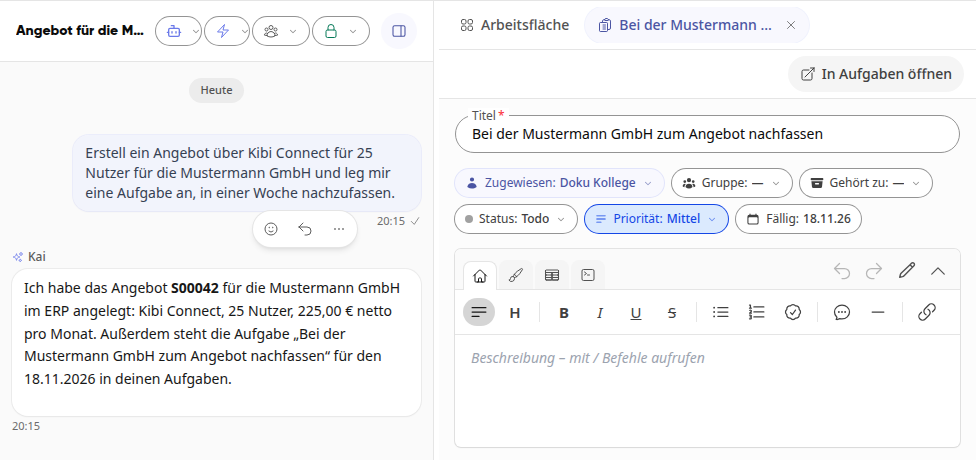
For a task, you can view and change, for example, the title, assignees, status, and due date there. With Open in tasks, you switch to the Tasks module.
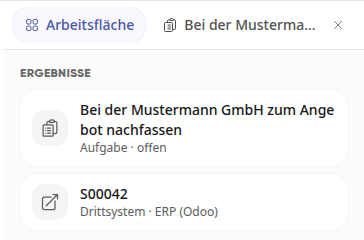
In the Workspace tab next to the conversation, under Results, you will find all results of this conversation.
Find Kai's notes again#
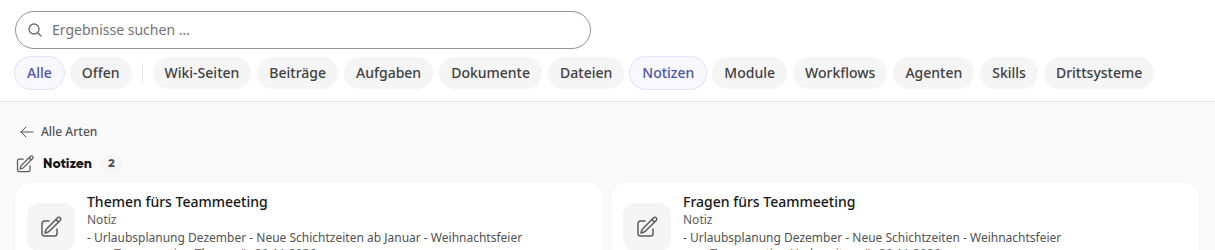
If you ask Kai in a conversation to create a note, for example with "Create a note for me on topics for the team meeting: vacation planning December, new shift times from January, Christmas party", the new note will then appear in Results under Notes.
Click on Notes to see only the notes. Each card shows the title, the beginning of the content, the conversation, and the date.
Click on the card. Kai opens the conversation in which the note was created and shows the note next to it in its own tab. There you can continue editing it directly.
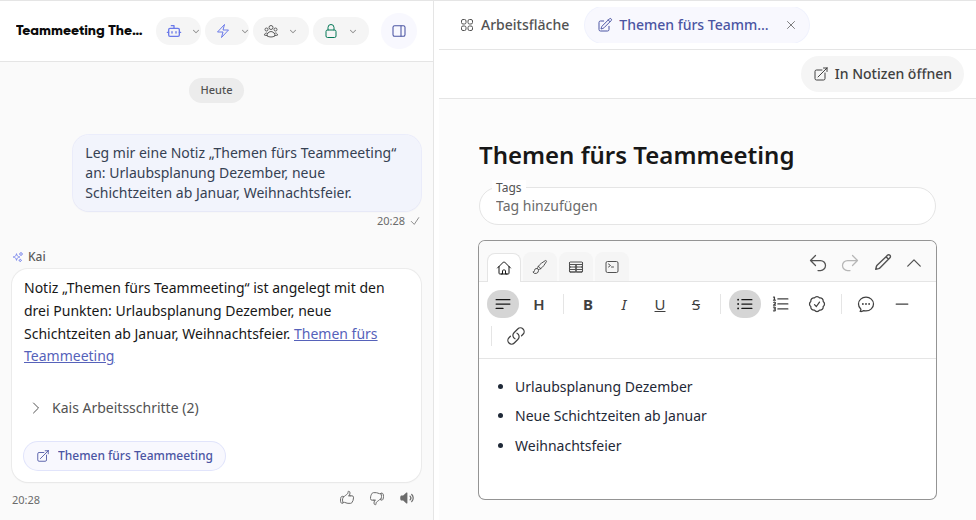
With Open in Notes you switch to the Notes module.
Info
A note is only visible to those who are allowed to see it. If you share the conversation with your group, others will not see a private note in the results unless you release it for them.
Results from Third-Party Systems#
If your company has connected a third-party system such as an ERP to Kai, Kai can create records for you there, for example a quote. The card is called Third-Party System and shows the name of the system.
Click on the card to open the record directly in the third-party system. It opens in a new browser tab.
The record is edited in the third-party system, not in Kibi Connect.
Info
Only you can see results from third-party systems, because Kai created them with your access. Even if you share the conversation with others, they will not see this card. Whether you see something in the third-party system depends on your permissions there.