
How do I use and design my personal dashboard?
Updated Reading time: 3 min
On this page
On the dashboard, you will find your most important content as tiles. You can use the dashboard designed by the company directly or create your own dashboards.
Info
The personal dashboard is available to all employees. Only you can see your own dashboards and your adjustments.
Using the Dashboard#
Click on Dashboard in the left navigation.
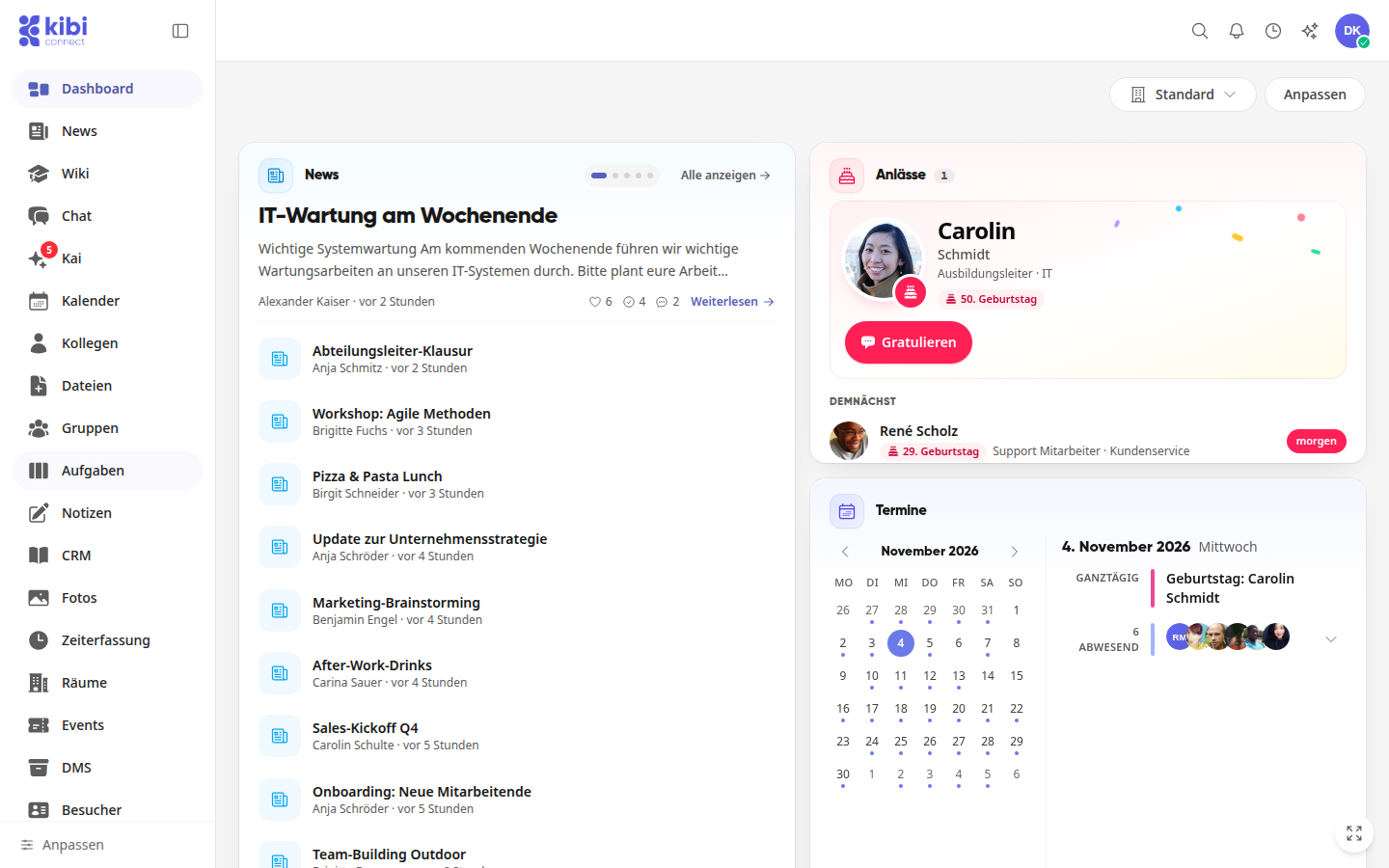
Click on an entry in a tile to open it, or on Show all to switch to the entire area.
Create your own dashboard#
Click on Standard at the top right. The button always shows the name of the currently open dashboard.
Click on New dashboard.
Enter a Name and choose an option under Start with:
Empty: You start without any tiles.
As a copy: You adopt the tiles of the currently open dashboard.
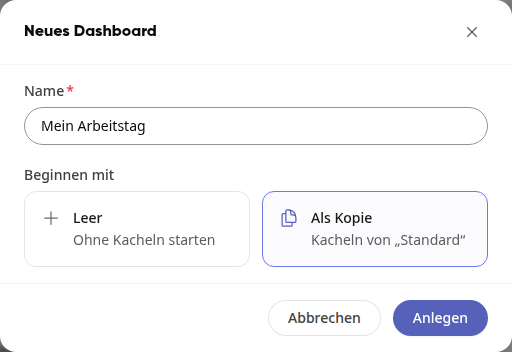
Click on Create. The new dashboard opens immediately.
Customize dashboard#
All changes are saved automatically. At the top you will see the Saved notice. If you customize the Standard dashboard, your own dashboard My Dashboard is automatically created on the first change. Standard itself remains unchanged.
Click Customize at the top right. The Tile library opens on the left.
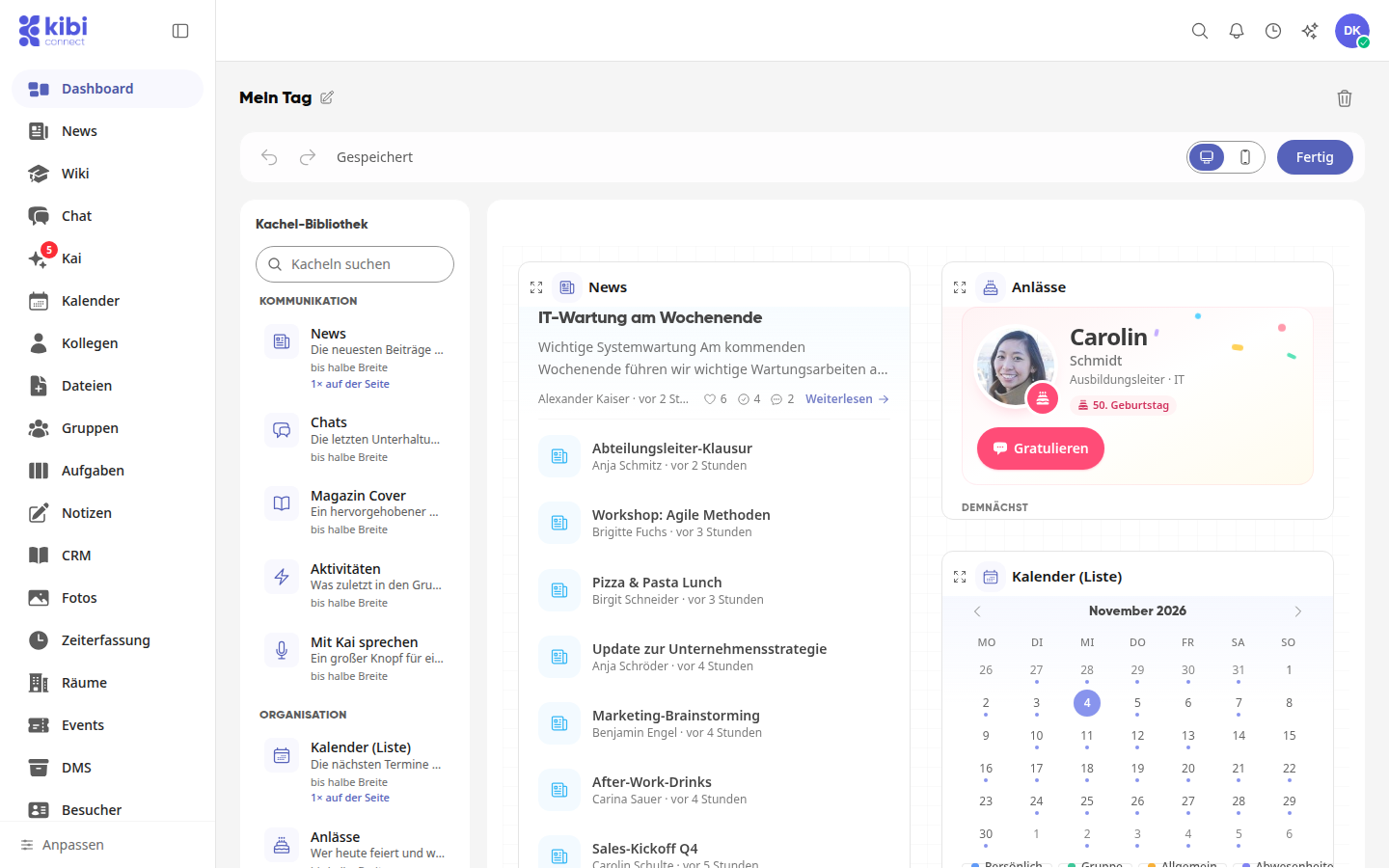
Click a tile in the Tile library to add it. You can find it faster using Search tiles.
Drag a tile with the mouse to its new position.
Hover over a tile with the mouse to show its tools. There you can edit it, duplicate it, change its size to Small, Medium, Large, or Full width, and remove it.
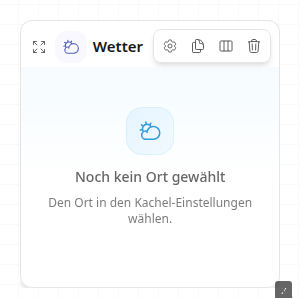
Click the gear icon on tiles with settings. The changes appear immediately in the tile. Then click Done.
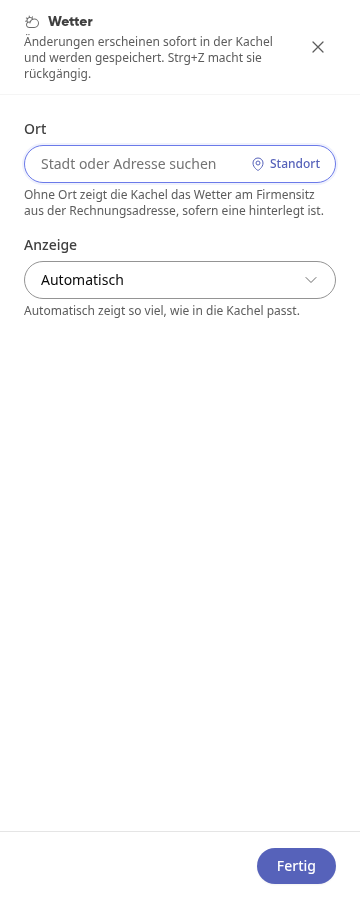
Click Done at the top right when you have finished customizing.
Tip
If you accidentally removed a tile, click Undo in the Tile removed message. You can also undo or redo other steps using the arrows at the top.
Info
Tiles that your company has pinned can be moved and resized, but not removed.
Show new wiki entries on the dashboard#
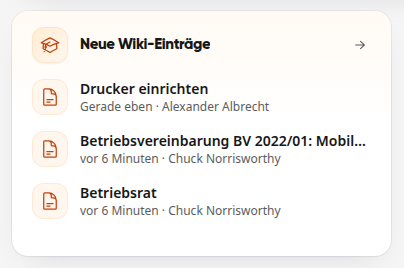
With the New wiki entries tile, you can see the most recently published pages from the wiki on the dashboard.
Click Customize in the top right corner.
In the Tile library, under Search tiles, enter "Wiki" and click on New wiki entries. The tile appears at the bottom of your dashboard.
Hover over the tile and click the gear icon.
Under Number of pages, select how many pages the tile shows: 3, 5, 10, 15, or 20. Then click Done.
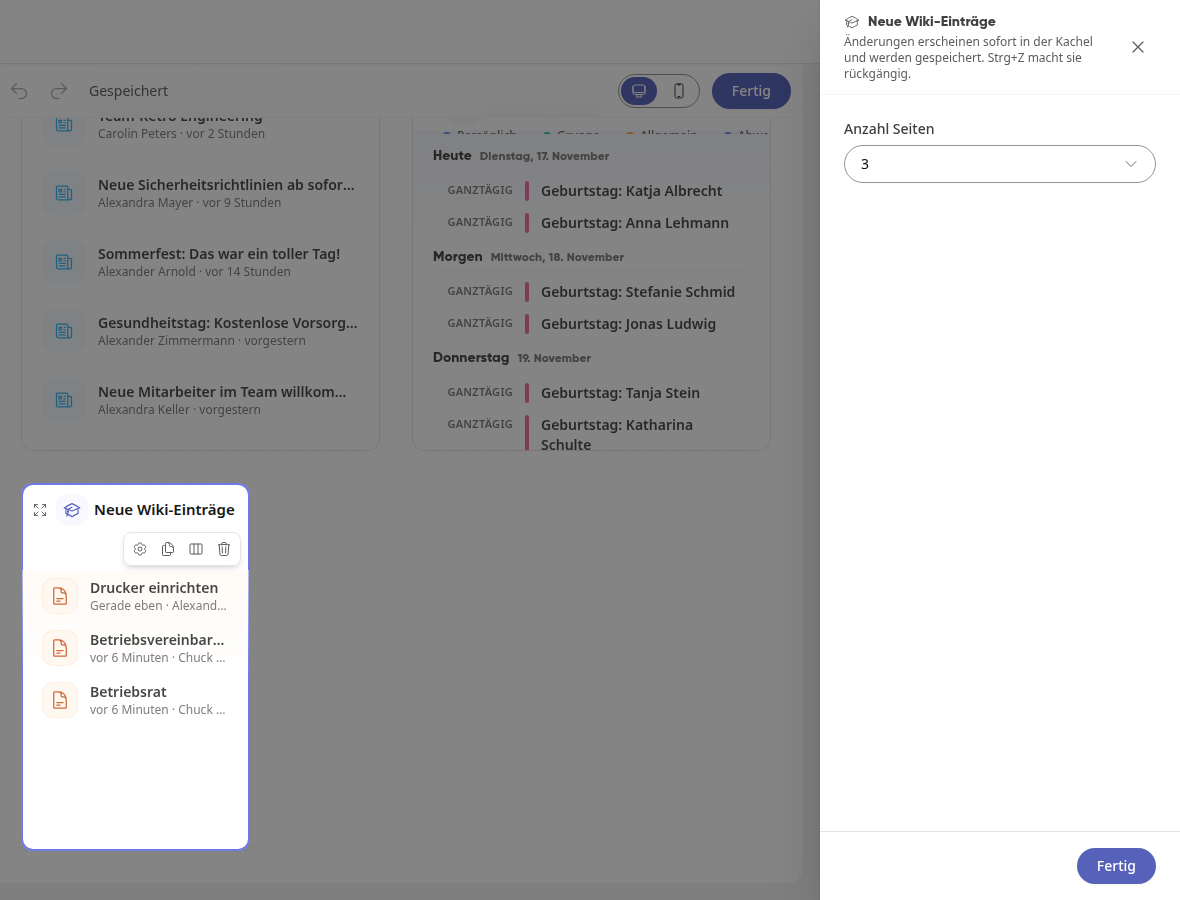
Click Done in the top right corner.
The tile shows for each page when it was published and who created the current version. Clicking a page opens it; via Show all you switch to the wiki.
Info
The tile only shows wiki pages that you are also allowed to see in the wiki.
Customize dashboard on the smartphone#
On the smartphone, Customize shows your tiles as a list.
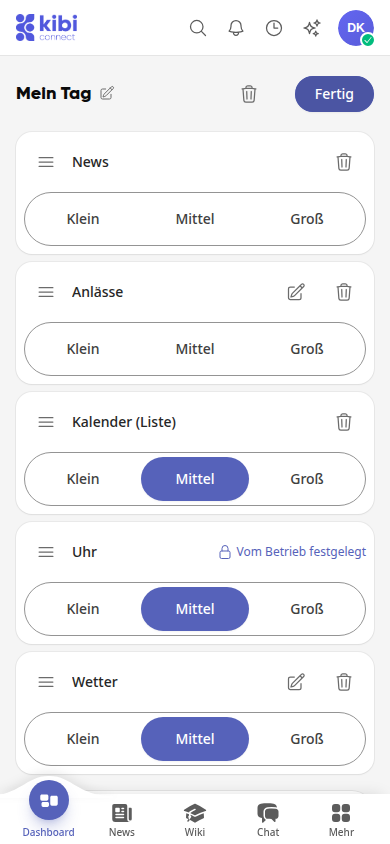
Press and hold the icon with the three lines and drag the tile to another position.
Select Small, Medium, or Large to change the size.
Use the pencil icon to open the tile settings and confirm them there with Apply. Use the trash can to remove the tile.
Use Add tile at the end of the list to add a new tile.
Pinned tiles are marked with Set by the company.
Switching Between Dashboards#
Click on the name of the open dashboard at the top right.
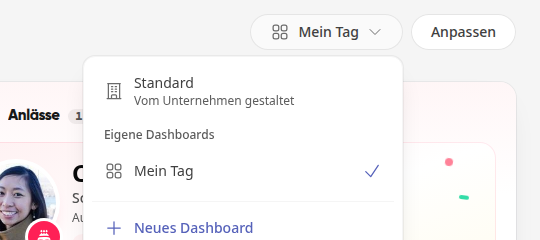
Select a dashboard from the list. With Standard you return to your company's dashboard, and your own dashboards are retained.
Rename or delete dashboard#
Open the dashboard and click on Customize.
Click the pencil icon next to the name, enter the new name, and press Enter.
To delete, click the trash can at the top right and confirm with Delete. The tiles, layout, and settings of this dashboard will be lost. Afterward, the Default dashboard will appear.