
How do I open files that have been shared with me?
Updated Reading time: 3 min
On this page
When someone shares a folder or file with you, you will find the contents in Kibi Connect under Shared with me. If you have received a share link, you can open it directly in the browser, even without an account.
Open shares in Kibi Connect#
Open Files and click on Shared with me in the sidebar on the left.
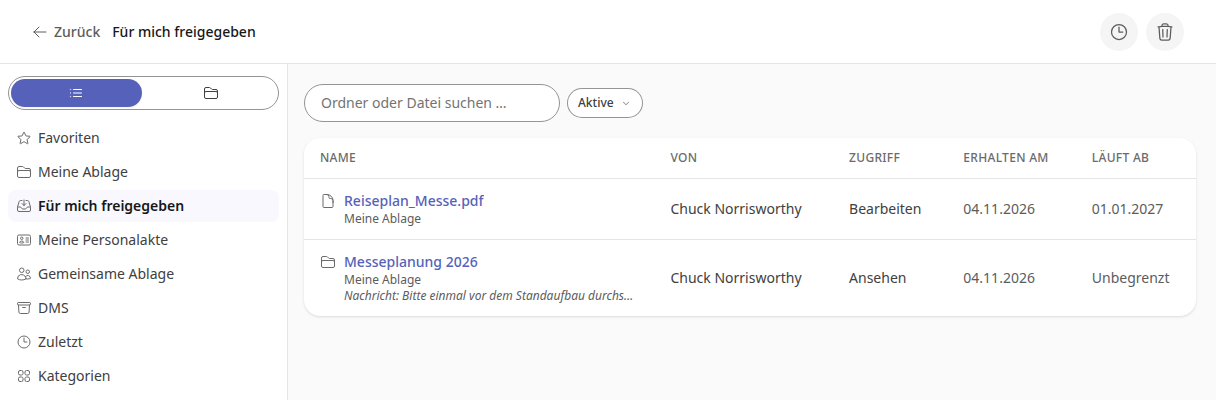
Find the entry in the list. There you can see who the share is from, what access you have, when you received it and when it expires. If the person sent a message, it appears below the name.
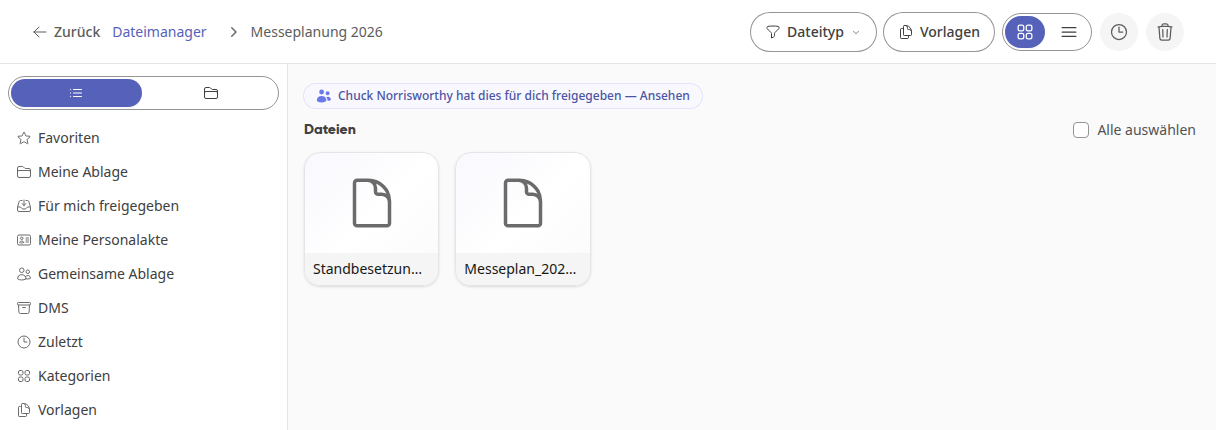
Click on the name. A folder opens with its contents, a file opens in the preview.
Using the search field, you can find a folder or file faster. With the Active selection, you can switch to Expired or All. If no one has shared anything with you yet, Nothing shared with you yet appears there.
Info
The person sharing can have you notified when sharing. Outside your working hours, you will find the notification later in your notifications.
What you can do with a share#
View: You can open and download the contents, but you cannot change anything.
Edit: In a shared folder, you can also upload files and create new folders. In a file's menu, actions such as Rename, Replace – upload new version, and Delete are also available.
Which permission applies is shown in the list under Access and in the notice at the top of the shared folder.
Tip
If you want to keep your own copy, download the file and upload it again to My Storage.
Open the share link in the browser#
You receive a share link, for example, via email. You don't need an account for this.
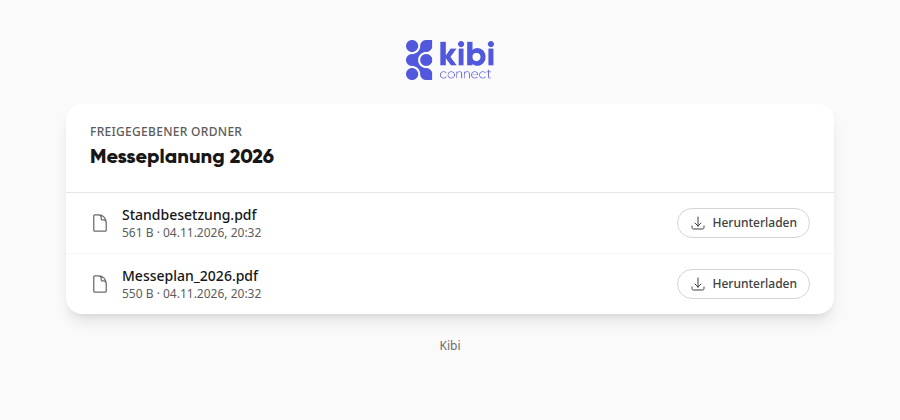
Open the link in the browser.
Click on Download next to the desired file.
Info
Via a share link, you can only download files. Preview or changes are not possible there.
When a password is required#
Enter the password you received from the person who shared the link.
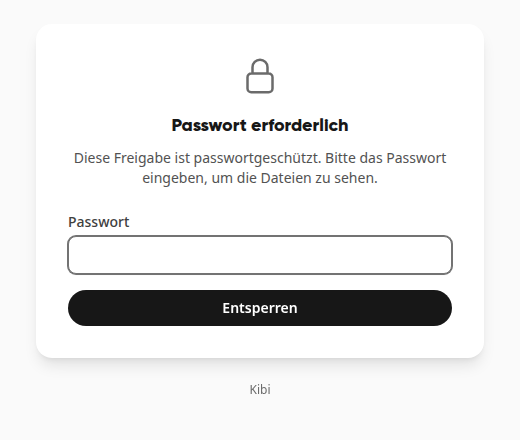
Click on Unlock.
If the password is incorrect, The password is not correct. will appear. Then ask the person who sent you the link.
If you need to confirm access#
Some links are tied to your email address. The invitation will then state which address.
Under Email address, enter the address to which the invitation was sent, and click on Request code.
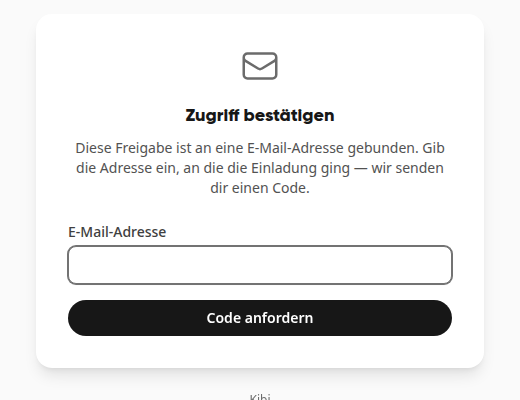
Open the email Your code for the release. The code is valid for 15 minutes.
Enter it under Code from the email and click on Confirm.
If the email has not arrived or the code has expired, click on Send new code.
If you need to send files yourself#
Via an upload link, you deliver files instead of downloading them. The page is then called Submit files.
Under Files, select what you want to send.
If needed, enter Your name (optional) and Message (optional).
Click on Upload files. After that, the confirmation Thank you! appears.
When the link no longer works#
If Sharing not available appears, the link does not exist or is no longer valid. Please ask the person who sent it to you for a new link.
Tip
If you want to store files from another app on your smartphone in Kibi, such as a PDF from your email program, use the sharing feature of the mobile app: How do I send content from another app to Kibi Connect?