
How do I manage wiki content in the administration?
Updated Reading time: 2 min
On this page
In the administration, you can see all wiki pages of your platform in a table: with the responsible person, parent page, tags, and status. Here you can quickly find pages, filter by status or responsible person, and export the list.
Info
This function is available to Content Managers. Those who are additionally allowed to create wiki pages (for example, with the Wiki Creator role) will also see the New Page button here and can delete multiple pages at once.
Open the overview#
Click on Administration in the navigation at the bottom left.
In the Content section, click on Wiki Pages. The Wiki Entries table opens.
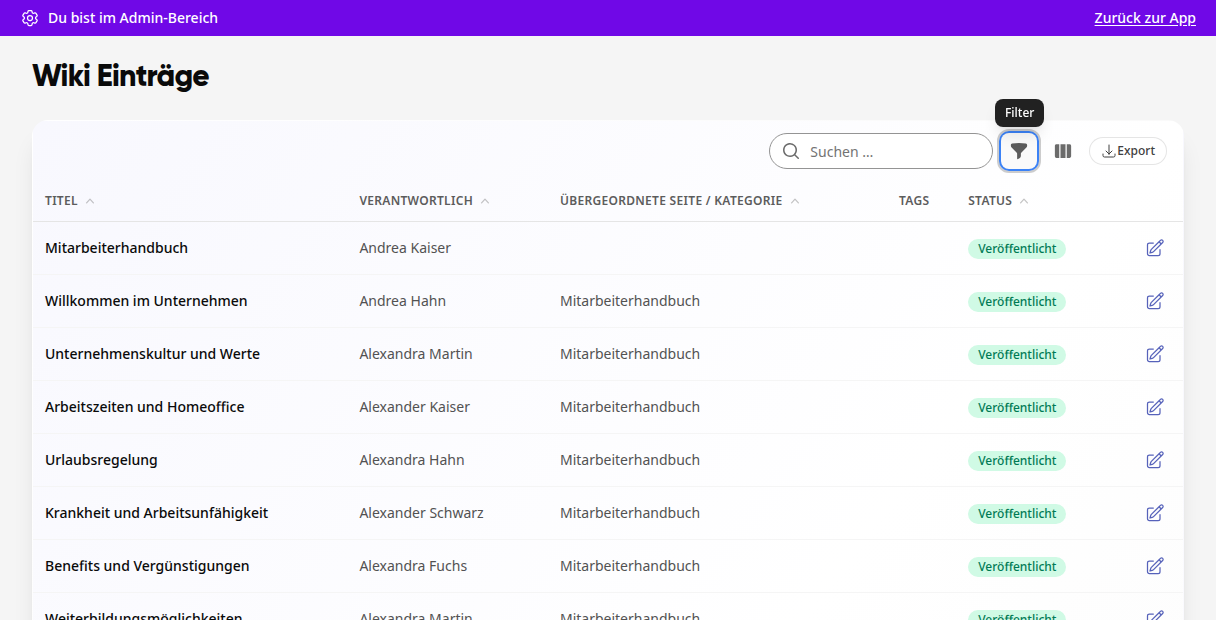
The table displays 25 pages per page. You can change the number at the bottom via per page, and use the page numbers to navigate further. Clicking on a column header sorts the table by that column.
Search and filter pages#
Enter a search term in the Search... field at the top right. The table will only show matching pages.
Click on the funnel icon (Filter) to further narrow down the list: - Parent Page: only the subpages of a section - Responsible: only the pages of a person - Status: Draft, Published, or Archived - Tags: only pages with specific tags
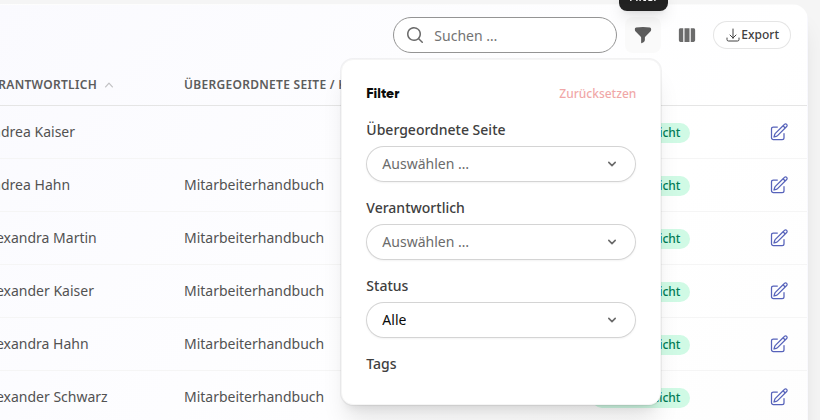
Use Reset in the filter to clear all filters.
Tipp
Using the column symbol (Select Columns) next to the filter, you can show or hide columns.
Open a page#
Click on a row or on the pencil icon on the right. The page opens in the wiki. There you can edit it as usual via Edit.
Export the list#
Click on Export at the top right.
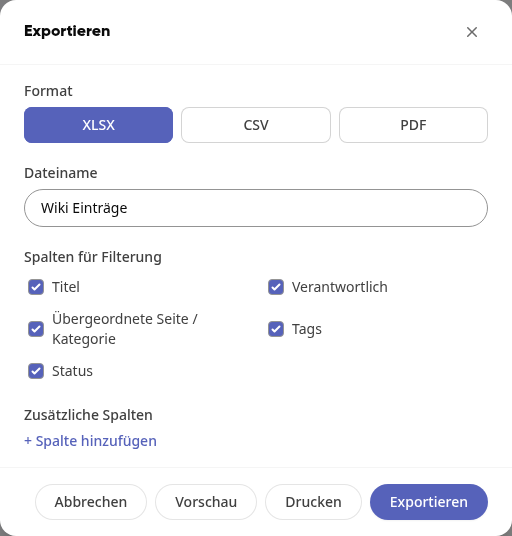
Select the Format: XLSX, CSV, or PDF.
If needed, adjust the Filename and select which columns to include in the file under Columns for Filtering. Use Add Column to include additional columns.
Click on Export. Use Preview to see the result beforehand, or Print to print the list directly.
Info
The export contains the pages currently displayed in the table. So set the search and filters beforehand if you only want to export a part.
Delete multiple pages at once#
If you are allowed to create wiki pages and edit all pages, there is a checkbox in front of each row.
Select the pages you want to delete.
Click on Open Actions at the top left and then on Delete Selected.
Confirm with Delete.
Warnung
Pages with subpages are automatically skipped and not deleted. Move or delete the subpages first.