
How do I connect Rotary RO.CAS with Kibi?
Updated Reading time: 2 min
On this page
With the Rotary RO.CAS integration, you retrieve members, addresses, and appointments from the Rotary Club Administration System into your platform.
Info
The setup is available to system admins. You need the access credentials for RO.CAS and mein.rotary.de. The integration is only available on enabled platforms. If the Rotary RO.CAS card is missing from the overview, contact Kibi support.
Enable integration#
Open the Administration and select Integrations → Overview from the menu.
Under Specialized Applications, enable the Rotary RO.CAS card. It will then display Active.
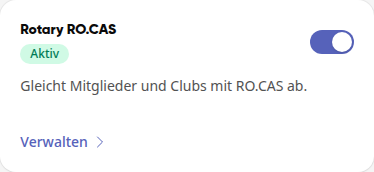
Click Manage or select Integrations → Rotary RO.CAS from the menu.
Enter access credentials#
Under RO.CAS Access Credentials, enter your email address and password. If you leave the password blank later, the saved one will remain.
Click Test Connection. If any information is missing, Please enter email and password will appear. After a successful test, your club will appear under Recognized Club.
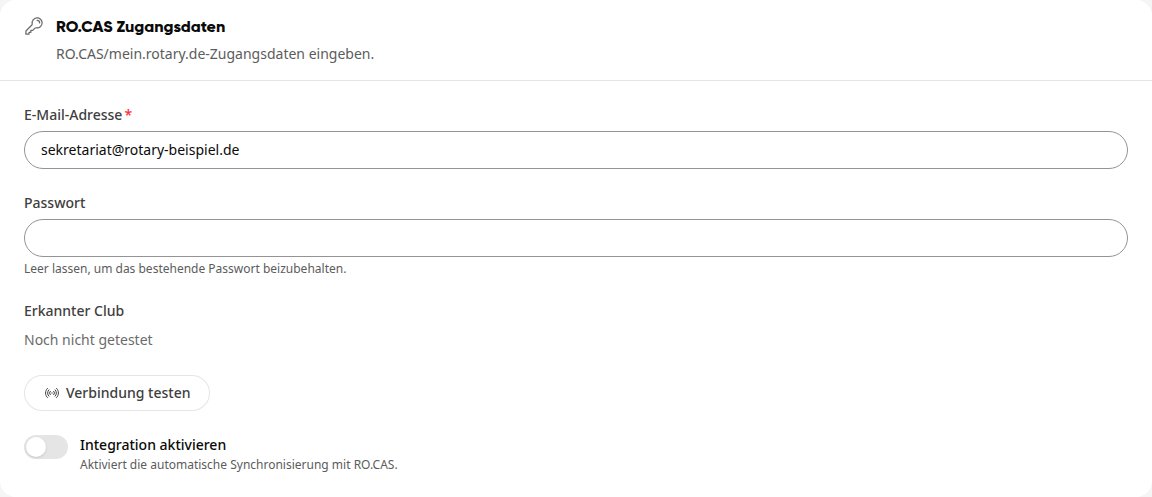
Enable Enable Integration.
Configure synchronization#
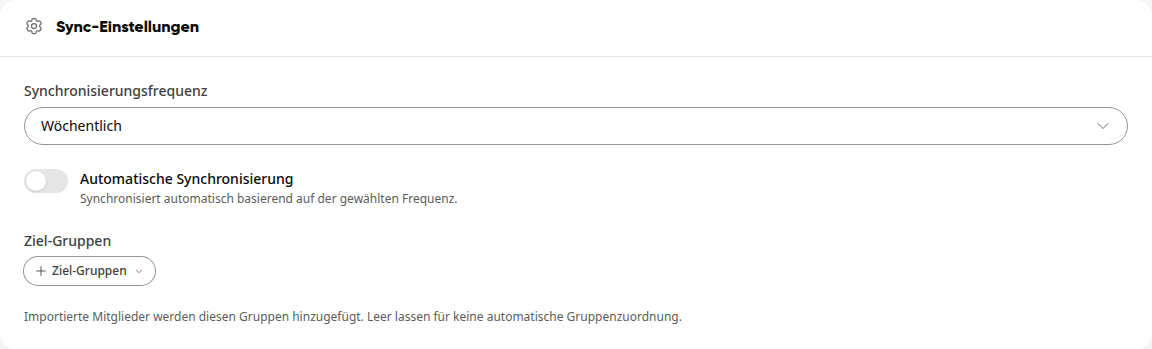
Under Sync Settings, you define when and where the data will be imported:
Synchronization Frequency: Manual, Daily, or Weekly.
Automatic Synchronization: Automatically synchronizes according to the selected frequency.
Target Groups: Imported members will be added to these groups. Leave the field blank if you do not want automatic group assignment.
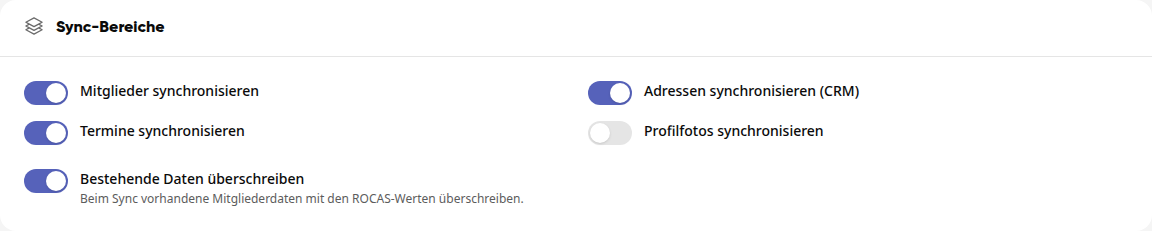
Under Sync Areas, you select what will be transferred:
Synchronize Members
Synchronize Addresses (CRM)
Synchronize Appointments
Synchronize Profile Photos
Overwrite Existing Data: During synchronization, existing member data will be overwritten with the values from RO.CAS.
Warning
Overwrite Existing Data is enabled by default. Disable it if data in the platform should take precedence over RO.CAS.
As soon as you make a change, the button at the top right of the page header changes to Save. Click it. Afterward, it will display Saved again; no separate message will appear.

Without an email address, saving is not possible. An error message will appear, and the button will remain at Save.
Start synchronization#
Under Start Synchronization, you have two options:
Dry-Run (Preview): Starts a test run.
Synchronize Now: Starts the synchronization after a confirmation prompt, which you answer with Confirm.

Under Last Sync, you can see when the last synchronization took place. Before the first run, it will display Never synchronized.
Important
Enable Enable Integration and save before starting. The message Dry-Run completed will appear even if the integration is not yet activated. Therefore, after the first actual synchronization, check Last Sync.
Disable integration#
Disable the Rotary RO.CAS card in the overview and confirm with Disable. Synchronization with RO.CAS will stop. Data already transferred will remain.