
What to do if a VPN or company proxy blocks Kibi Connect?
Updated Reading time: 1 min
Some corporate networks route traffic through a VPN or a corporate proxy (for example, Zscaler). If such a network filter only partially allows the platform through, Kibi Connect detects this and tells you which domain your IT needs to approve.
How to recognize a blocked access#
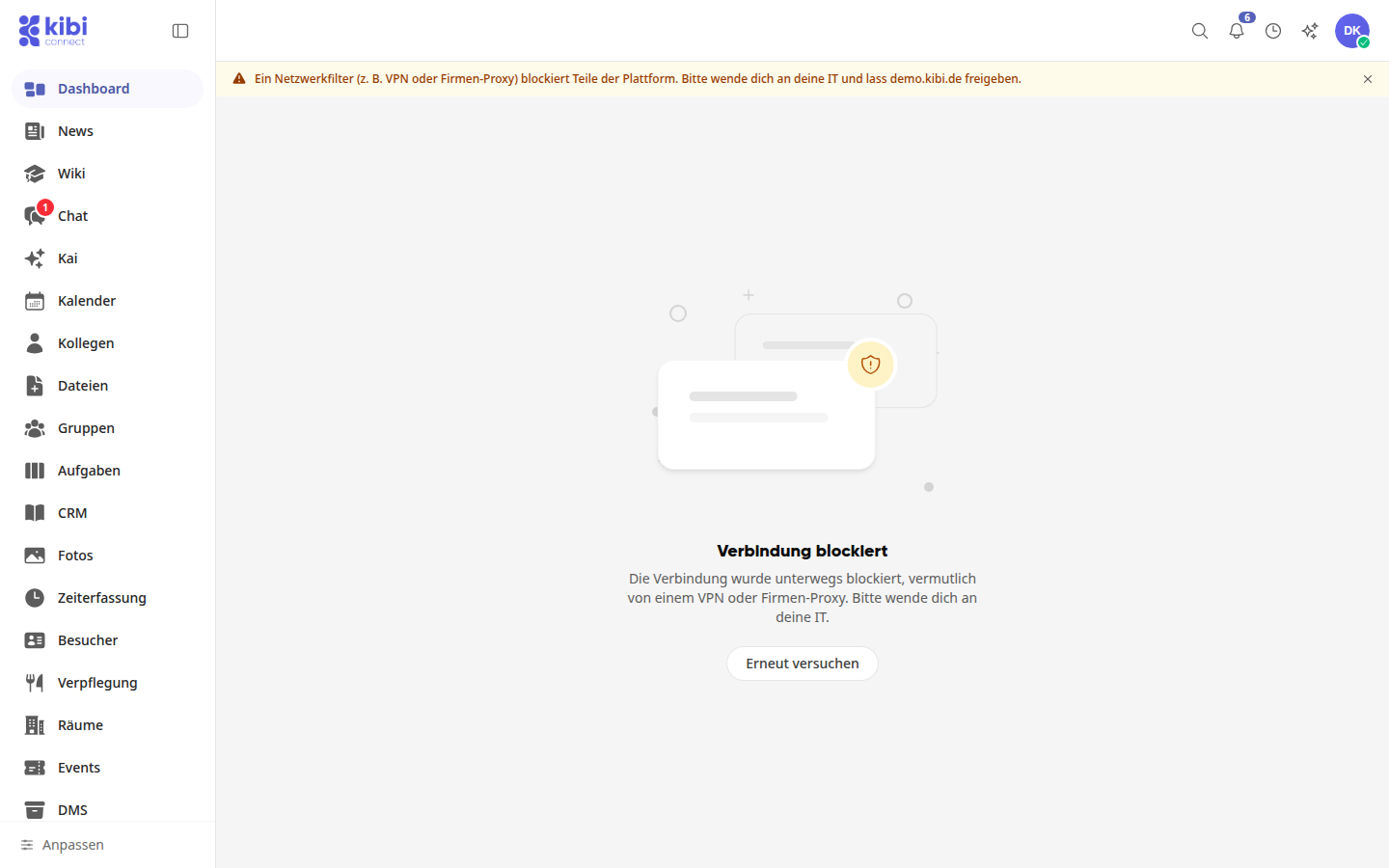
A yellow notice appears below the top bar: A network filter (e.g., VPN or company proxy) is blocking parts of the platform. Please contact your IT department and have … released. Instead of the ellipsis, the domain of your platform is displayed there, for example demo.kibi.de.

Areas whose data does not arrive show Connection blocked instead of a general error message, with the text The connection was blocked along the way, likely by a VPN or company proxy. Please contact your IT department.
Info
Kibi Connect only shows the notice when requests have repeatedly gone unanswered, but the platform itself is reachable. If your internet connection only drops briefly, it will not appear.
How to solve the problem#
Pass the domain from the yellow notice on to your IT department and ask them to allow it in the VPN or company proxy.
Once the domain has been allowed, reload the page. The notice remains visible until the page is reloaded, even if the connection is working again by then.
You can also reload individual sections using Try again.
Tip
Until it has been allowed, you can use Kibi Connect outside the company network, for example with the VPN switched off or on your smartphone via the mobile network.
Hide notice#
Click the X (Hide notice) on the right side of the yellow notice. The notice will then remain hidden until you close the browser tab. The blocked areas will continue to show Connection blocked.