
How do I find a free room and see my bookings?
Updated Reading time: 3 min
You are looking for a suitable room for a specific period, booking it directly, and seeing all your room bookings at a glance.
Find and book a free room#
Click on Rooms in the navigation and open the Find room tab.
Enter the Date, Start time, and Duration.
If needed, narrow the search using All sizes (for example, From 8 people) and Equipment.
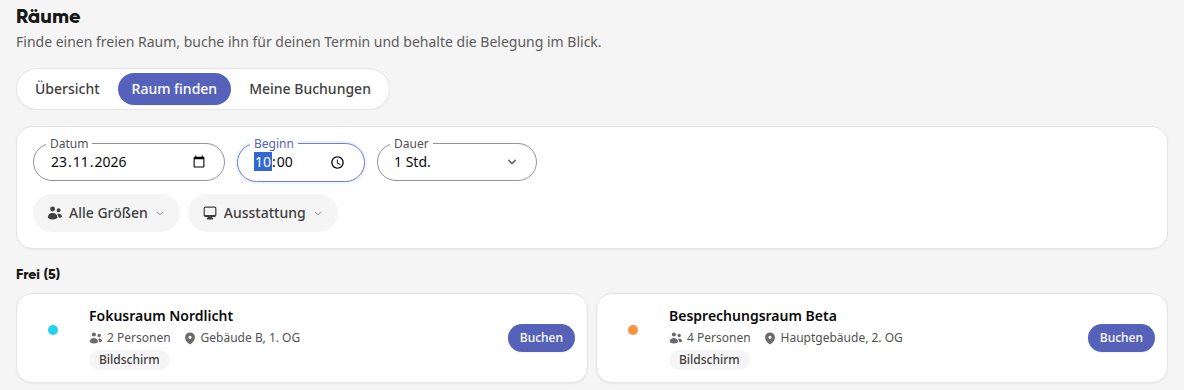
Under Available, you will see all rooms that match your search. Under Not matching, you will see the remaining rooms with the reason, for example Occupied, if the room is already booked for an appointment or a program item of an event.
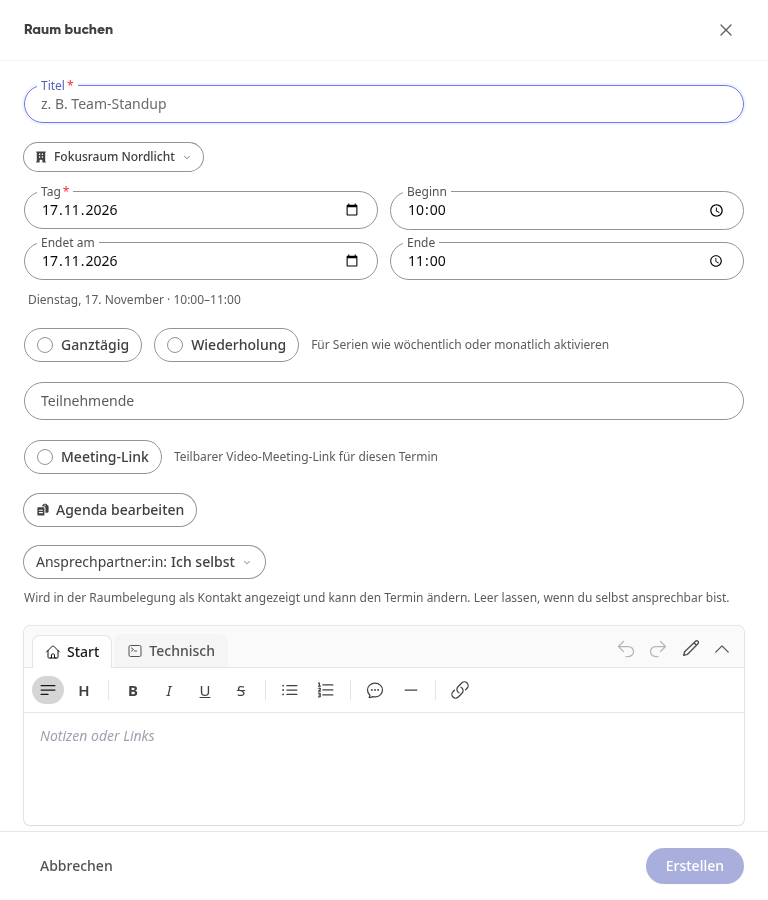
Click on Book for the desired room. The Book room dialog opens, with the room and time already filled in.
Enter a Title, add Participants if needed, and click on Create.
Info
Program items of events also occupy rooms. If a program item has a room, that room is occupied during the time of the item: It appears in Find room under Not matching with Occupied, and in the Overview you can see the occupied time with the person organizing the event.
Info
Rooms that your organization only maintains in the building plan (for example, a boiler room or a storage room) cannot be booked. They do not appear in Find room, in the Overview, or in the room selection of an appointment.
Viewing the occupancy#
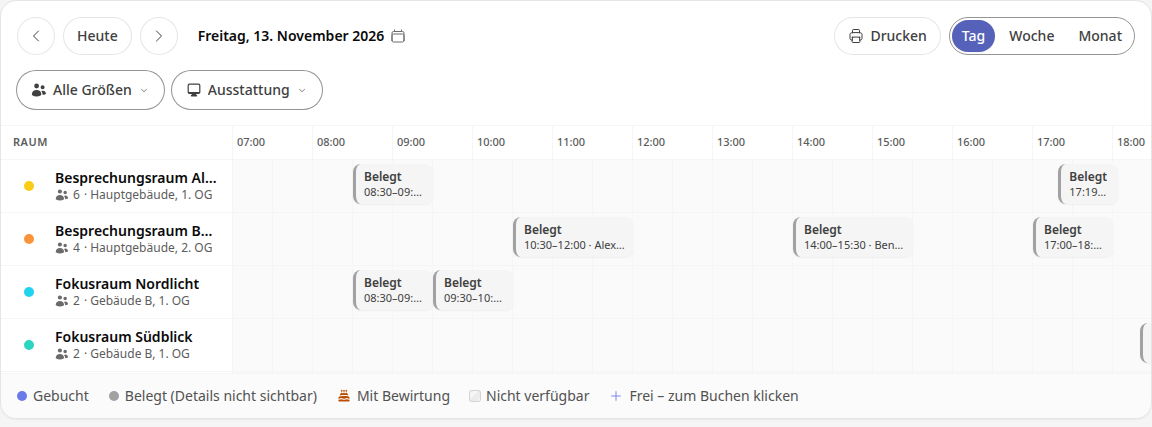
In the Overview tab, you see all rooms side by side, optionally as Day, Week, or Month. You can narrow down the list using All sizes and Equipment and print it with Print. If you click on a free spot in a room's row, Book room opens directly with that time.
Bookings you are not involved in appear in the overview only as Occupied with time and contact person, for example "Occupied · 10:30–12:00 · Alexander Winkler". You do not see the title or occasion there, and you cannot open such bookings. The legend below the plan shows which bookings are Booked and which are Occupied (details not visible). This applies equally to the printout via Print and to the door sign.
Info
Only the participants see the title of a booking: the person who made the booking, the contact person, and the invitees. In addition, the system administrators and the people who manage the rooms see it. If you ask Kai about a room's occupancy, he will also only tell you about external bookings as occupied.
With the arrows you page forward one day, one week, or one month; Today takes you back to the current day. To jump directly to a specific date:
Click on the displayed date at the top, for example Wednesday, November 11, 2026. A calendar opens.
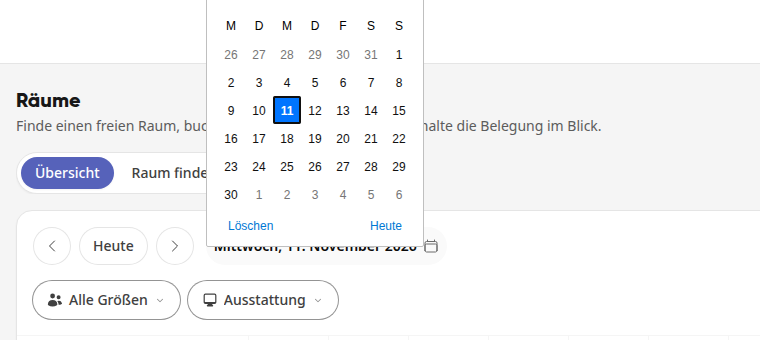
Select the day. In the Day view you see that day, in Week the week containing that day, and in Month the entire month.
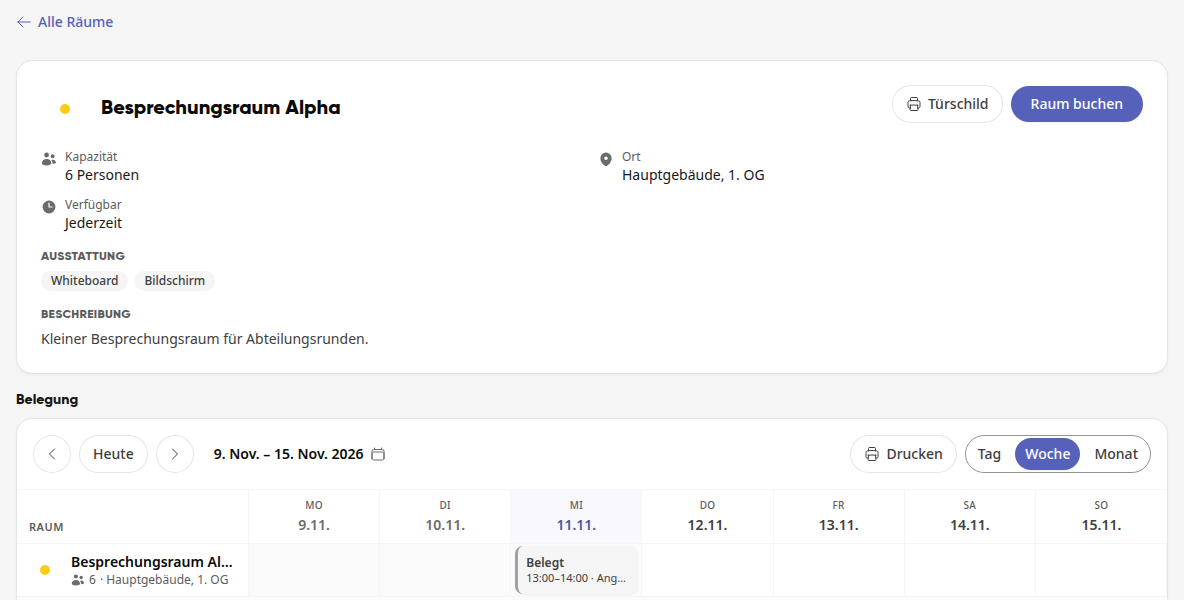
Click on a room's name to open its page. There you will find capacity, location, availability, equipment, and description, below that the Occupancy and the Utilization of the room. In the Occupancy as well, clicking on the date opens the calendar. With Book room you book the room directly. Via Door sign you can Print the room's door sign or Download as PDF.
View your bookings#
In the My bookings tab, you will find your room bookings for the next six weeks, sorted by day.
Click on a booking. Edit appointment opens.
Change the appointment or the room. Your changes are saved automatically; there is no separate save button here. Close the window afterwards.
If you no longer want to use the room, click Delete at the bottom and confirm. The appointment is cancelled, and the room becomes available again.