
How do I manage vehicles in the fleet?
Updated Reading time: 4 min
On this page
You add vehicles, determine who is allowed to book them, and keep their data and status up to date.
Info
This function is available to fleet managers. You can find it in the admin area: Click on Administration in the navigation and then on Fleet under Organization.
Vehicles at a Glance#
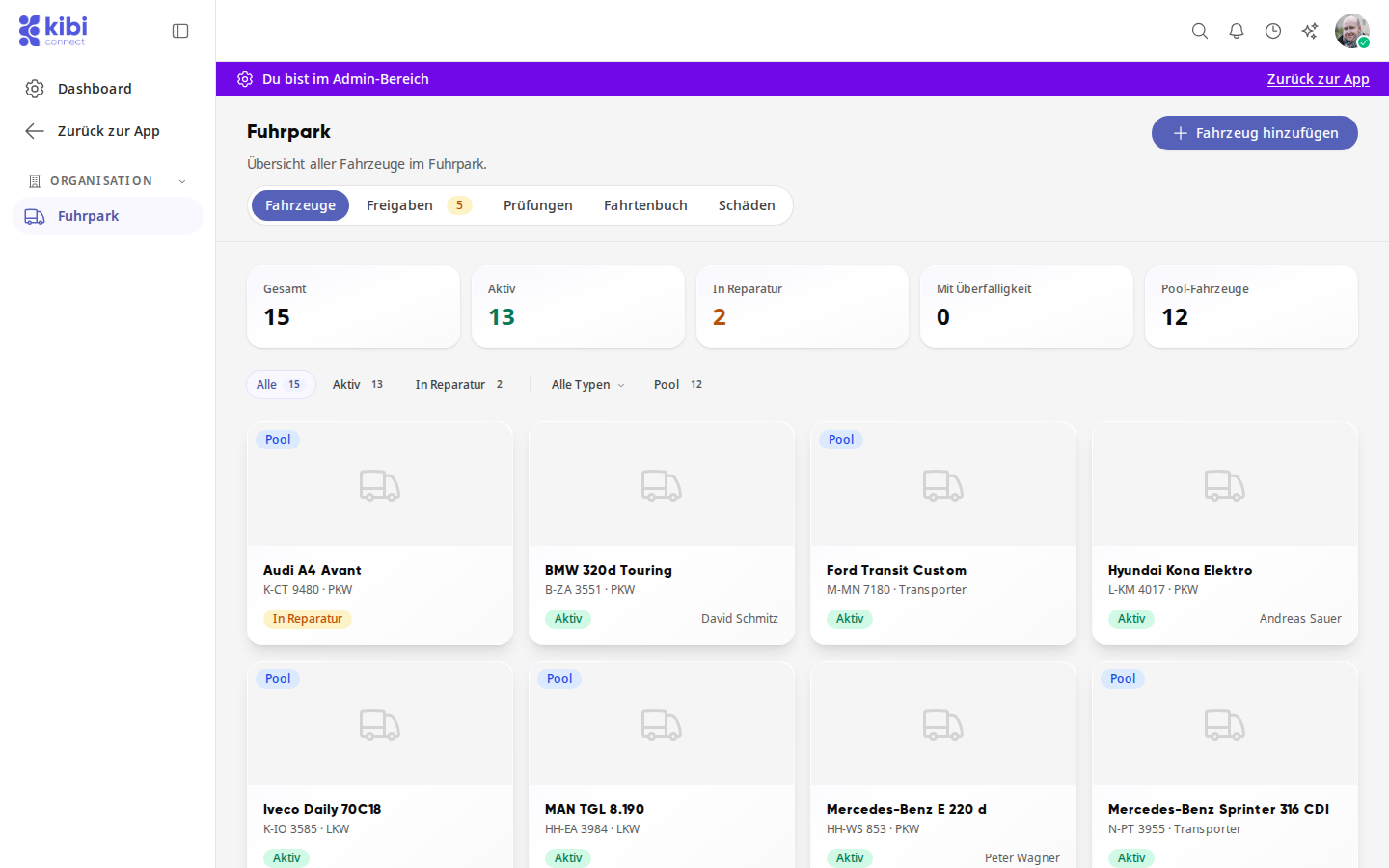
The Vehicles tab counts Total, Active, In Repair, Overdue, and Pool Vehicles at the top. Below that, you can filter the list by status, type, and Pool. Clicking on a card opens the vehicle.
Create vehicle#
Click Add vehicle at the top right.
Enter Make, Model, and License plate, and check Vehicle type and Status. If needed, add Fuel, Color, Vehicle identification number (VIN), First registration, Seats, and Mileage.
Under Maintenance every … km, enter the interval if maintenance should also be due based on mileage. If you leave the field empty, only the date counts.
Check the Pool vehicle box if all employees should be able to book the vehicle. Without the checkmark, enter under Authorized persons and Authorized groups who may book. If you leave both fields empty, it applies to all employees.
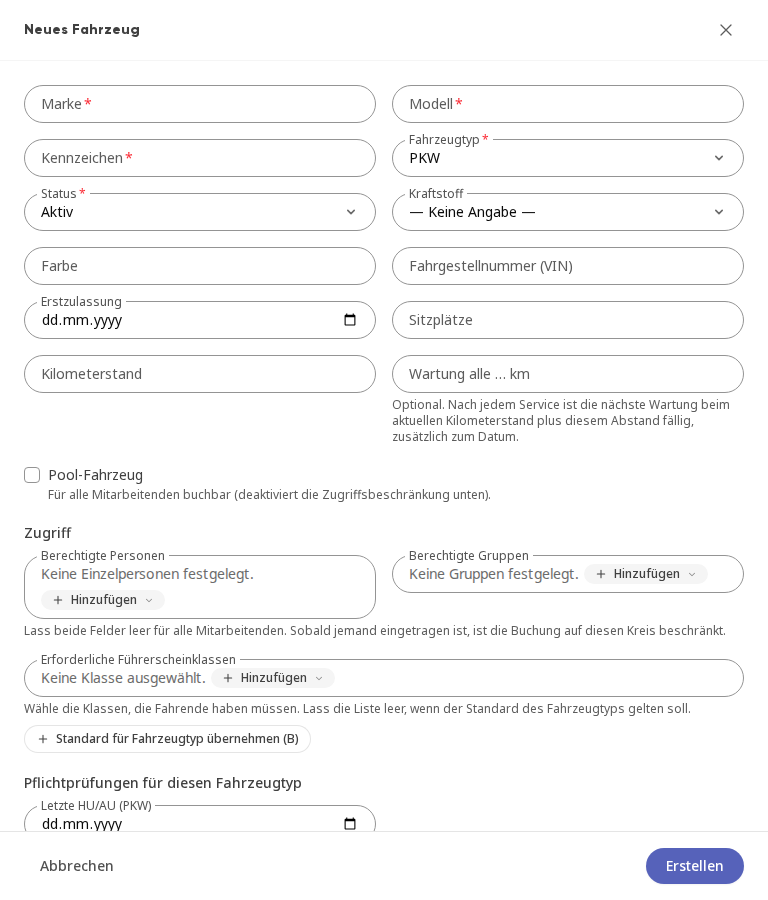
Under Required driver's license classes, add the necessary classes or click on Apply standard for vehicle type.
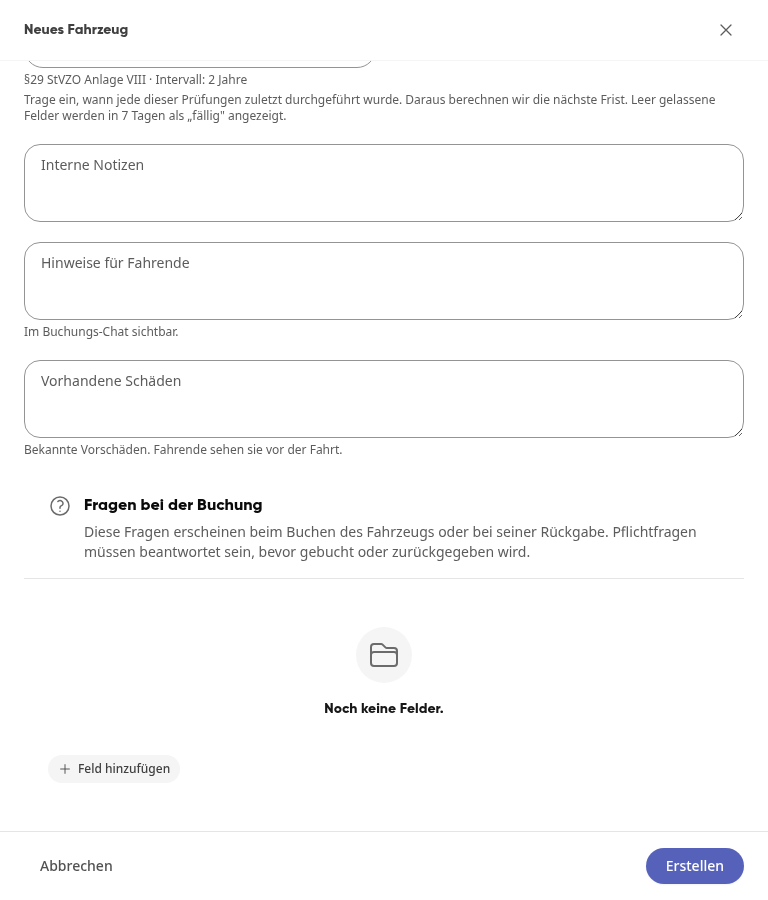
Under Mandatory inspections for this vehicle type, enter when the inspection was last performed. The platform calculates the next deadline from this. Empty fields will be shown as "due" in 7 days.
Click on Create.
Only pool vehicles appear in the booking overview. Employees can find vehicles without the checkmark under Find vehicle.
Further down in the window, the following information is available:
Internal notes: Your notes about the vehicle.
Instructions for drivers: For example, "Please charge to 80% before returning." Drivers see them in the booking chat and in the booking details.
Existing damage: Known prior damage that drivers see before the trip.
Questions at booking: Questions that appear when booking or returning. How to create them is described in the next section.
Set questions for booking and return#
With questions, you get exactly the information you need for the vehicle with each booking, such as photos of the condition or the fuel receipt.
Open the vehicle, click on Edit and scroll to Questions at booking. When creating a vehicle, you will find the section in the same window.
Click on Add field.
Under Field name, enter the question and, if needed, a Hint below it that appears under the field.
Under Field type, select how the answer is given: Short text, Long text, Number, Email, Phone, Date, Selection, Rating, Scale, Yes/No, Consent, File, Photo, Signature or Location.
Under Asked, select when the question appears: At booking or At return.
Check Required field if booking or return cannot be completed without an answer. For File and Photo, set under Maximum files how many may be uploaded.
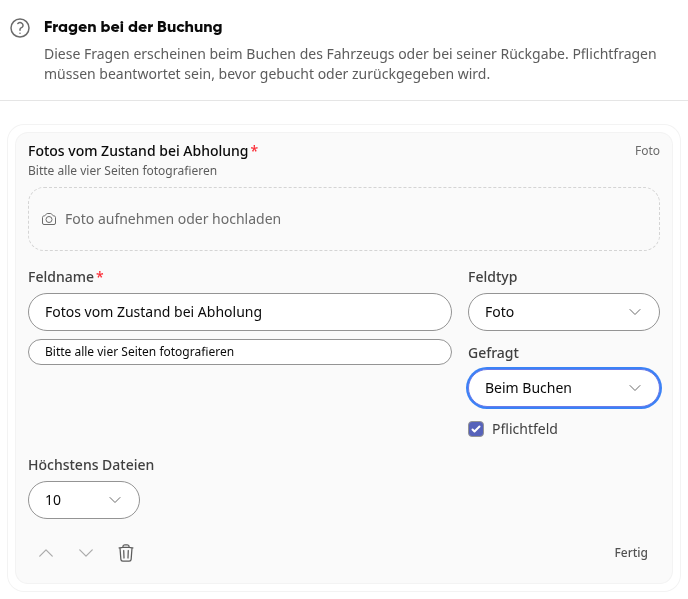
Click on Done and then on Save.
Use the arrows to change the order of the questions, and the trash can to remove a question. You can see the answers in the booking details and, for approvals, already in the request; photos and files can be opened there with a click.
Set maintenance by kilometers#
With Maintenance every … km, maintenance is not only due by date, but also by mileage.
Open the vehicle and click on Edit.
Under Maintenance every … km, enter the interval, for example 15000.
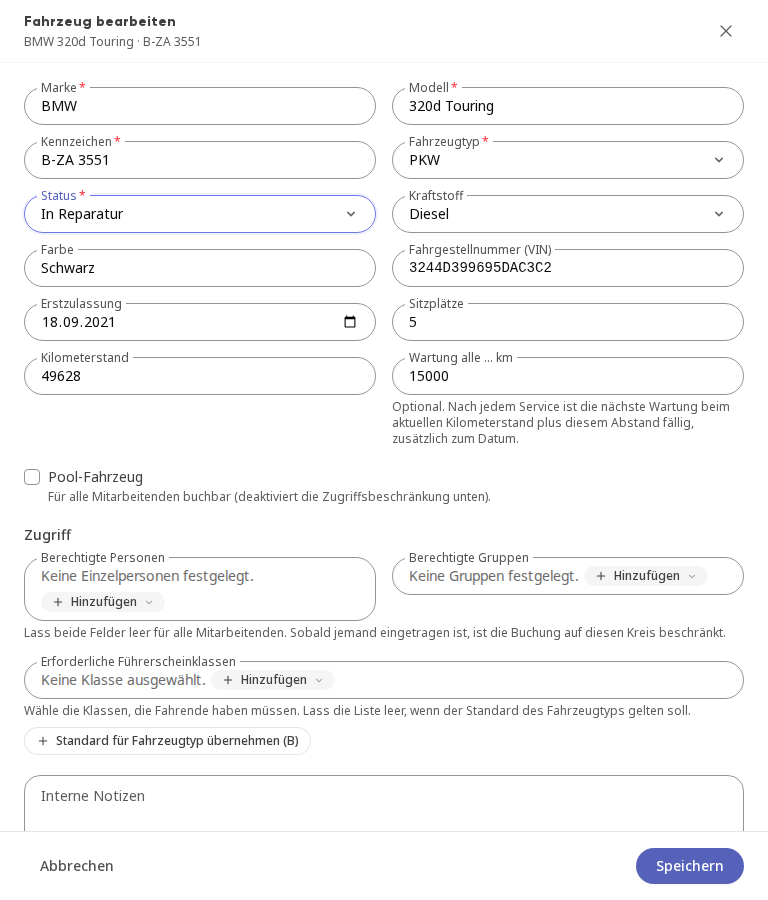
Click on Save.
From the next recorded service onward, maintenance is due at the current mileage plus this interval, in addition to the date. Therefore, keep the vehicle's mileage up to date. You can adjust an existing deadline under Inspections using Edit.
View vehicle#
On a vehicle's page, under Vehicle data, you will find the details, the required driving license classes, the next inspection, and Who can book. The tabs Inspections, Bookings, Logbook, and Damages show everything else related to this vehicle.
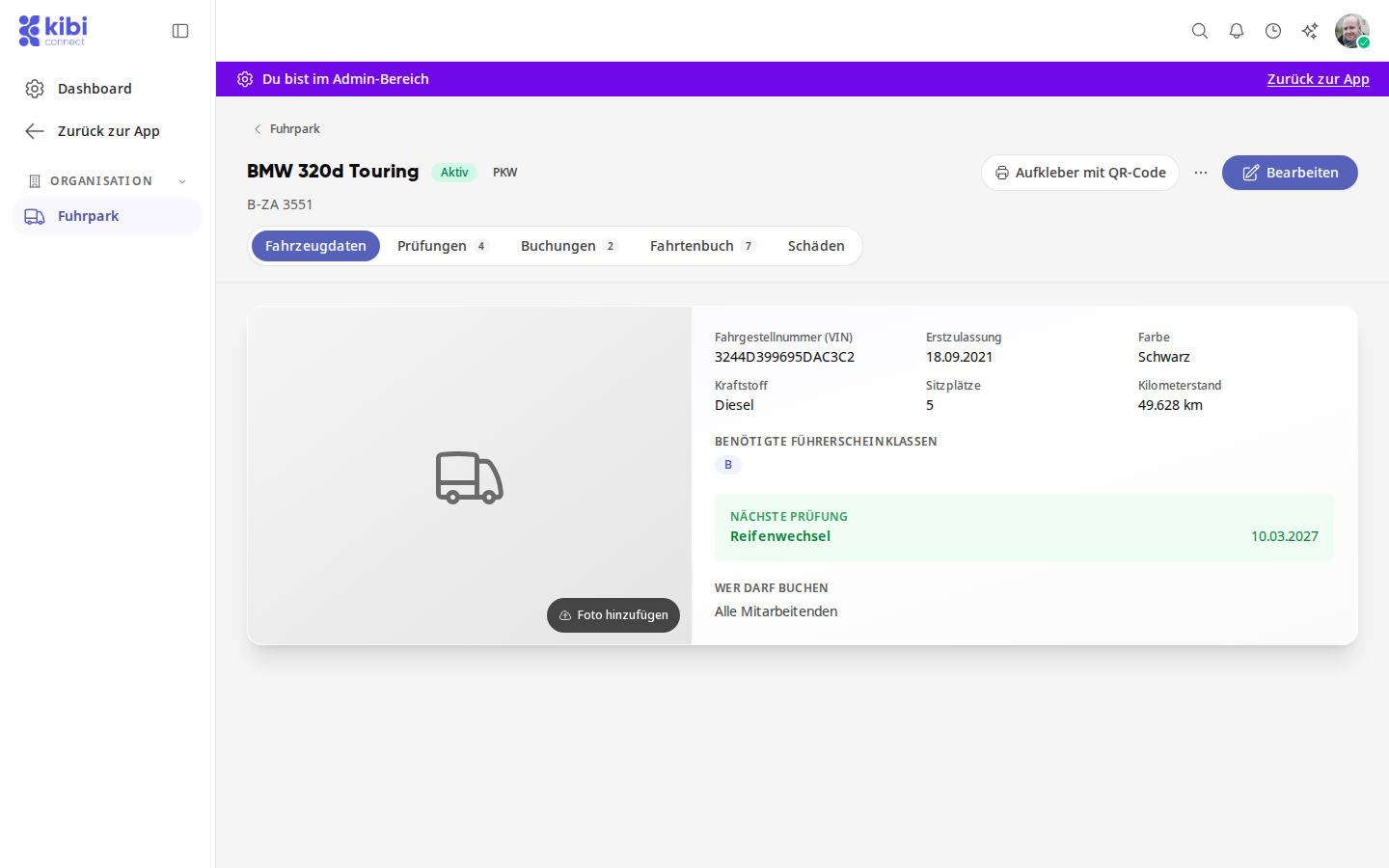
In the Inspections tab, under Upcoming inspections, you will find the vehicle's deadlines, below that the Safety inspections / UVV with inspector and result, and Service & Maintenance with the workshop appointments. If a deadline is also due based on mileage, it is listed below the date, for example, "at 101,083 km · 15,000 km remaining". Clicking on a deadline opens its task.
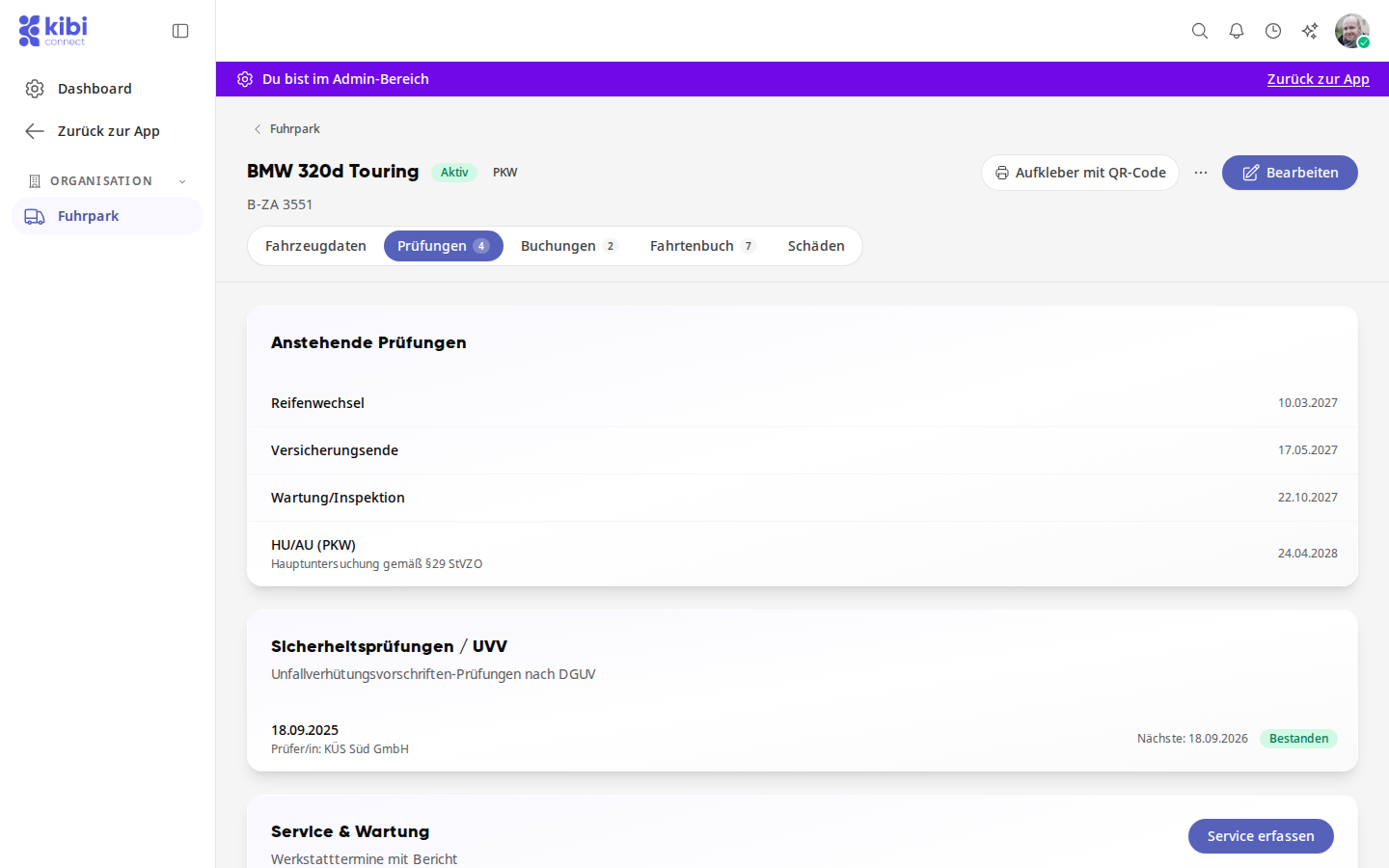
Add photo: Uploads an image of the vehicle.
Sticker with QR code: Select Print or Download as PDF.
Edit vehicle and change status#
Open the vehicle and click on Edit.
Change the details. Under Status, select Active, In repair, Inactive, or Decommissioned.
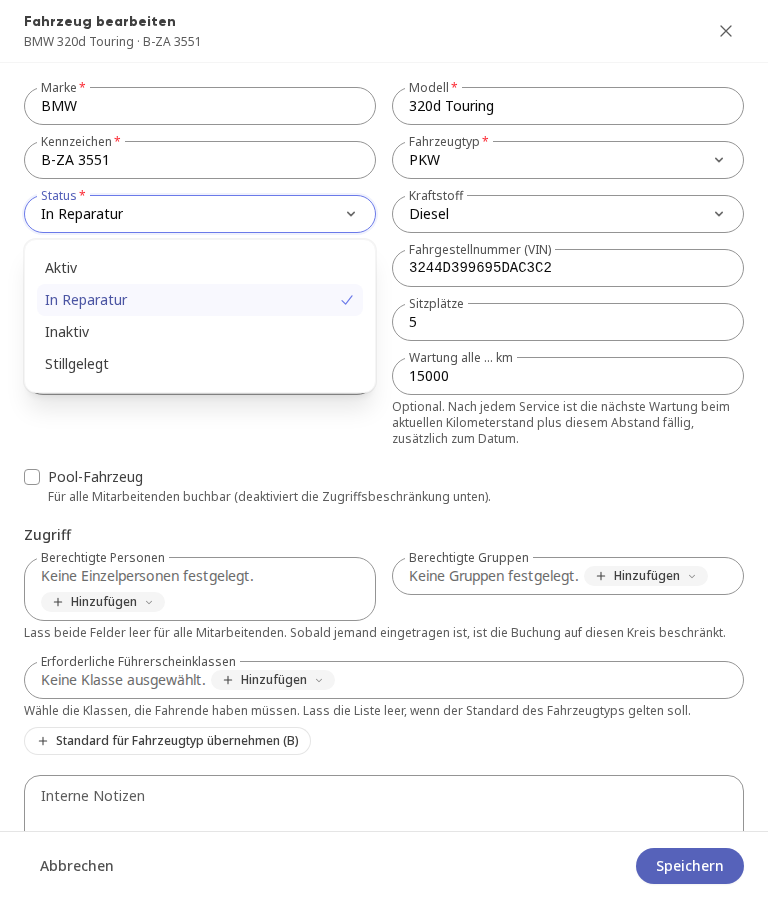
Click on Save.
A vehicle In repair remains bookable and is marked accordingly when booking. Inactive removes it from Find vehicle.
Delete vehicle#
Open the vehicle and click the three-dot menu next to Edit.
Click on Delete vehicle and confirm with Delete permanently.
Warning
Deletion cannot be undone. If a vehicle should only be temporarily unavailable, change its status instead.