
Release and use buddy
Updated Reading time: 2 min
On this page
Your company gives you a Kumpel? Here's how to connect it to your account and how to operate it.
If you received a Kumpel without assignment, connect it yourself: Connect Kumpel via code or QR. If it doesn’t have Wi-Fi yet: Set up Kumpel via USB-C.
Release Kumpel#
If you’ve used Kibi before, no Kumpel will be connected to your account without you. As long as a release is pending, you’ll see the message “Release Kumpel?” in the bell. You’ll also receive it by email.
Open release. Tap View and release in the message. Or open it yourself: Profile picture top right > My Profile > Integrations tab > Devices and Apps section. At the top, there’s the yellow card Release Kumpel.
Enter number. Under Number on the Kumpel, enter the number displayed on the Kumpel’s screen.
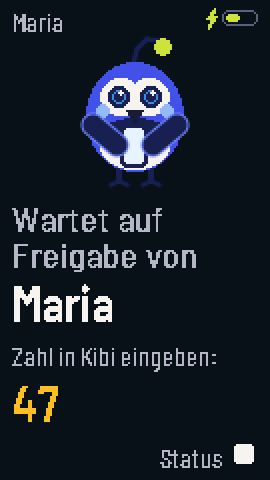
Tap Release.
If the number is incorrect, Kibi shows: “The number is incorrect. Check the Kumpel’s display.” Next to the card, it shows until when the release is valid.
Warnung
Not you? If you’re not expecting a Kumpel, tap Decline. If you don’t release it, the request expires after 24 hours or immediately after 5 incorrect numbers.
Afterward, the Kumpel greets you with “Hello” and your first name.
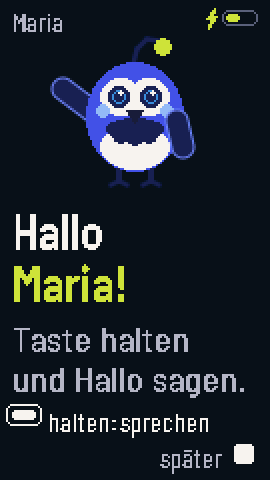
How to operate the Kumpel#
Button |
What happens |
|---|---|
Hold front button |
Speak. Release when you’re done. |
Click front button |
The main action of your mode, e.g., task completed or clock in/out. |
Click side button |
Next or status. |
Hold both buttons for 2 seconds |
Toggle silent mode on or off. |
Your company determines which mode your Kumpel has.
Undo and confirmations#
Your own notes and tasks are created by the Kumpel immediately. You can undo them for 8 seconds using the side button.
Stamping and messages to your group require confirmation from the Kumpel first. Nothing happens without your approval.
Your Kumpels in your profile#
Open profile picture top right > My Profile > Integrations tab > Devices and Apps section. There, every Kumpel connected to your account is listed with its serial number (e.g., KD-6ED3-4BF0) and the access Kibi Kumpel, including those assigned by an admin that you haven’t released yet.
Remove Kumpel#
Click Remove on the Kumpel.
Confirm in the dialog Remove Kumpel with Remove.
Warnung
The Kumpel will be reset. Voice notes it hasn’t sent yet will be lost.
With every new connection, you’ll receive the message “New Kumpel connected” in the bell, via push notification, and by email, with the button View devices. If an admin assigned the Kumpel, their name will be displayed. If it wasn’t you, remove the Kumpel immediately.
Data privacy#
Info
The microphone only listens while you hold the button. Your notes, questions to Kai, and tasks are not visible to your administration.