
How do I create a course in the academy and assign it?
Updated Reading time: 3 min
On this page
As a content manager, you create training topics in the Academy, fill them with content, publish them, and determine who should complete them: as a requirement for a group, as an optional offering in the catalog, or as an individual assignment.
Open Training Topics#
In the left navigation, open Administration.
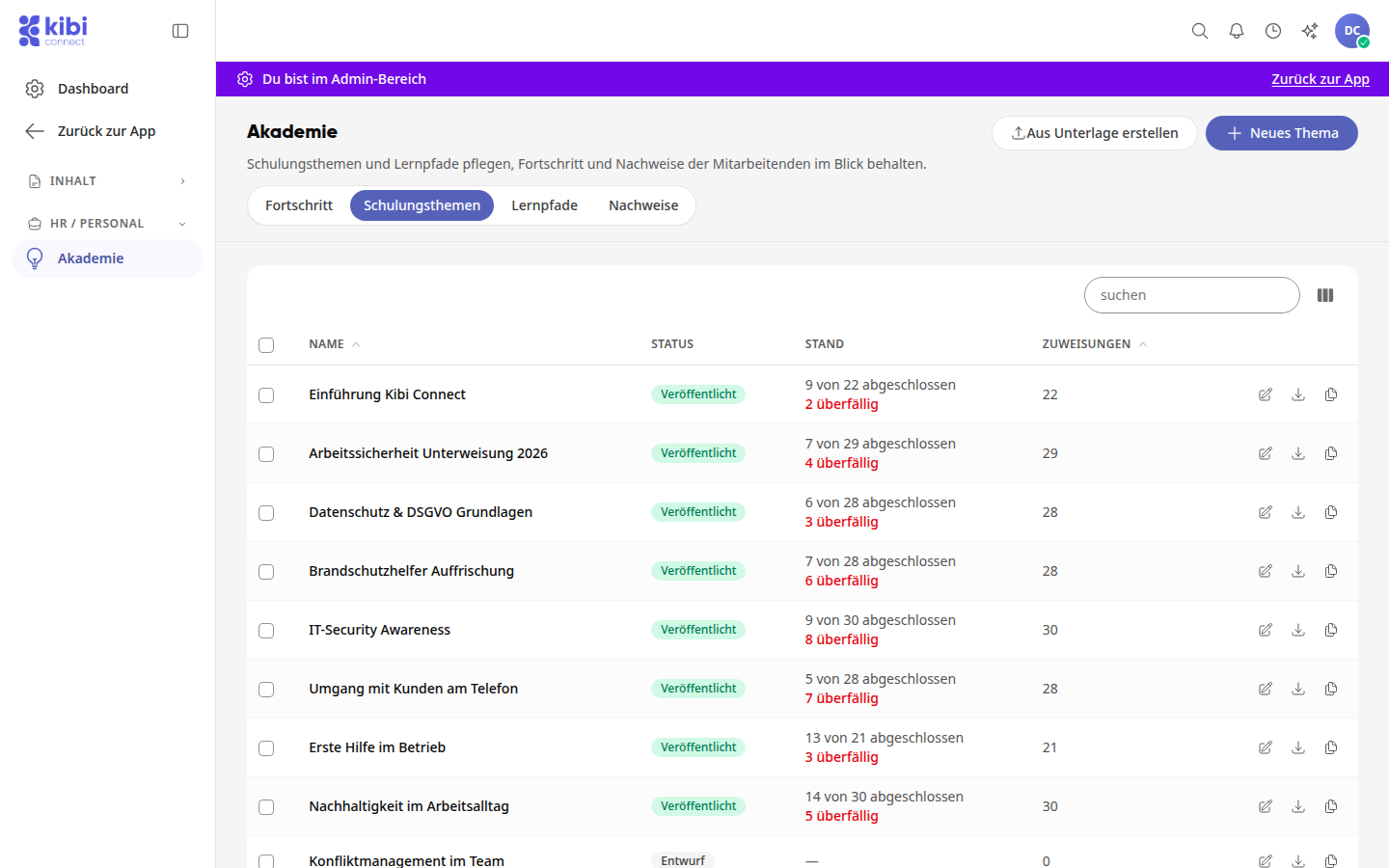
Under HR / Personnel, click on Academy and then on the Training Topics tab.
The list shows all topics with Status (Draft or Published), the Progress (how many are completed and overdue) and the number of Assignments.
Create a new topic#
Click on New Topic in the top right corner. The topic opens on the right with the tabs Basic Data, Course, Documents, Participation, and Certificate.
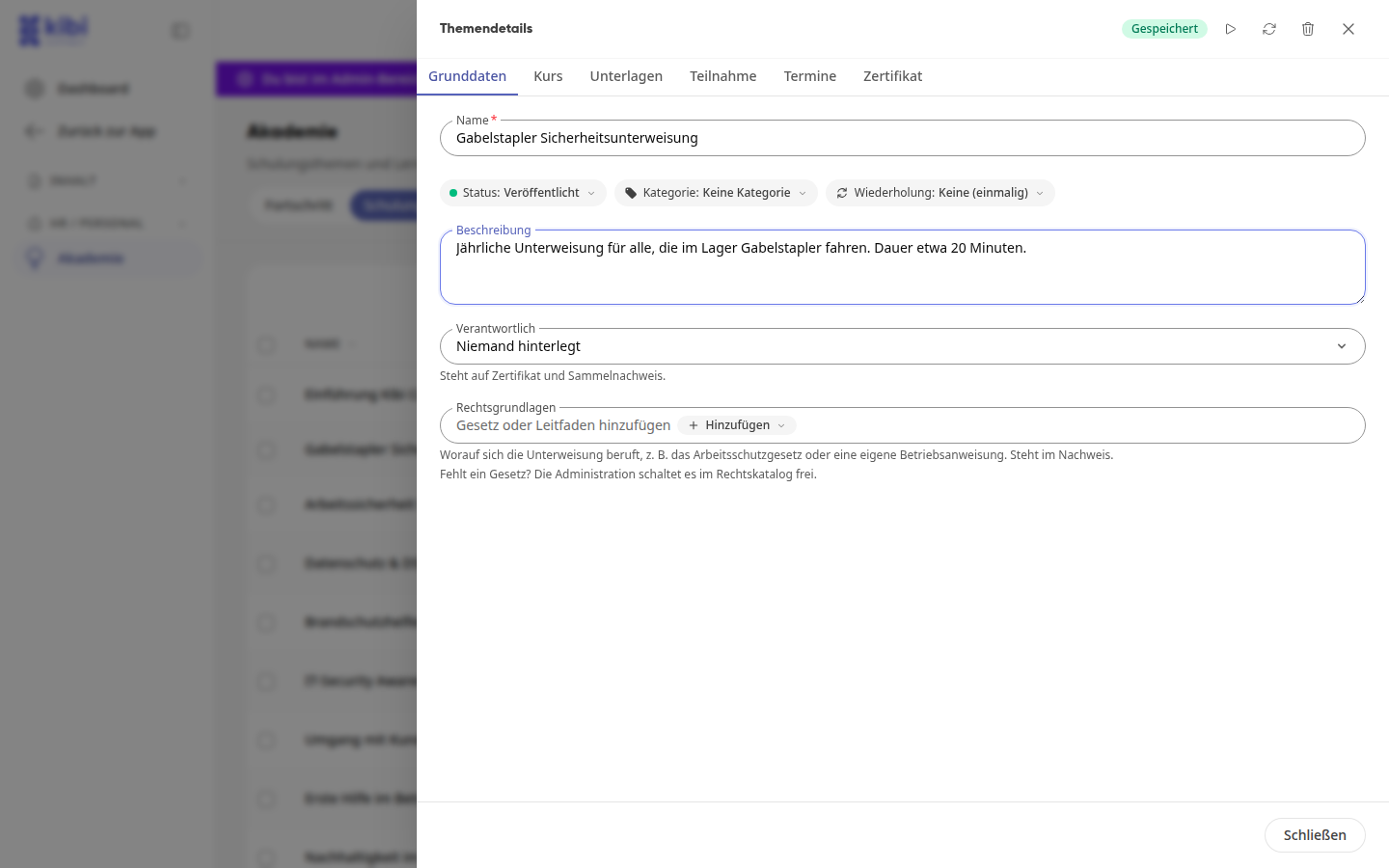
In the Basic Data tab, enter a Name and a Description. Optionally, select a Category, Repeat (e.g., for annual instructions), a responsible person under Responsible, and Legal Bases that the instruction refers to.
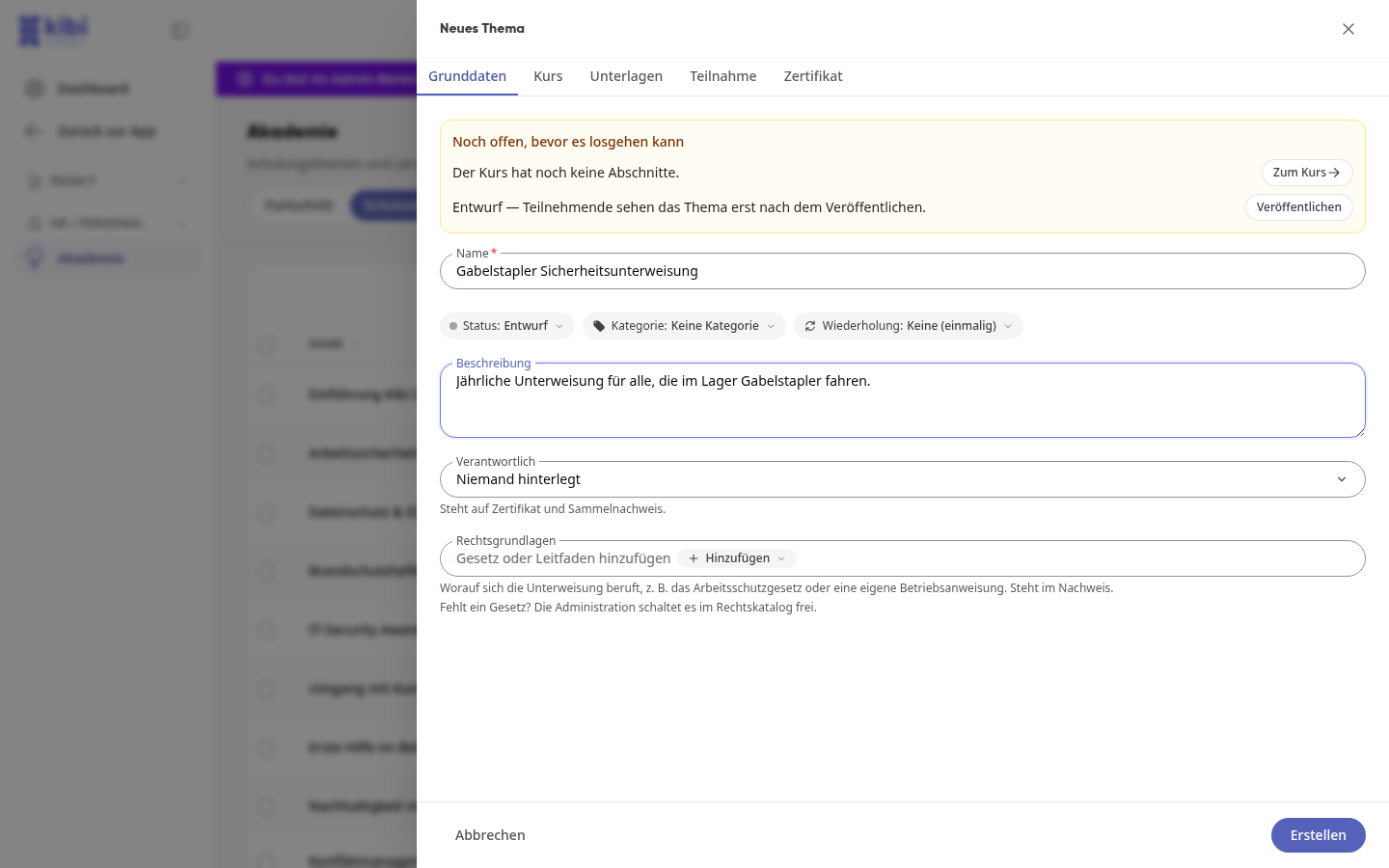
Click on Create in the bottom right corner. The topic is created as a draft, and the Dates tab is added.
From now on, the topic saves every change itself, even if it has already been published. In the top right corner, you can see whether it is currently saving (Saving…) or everything is saved (Saved). There is no longer a save button; at the bottom, there is only Close.
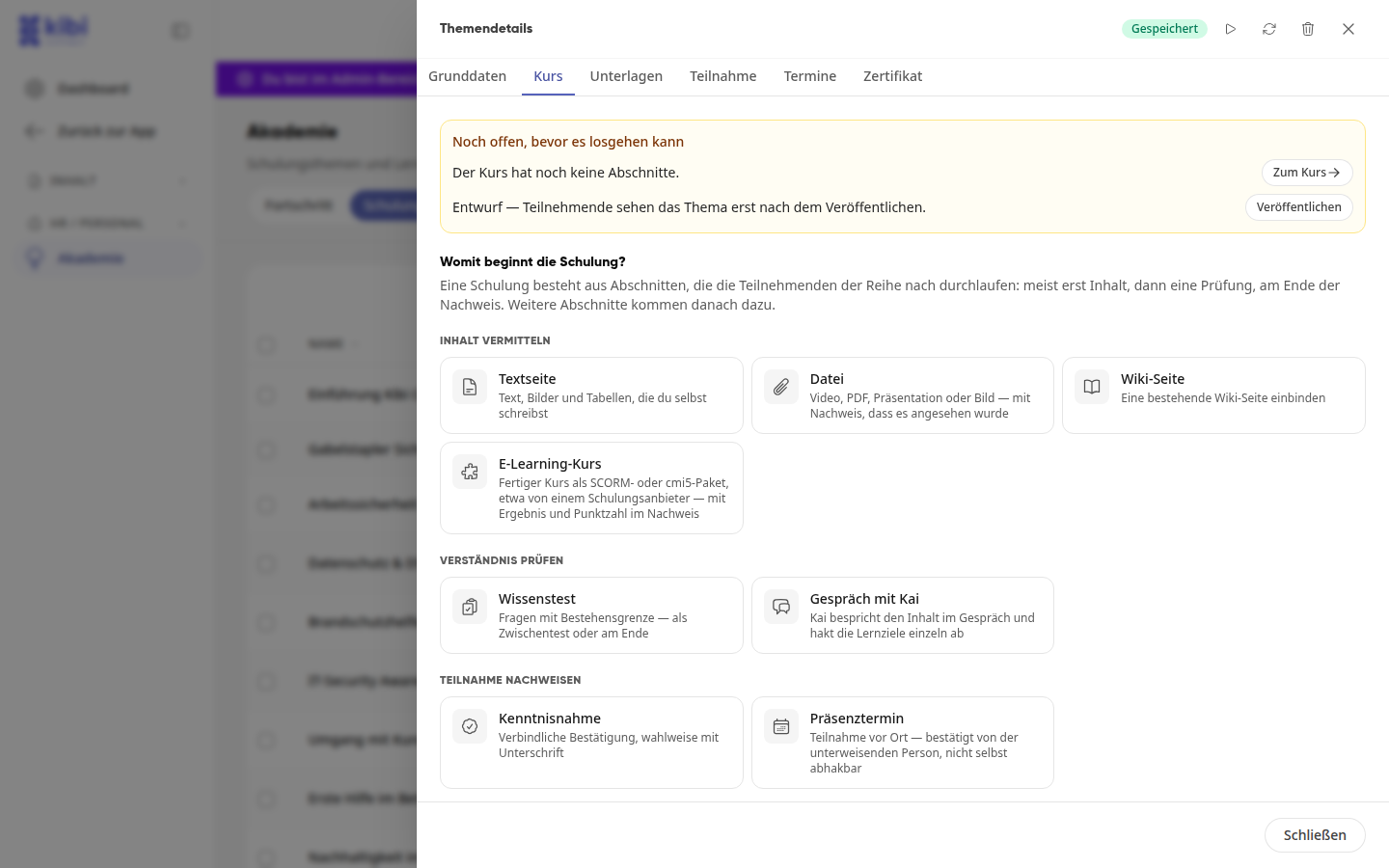
The yellow box Still open before it can get started shows you what is still missing and takes you there with a click.
Compile course content#
Open the Course tab. A course consists of sections that participants work through in sequence.
Select the first section, e.g., Text page, File (video, PDF, presentation), Wiki page, or E-learning course. For testing, there are Knowledge test and Talk with Kai, for proof of participation Acknowledgment and In-person appointment, and for feedback Course feedback.
Give the section a title, optionally a work assignment, and fill in the content. With Section: Required and Completed when, you define whether and how the section must be completed.
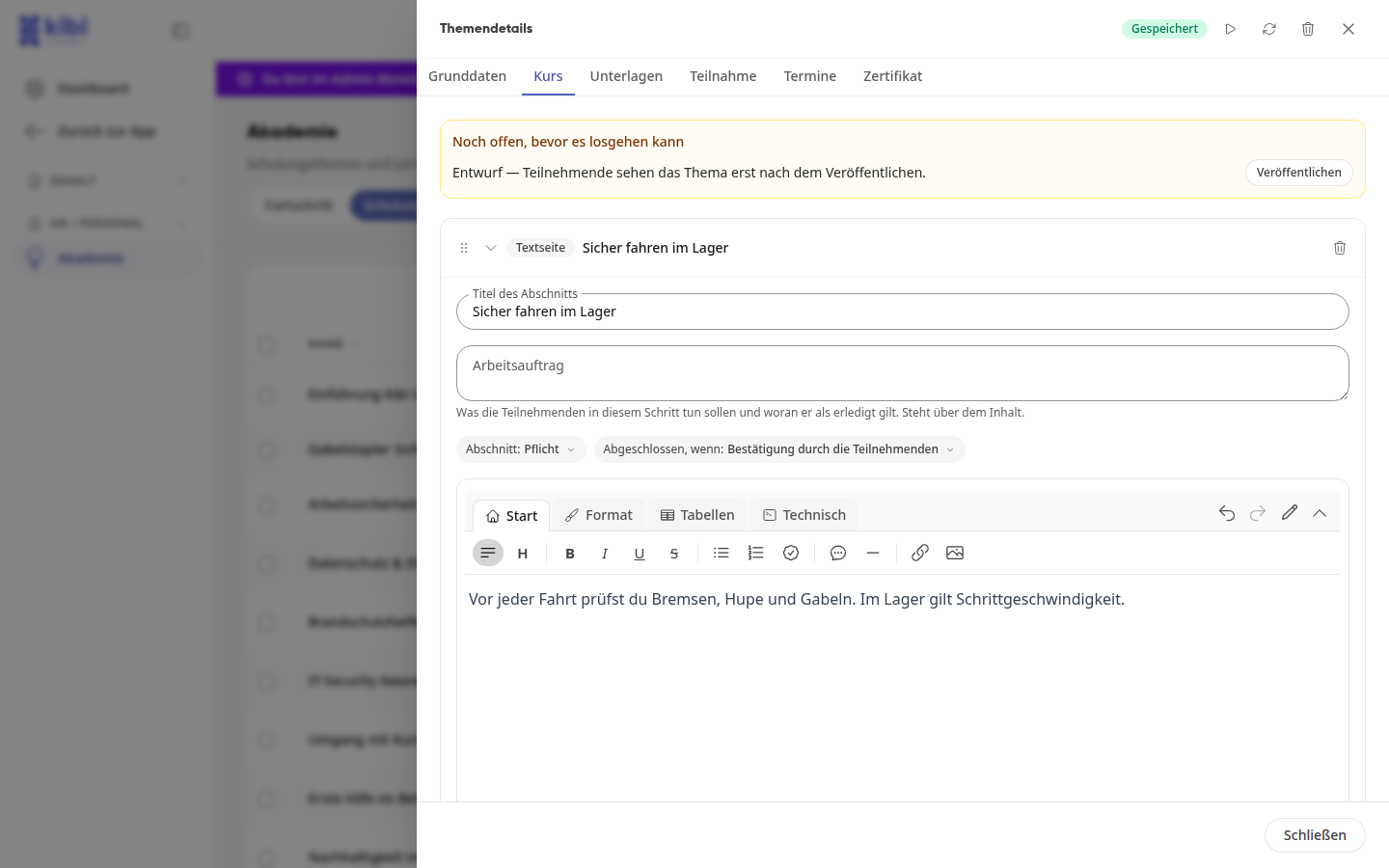
Add further sections using Add section. You don't need to do anything else: Your entries are saved as soon as you pause briefly or leave the field.
Tip
With the Test button at the top of the topic, you go through the course yourself from the participants' perspective. Reset test run resets your test run to the beginning.
Set participation and publish#
Open the Participation tab and select Voluntary or Mandatory. For Voluntary, no one is required; who receives the training is determined by the catalog, onboarding, or an individual assignment.
If you select Mandatory, under For whom? you define All employees or Selected and add groups, roles, or individuals as the Target audience. Under Schedule, you set the deadline, reminders, and whether the manager is informed. Anyone new to the target audience automatically receives the training.
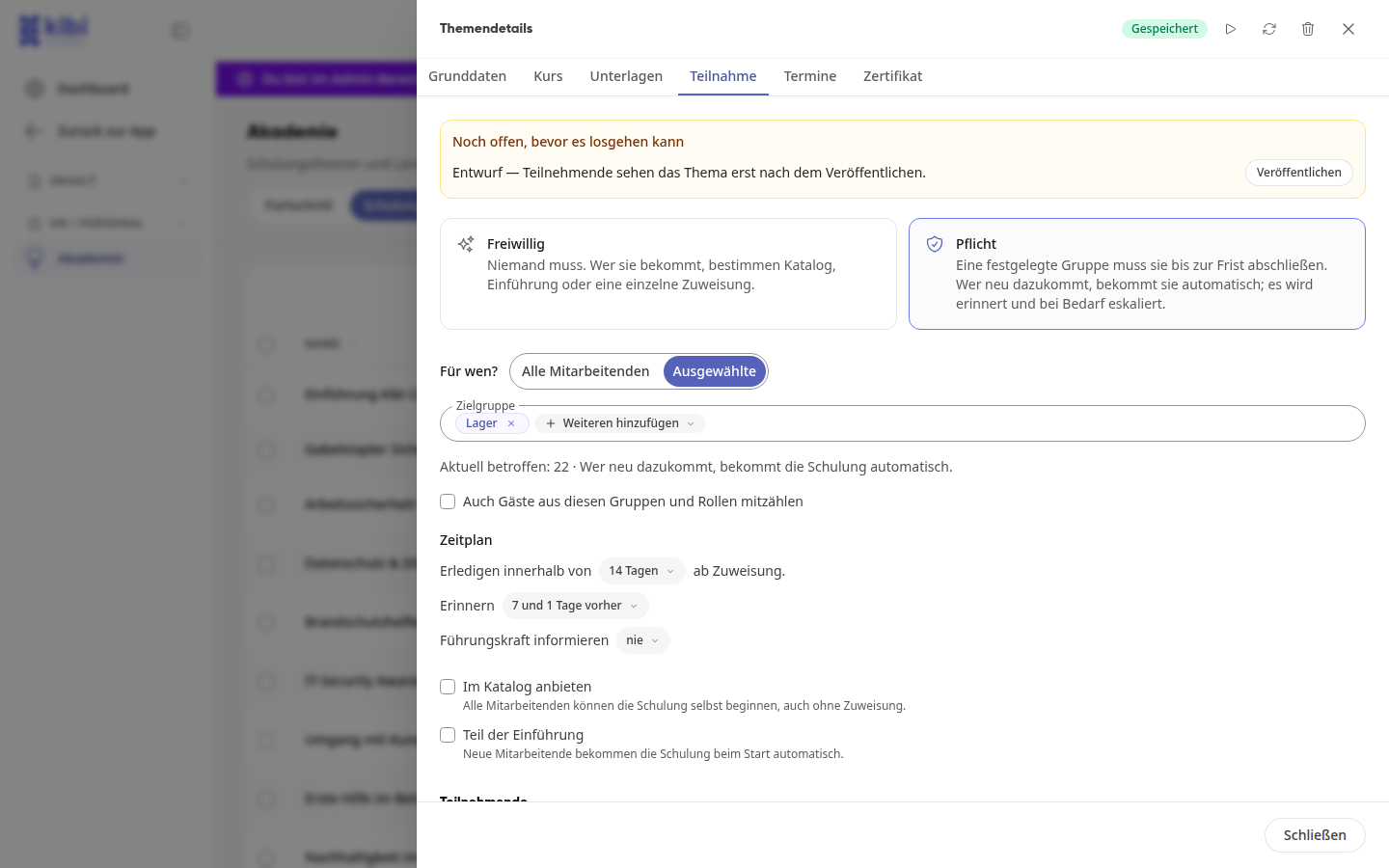
If needed, enable Offer in catalog so all employees can start the course themselves from the training offerings, or Part of onboarding so new employees automatically receive it when they start.
Click Publish in the yellow box. This takes effect immediately: the status is set to Published, and participants see the topic.
Important
Even for a published topic, every change takes effect immediately. For example, if you change the target audience of a mandatory training, newly added individuals automatically receive the training.
Assign Individual People#
In the Participation tab, under Participants, click on Assign individually.
Select Groups and/or Select people, optionally set a Deadline, and click on Assign individually.
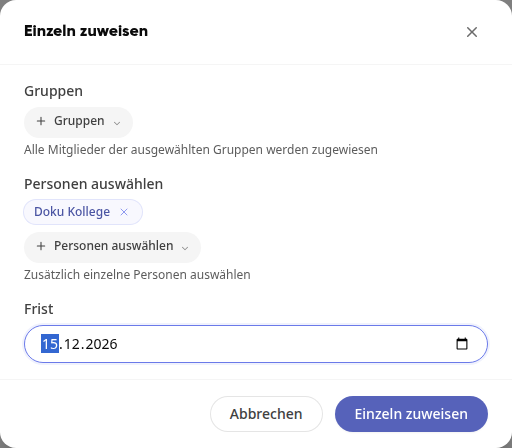
The people appear in the Participants list with status and progress. An individual assignment applies once and is not repeated.
When something cannot be saved#
The platform does not save some changes: an empty name ("Without a name, nothing is saved.") or a test question without a correct answer. Above, Not saved is then displayed, and in the event of an error, Error saving.
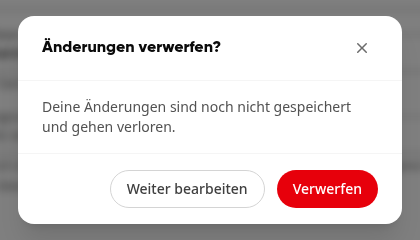
If you close the topic in this state, the platform asks Discard changes?: With Continue editing you stay in the topic and can complete the information; with Discard, the unsaved changes are lost. If everything is saved, the topic closes without asking.
Info
This function is available to content managers.