
How do I set the settings of my own module?
Updated Reading time: 3 min
On this page
Many of your own modules offer settings that you can change without code: text, numbers, switches, dropdown lists, colors, and also people, roles, or groups. For example, in the issue reporter, it is not hardcoded who receives the reports. You enter a person under Building Technician, and the module sends every report to that person. If responsibility changes, you only change the setting.
Info
System admins and people who are allowed to edit the module or manage its data can change settings. The module itself defines which settings are available. If it offers none, it will say under Module Parameters: "This module has no parameters yet."
Open Module Parameters#
Open the Module Data page. If your role is allowed to manage a module's data, you will find it in the administration under Platform. As a system admin, you do not have a menu entry there and access the page directly: Append /administration/module-data to your platform's address.
Click on the module.
Switch to the Module Parameters tab at the top. You will see all the settings the module offers, along with their descriptions.
If you are editing the module in the Module Studio, you will find the same form under Settings → Module Parameters. After saving, the preview reloads.
Enter Values#
Change the value. Switches and dropdown lists are saved immediately; typed text, numbers, and colors are saved shortly after the last input.
For a setting for people or roles, select from the directory or from your platform's roles, for example, the building technician or the team leader role.
For a group setting, click Select Group or Add Group and search for the group by its name. You will only find groups that you can see yourself.
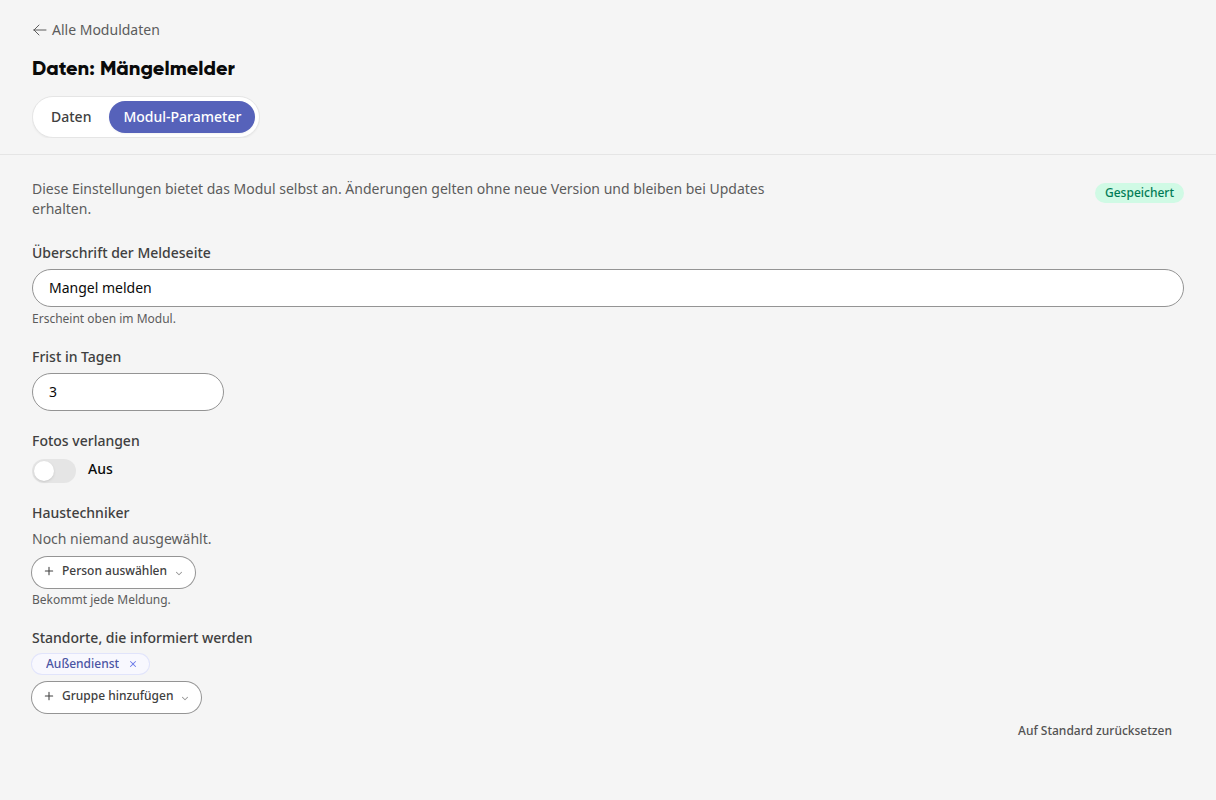
If you want to revert to the default value provided by the module, click Reset to Default and confirm the prompt with Reset. The value is saved immediately.
If someone currently has the module open, a message will appear there indicating that the settings have changed, with a Reload option. After that, the module will work with the new values.
Types of Settings#
Type |
What you enter |
Example |
|---|---|---|
Text |
a single line or a longer text |
Heading of the reporting page |
Number |
a number, often with a minimum and maximum value |
Deadline in days |
Switch |
On or Off |
Require photos |
Dropdown |
one entry from a list |
Default priority |
Color |
a color |
Header color |
Person |
exactly one person from the directory |
Building Technician |
People |
multiple people |
First responders |
Role |
exactly one role of the platform |
Team leader who approves reports |
Roles |
multiple roles |
Roles that can see all reports |
Group |
exactly one group |
Team that receives the schedule |
Groups |
multiple groups, maximum 50 |
Locations to be informed |
What People, Roles, and Groups Are Useful For#
Recipients: The module sends emails or reports to the entered person or to the members of an entered group, for example, an issue report as a PDF to the building technician. How this works is explained under How does a custom module send emails and PDFs?.
Responsibility: The module only shows steps like Approve or Completed to the entered people or the holders of the entered roles, for example, a two-stage approval by team leadership and management. Groups are not suitable for this, as they do not define responsibility.
Change without code: You simply enter new responsible parties. The module itself remains unchanged.
Warnung
If an entered person leaves the company or a role or group is deleted, they are removed from the setting. Then enter a new person, role, or group, otherwise the report will not reach anyone.
What You Should Know#
Settings belong to your installation. They do not create a new version of the module and are retained during updates.
Anyone who uses the module can read the values of the settings. Therefore, never enter passwords, access data, or other secrets.
Every change to a setting is recorded in the change log with the old and new values.
From an entered person, the module only learns the name, never the email address. From a group, it only learns the name, never the members.