
How do I maintain the providers behind the offers?
Updated Reading time: 2 min
A provider is the company or team behind one or more offers, for example a catering company, a bakery, or your own in-house service. With the provider, you store who to contact if you have questions.
Info
The system administration usually maintains providers. You can find them under Administration and then Organization › Catering, tab Offers, view Providers.
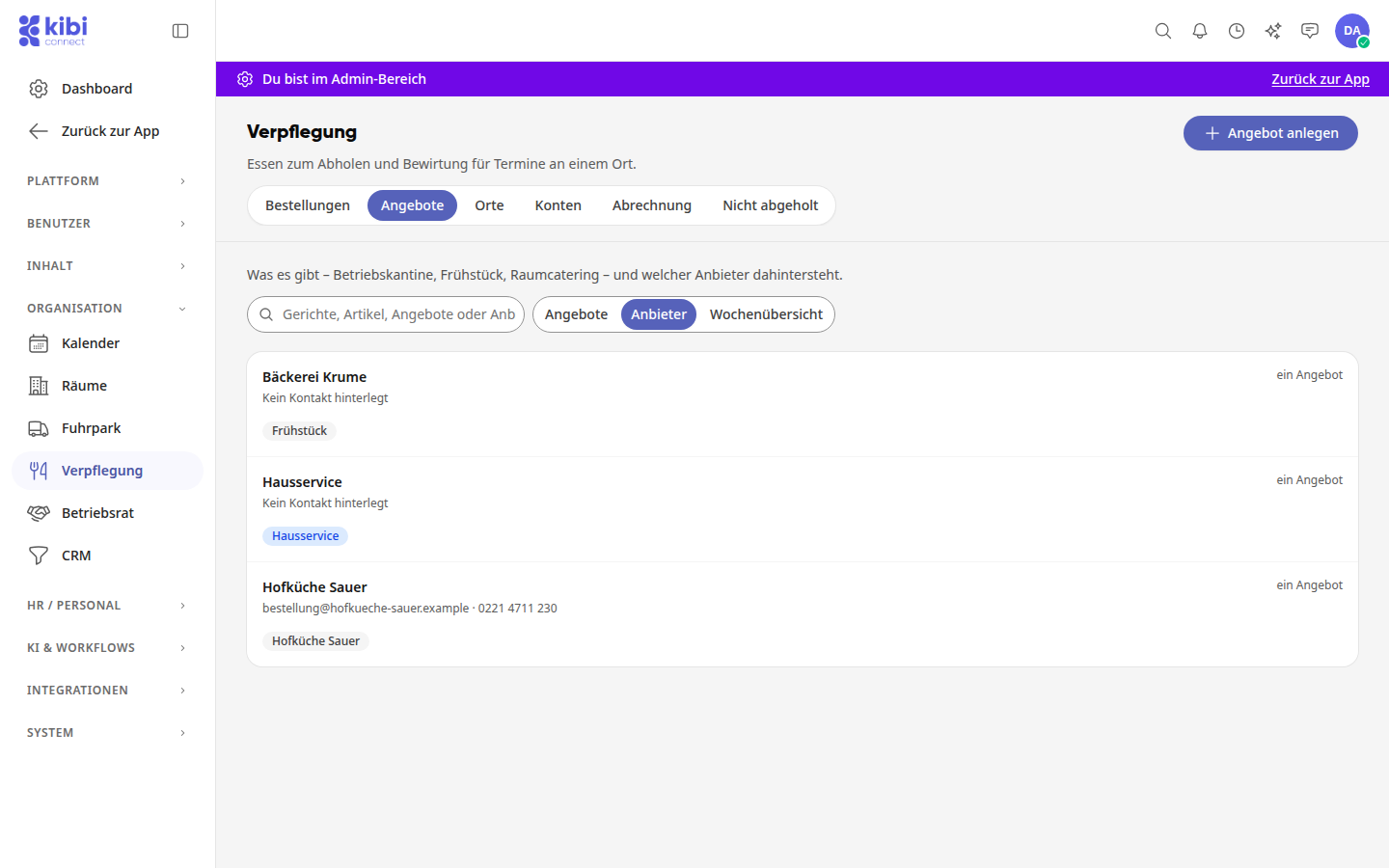
View the providers#
Open the Offers tab.
Select the Providers view at the top.
For each provider, you see the contact, how many offers they have, and the offers themselves. If a contact is missing, it will say No contact stored. Clicking on an offer opens its page.
Create a new provider#
A provider is created with its first offer.
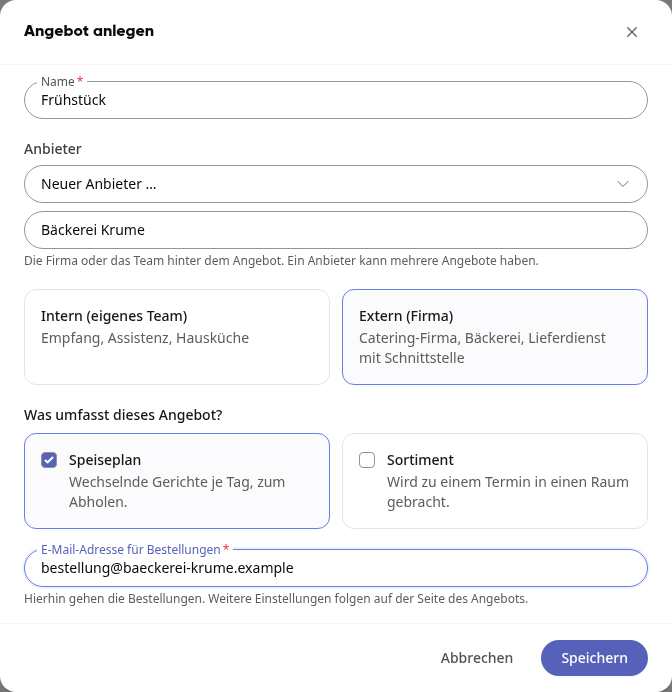
In the Offers tab, click Create offer in the top right.
Enter the Name of the offer, for example "Breakfast".
Under Provider, select New Provider... and enter the name of the new provider, for example "Bakery Krume". If the offer belongs to an existing provider, select it from the list instead.
Specify whether the offer is Internal (own team) or External (company), and what it includes. For External (company), enter the Email address for orders where the bulk order will be sent.
Click Save.
To change the provider of an existing offer, go to the offer's page, under the Settings tab, and select Provider.
Store a provider's contact#
In the Providers view, click on the provider.
Enter the Email and Phone, and under Note, for example, the contact person or delivery times. The note is only visible to the administration.
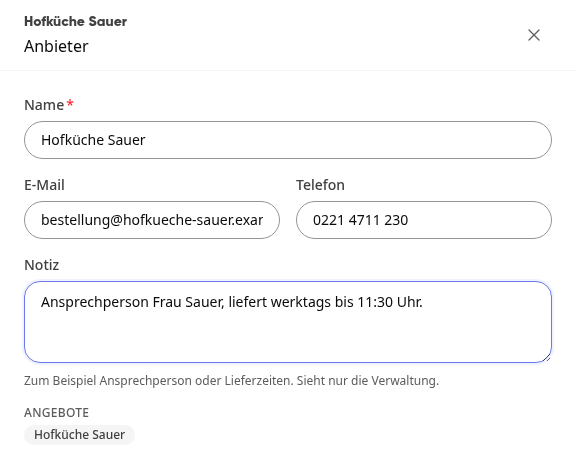
Click Save. The contact will then appear in the list under the name.
Info
This email address is the provider's contact. Where orders are sent is set per offer in its Settings.
Delete a provider#
Delete provider only appears in the provider's window if it no longer has any offers. First, reassign its offers to another provider in their Settings.