
How do I keep track of exams and deadlines in the vehicle fleet?
Updated Reading time: 4 min
On this page
Under Inspections, you will see all upcoming deadlines for your vehicles, adjust deadlines, record UVV inspections, workshop appointments, and training sessions, and check driver's licenses.
Info
This function is available to fleet managers. You can find it in the admin area: Click on Administration in the navigation, then under Organization click on Fleet > Inspections. Which tabs you see is determined by the system administration in the fleet settings.
Check and complete deadlines#
The Overview tab counts your appointments under Open, Overdue, Due soon, and OK. The Mandatory inspections list below shows HU/AU, maintenance, and insurance appointments per vehicle, with the most urgent at the top. If a deadline is also tied to a mileage reading, it appears below the date, for example "at 86,500 km · 417 km remaining".
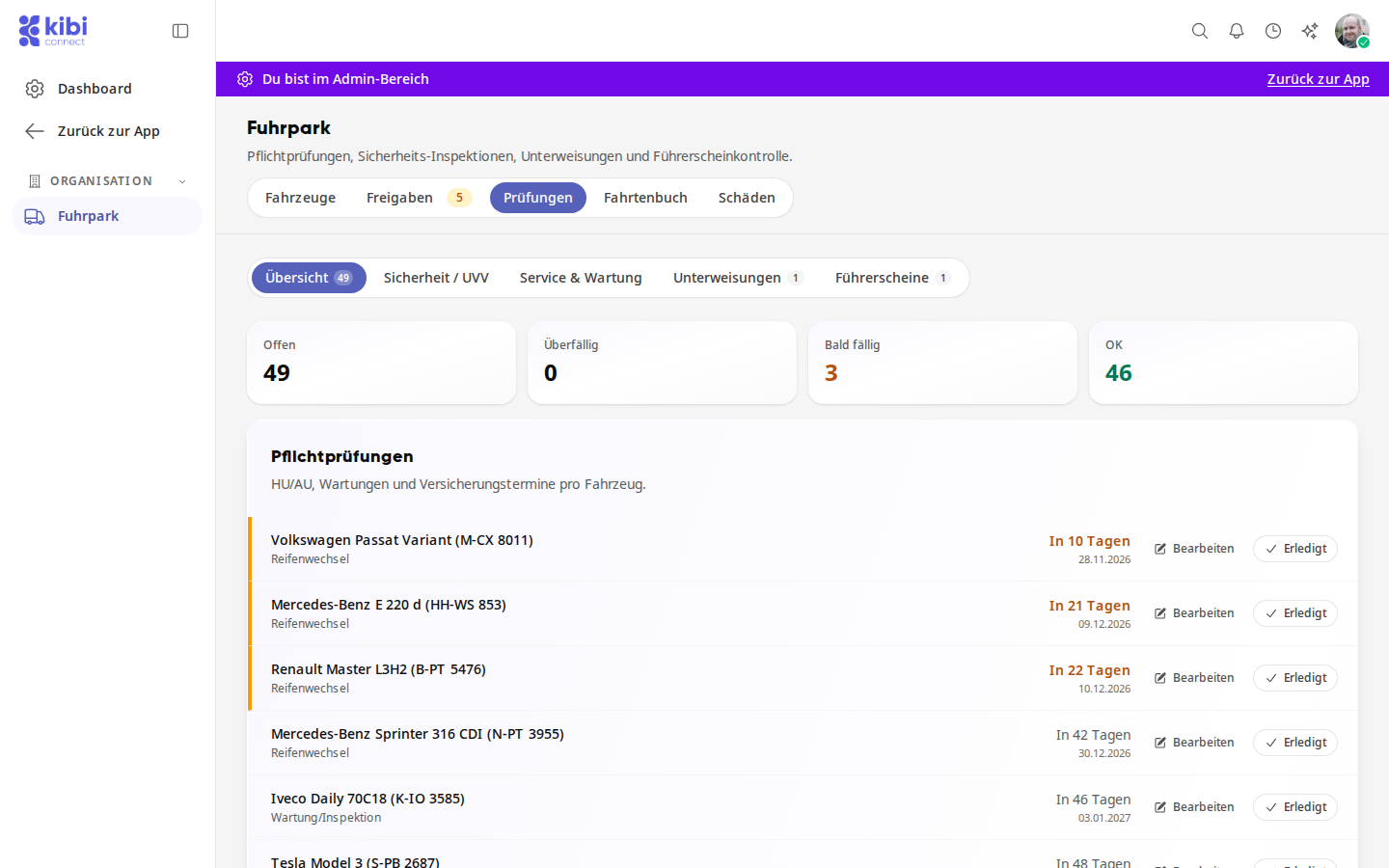
Click on Completed in the row of the appointment.
Check Performed on and add a note if needed.
Leave Create follow-up inspection enabled if the appointment recurs, and check the date under Next inspection on.
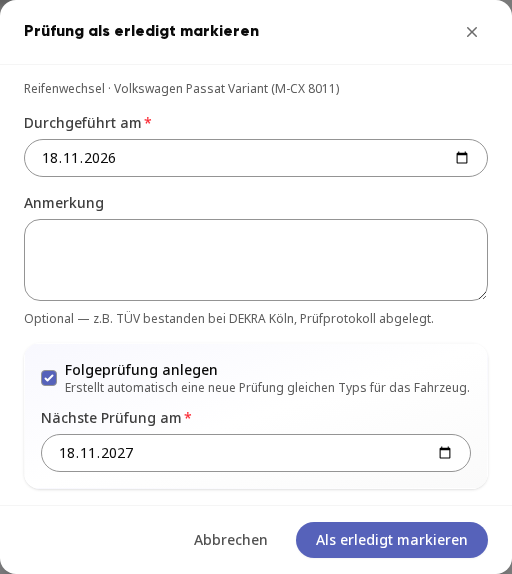
Click on Mark as completed.
Edit deadline#
If a date no longer fits, you can change the date and mileage directly in the list.
Click on Edit in the row of the appointment.
Change Due on.
If necessary, enter the mileage at which the deadline becomes due under Due at mileage. If you leave the field empty, only the date counts.
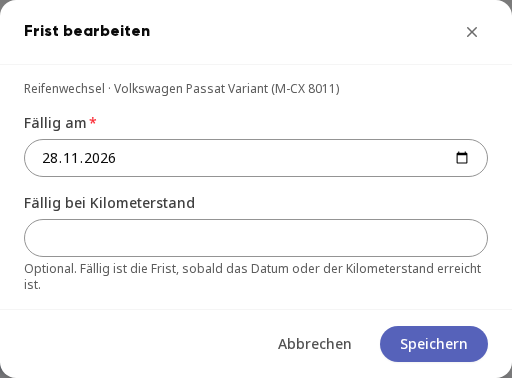
Click on Save.
The deadline is due as soon as the date or the mileage is reached. If fewer than 1,000 km are missing, it counts as Due soon, and from the entered mileage as Overdue.
Info
Reminders are also sent to those assigned to the deadline based on mileage: once when it is due soon, once when the mileage is exceeded, and then weekly.
Edit deadline as a task#
Each open deadline is associated with a task. It is assigned to fleet managers and system administrators and appears under Tasks in My Tasks for them.
In the Mandatory inspections list, click on the row of the deadline, not on Edit or Completed. The task opens. It shows the date under Due and the interval under Repeat. Belongs to leads to the deadline on the vehicle.
If necessary, change who handles it under Assigned. Reminders about the deadline go to the assigned persons.
Once the inspection is completed, set the task to Completed at the top right. The deadline then advances without needing the "Mark inspection as completed" window.
Under Activity, open the Series tab if you want to know what happens next. It shows when the next task is due and from when it appears.
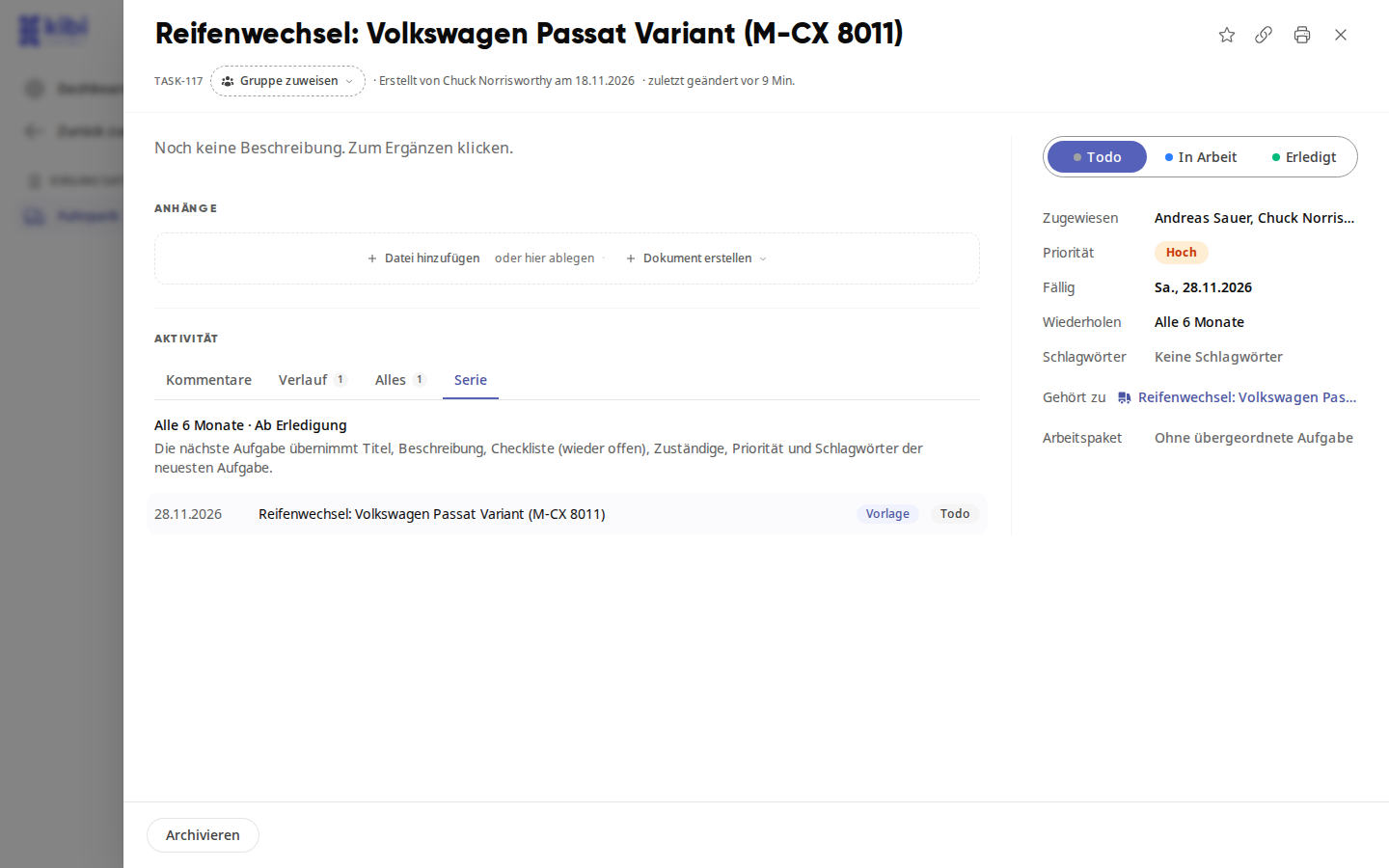
Recurring deadlines such as MOT/emissions test or tire change run From completion: The next date counts from the day you complete the task. One-time deadlines such as insurance expiry do not repeat.
Info
The task of a deadline cannot be deleted. If you delete the vehicle, its deadlines also end.
Record UVV inspection#
Open the Safety / UVV tab and click on Record new inspection.
Select the vehicle and enter the inspector (name or company) and inspection date.
Set OK, Defect, or N/A for each inspection point.
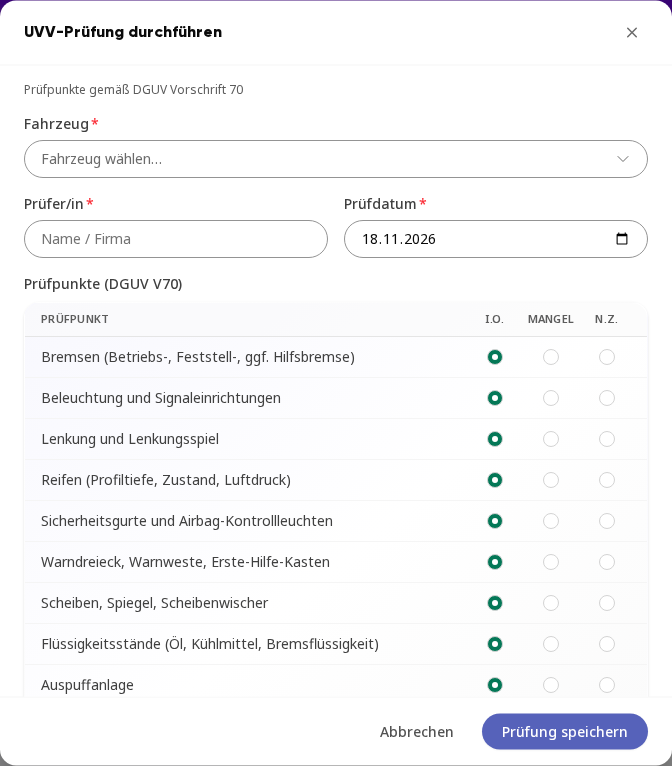
Click on Save inspection. The inspection appears in the list with date, inspector, result, and next due date.
Recording a workshop appointment#
Open the Service & Maintenance tab and click on Record service.
Select the vehicle and the date. You can also record an appointment retrospectively.
If necessary, enter the workshop and result / note and attach a PDF or photo up to 20 MB under report.
Turn on UVV was also checked if the UVV took place during the same appointment.
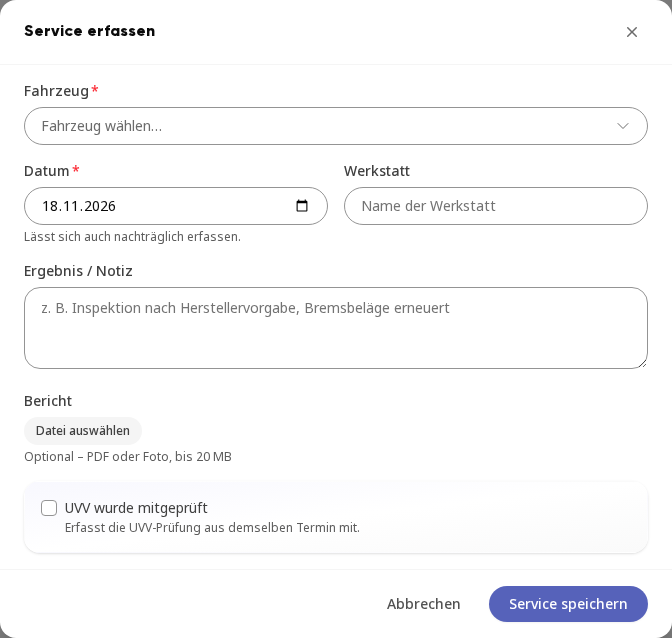
Click on Save service. The service deadline for the vehicle is then automatically extended. If maintenance every … km is entered for the vehicle, the next maintenance is also due at the current mileage plus this interval.
Check vehicle deadlines with Kai#
You can ask Kai whether a vehicle is ready for use for a period of time, for example: "Are the UVV, HU, and maintenance of the Sprinter still valid for the booking next week?" Kai checks the vehicle's open deadlines by date and mileage and tells you what has expired, is due within the period, or will be due soon.
You name the vehicle by license plate or name. If multiple vehicles match, Kai will ask.
If no deadline is stored for UVV, HU, or maintenance, Kai says that nothing is stored, not that everything is valid.
Kai only checks the inspections that are enabled in the fleet settings.
For your own agents, the tool is called Check vehicle deadlines (UVV, HU, maintenance).
Info
Only those who manage the fleet or have the right View deadlines & inspections can see deadlines. Those who only book vehicles will not see the deadlines either in the list or from Kai.
Check driving licenses#
The Driving licenses tab shows the Received driving license applications at the top, and below it All driving licenses with classes, next check, and status.
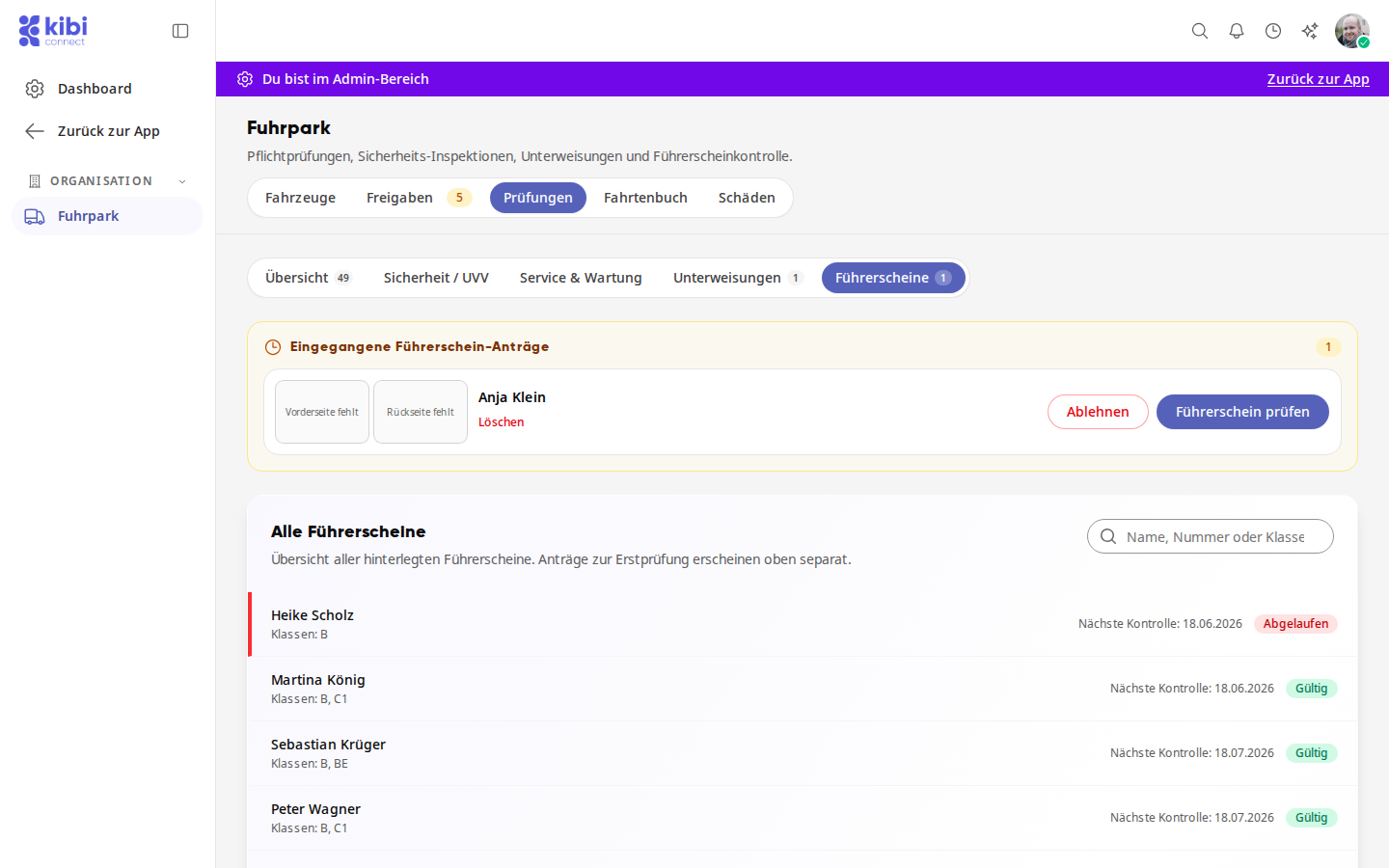
Click on Check driving license for the application.
Compare the photos with the driving license data and correct classes, driving license number, or Valid until if necessary.
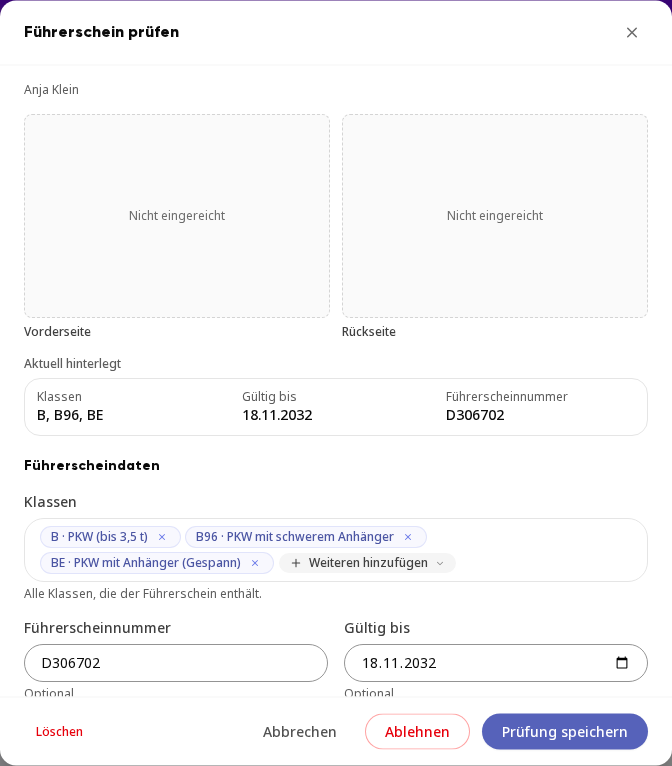
Under Check, select the method (Photo or In person) and the result (Valid, Invalid, or Expired).
Click on Save check.
Record instruction#
In the Instructions tab, you record who you instructed, when, and on which topics.
Open the Instructions tab and click on New instruction.
Under Person, click on Select person… and search for the person in the Search name… field. You will find all members of your team there.
Select the Type of instruction: Initial instruction, Annual, or Event-related, for example after an accident. Check the Date.
Under Instruction topics (EU/DGUV standard), check the topics covered or click on Select all. Add Notes if necessary.
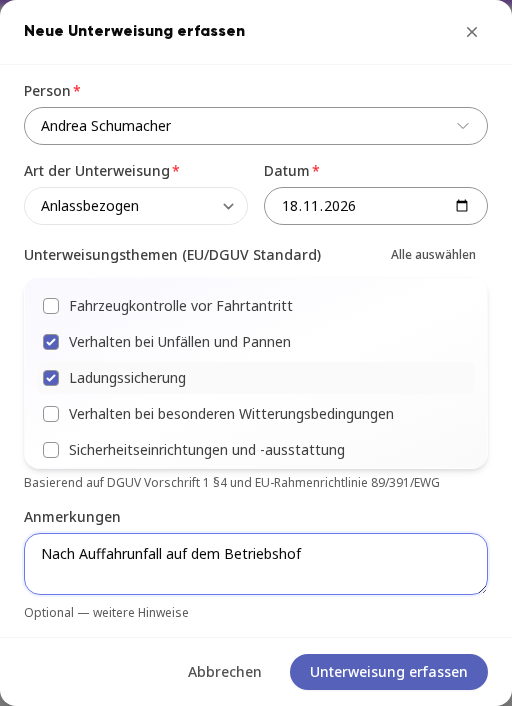
Click on Record instruction.
The instruction appears in the list with type, date, and topics. The person receives a notification and confirms the instruction themselves. Until then, it shows Pending, afterwards Confirmed.
